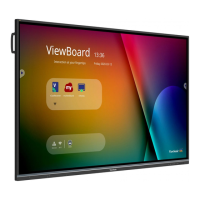
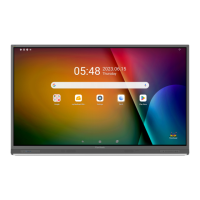
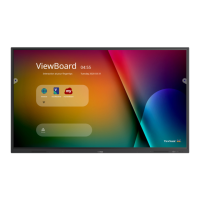
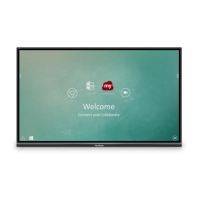
This document describes the ViewSonic IFP50 series Commercial Touch Display, outlining its package contents, wall mount specifications, control panel overview, terminal interface, remote control functions, external PC connections, RS232 connections, USB peripheral connections, HDMI connections, general settings, and various OSD settings including vPen, vBoard Annotation Software, vBoard Lite, ViewBoard Cast, ES File, and ES File Explorer.
Function Description
The ViewSonic IFP50 series Commercial Touch Display is a versatile interactive flat panel designed for commercial use. It serves as a central hub for presentations, collaboration, and content display, offering touch capabilities and a range of connectivity options. The display integrates an embedded player, allowing for standalone operation and content management without the need for an external PC. Its primary function is to facilitate interactive experiences in educational, corporate, and public environments.
The display supports various input sources, including VGA, HDMI, and DisplayPort, making it compatible with a wide array of devices such as PCs, set-top boxes, and DVD players. The touch functionality allows users to interact directly with the screen, enabling annotation, drawing, and navigation. The embedded player provides a platform for running applications, managing files, and accessing cloud services directly from the display.
Usage Features
Package Contents: The display comes with essential accessories for immediate use, including a VGA cable, four power cables, a remote control with two AAA batteries, a USB cable, an audio cable, an AV cable, three stylus pens, a user manual CD wizard, a quick start guide, an RS232 adapter, five clamps, a plate, and three screws. These items ensure that users have the necessary tools for setup and basic operation.
Control Panel Overview: The control panel, located on the display, offers intuitive buttons for basic operations. These include power on/off, display backlight control, navigation to the embedded player's main interface, returning to the previous level, calling up the function menu, volume adjustment (decrease/increase), and USB ports for the embedded player and internal PC. An infrared receiver allows for remote control operation.
Terminal Interface Overview: The display provides a comprehensive set of ports for connectivity. These include HDMI input functions for connecting to display devices, USB ports for the embedded player, high-definition multimedia interface signal input for PCs and other video devices, and touch signal outputs for external PCs (Touch 1 for HDMI IN 1 and 2; Touch 2 for HDMI IN 3, DP IN, and VGA IN). It also features DisplayPort output, external computer audio input, external computer image input, composite video and audio input, coaxial output, serial interface (RS232) for data transfer, audio output to external speakers, and a standard RJ45 (10M/100M/1G) Internet connection interface for the embedded player and slot-in PC. A power on/off switch and AC power input complete the interface.
Remote Control Functions: The remote control provides extensive functionality for managing the display. Users can power the display on/off, mute/unmute audio, display input source information, toggle blank screen mode, freeze the screen, input numeric values, switch between PC applications, adjust volume, close the current PC window, select input sources, capture screens, switch to slot-in PC desktop, access PC 'Backspace' and 'Windows' buttons, and navigate menus. Dedicated function buttons (F1-F12) are also available for specific Windows functions.
Connecting an External PC: The display is designed for easy integration with external PCs. Users can connect a VGA cable from the PC to the display's VGA IN port and an audio cable from the PC's AUDIO OUT port to the display's AUDIO IN port for video and sound. For touch functionality, a USB cable connects the PC to the display's TOUCH OUT port. HDMI connections are also supported for high-definition video and audio.
RS232 Connections: An RS232 serial port cable allows the display to connect to an external computer, enabling PC control over functions such as power on/off and volume adjustment. This feature is particularly useful for integrated control systems in commercial environments.
Connecting USB Peripherals: The display offers USB IN ports for connecting various USB devices. For network connectivity, a router cable can be plugged into the LAN IN port. A microphone can also be connected to the MIC port for audio input.
HDMI Connections: Multiple HDMI IN ports (HDMI IN 1 (2.0), HDMI IN 2 (1.4)) are available for connecting HDMI-enabled devices like DVD disc players, ensuring high-quality digital video and audio transmission.
General Setting: The general settings menu allows users to manage input sources (Embedded Player, HDMI1, HDMI2, HDMI3, DP, VGA, AV), adjust volume, control backlight, and enable flicker-free display for enhanced viewing comfort.
More OSD Settings: The On-Screen Display (OSD) provides detailed settings for audio, screen, display, and adjustment.
- Audio Setting: Users can adjust volume, bass, treble, and balance, and select audio modes like Standard, Movie, Meeting, and Class. A mute function is also available.
- Screen Setting: This section allows for picture-in-picture (PTP) mode, aspect ratio adjustments (4:3, 16:9, PTP), and other screen-related configurations.
- Display Setting: Brightness, contrast, hue, and sharpness can be fine-tuned. Color temperature options include Warm, Standard, and Cold, along with a filter setting.
- Adjust Setting: This includes horizontal and vertical position adjustments, clock, phase, and an auto-adjustment feature for optimal display.
vPen: The vPen feature enables on-screen annotation. By placing two fingers on the screen for two seconds, users can activate the annotation menu. This menu allows for drawing, highlighting, and other interactive actions. The floating pen can be moved around the screen, and its sub-points can be shown/hidden.
vBoard Annotation Software: This software provides a comprehensive suite of annotation tools.
- File Management: Users can create new files, open existing ones, and save annotations.
- Navigation: Options to return to the launcher, open settings dialogs, and open media/document files are available.
- Annotation Tools: Includes a pen tool with customizable color, thickness, transparency, and shape. Users can show/hide the grid and clock.
- Editing Tools: An eraser tool is available for removing annotations.
- Selection and View: Users can select objects on the board and reverse the toolbar.
- ViewBoard Cast Integration: Allows access to ViewBoard Cast for wireless screen sharing.
vBoard Lite: A simplified version of the annotation software, vBoard Lite offers essential tools for quick annotations.
- Menu and Exit: Access to a sub-menu and an option to exit vBoard Lite.
- Annotation Tools: Includes a pen tool with customizable type, color, and thickness. A watercolor tool is also available.
- Editing Tools: Eraser and "Clean all elements" functions.
- Page Management: Options to add new pages, navigate to previous/next pages, and display the current page number.
- Undo/Redo: Functions to cancel the last change and revert effects.
- Graphic Tool: Create graphics with customizable type, color, and thickness.
ViewBoard Cast: This feature enables wireless screen sharing, allowing users to cast content from their devices to the display. It provides a seamless way to collaborate and present information without physical connections.
ES File: The ES File application allows users to open files directly from Google Drive, integrating cloud storage with the display's file management capabilities.
ES File Explorer: This file management tool provides access to various storage locations, including network drives, cloud services (Box, SugarSync, DropBox, OneDrive, Gdrive, S3, Yandex, MegaCloud, Baidu NetDisk, MediaFire), and local storage. Users can enter submenus, access operation pages, add cloud accounts, and select cloud accounts to access files.
Maintenance Features
User Manual CD Wizard and Quick Start Guide: The inclusion of a user manual CD wizard and a quick start guide provides comprehensive instructions for setup, operation, and troubleshooting, helping users maintain the device effectively.
RS232 Adapter: The RS232 adapter facilitates remote control and management of the display via an external PC, which can be useful for diagnostics and system updates in a controlled environment.
Cloud Drive Integration: The ability to connect to cloud drives (e.g., Google Drive) allows users to save annotations and files directly to the cloud. This ensures data backup and easy access, reducing the risk of data loss and simplifying file management. Users can set up multiple accounts, designate default accounts, and choose whether to use default file names when saving.
Firmware Updates: While not explicitly detailed in the provided text, commercial touch displays typically support firmware updates to improve performance, add new features, and address security vulnerabilities. This is a common maintenance practice for such devices.
Cleaning and Care: Although not explicitly mentioned, the design of a commercial touch display implies that it is built for durability and ease of cleaning, which are essential for maintaining its appearance and functionality in high-traffic environments. The "Clean all elements" function in vBoard Lite suggests a focus on maintaining a clear workspace.
Troubleshooting: The user manual and quick start guide would contain troubleshooting steps for common issues, empowering users to resolve minor problems independently and minimize downtime.
In summary, the ViewSonic IFP50 series Commercial Touch Display is a robust and feature-rich device designed for interactive and collaborative environments. Its extensive connectivity options, intuitive control mechanisms, and integrated software suite make it a powerful tool for various commercial applications. The focus on user-friendly interfaces and comprehensive documentation supports both its daily usage and long-term maintenance.


 To Next Page
 General