How to improve poor picture quality on ViewSonic IFP6550?
- SsusansantanaSep 4, 2025
To improve a poor picture on your ViewSonic Monitor, adjust chroma, brightness, and contrast settings in the menu. Also, check the signal cable.
How to improve poor picture quality on ViewSonic IFP6550?
To improve a poor picture on your ViewSonic Monitor, adjust chroma, brightness, and contrast settings in the menu. Also, check the signal cable.
Why is sound only coming from one speaker on my ViewSonic IFP6550 Monitor?
If sound is only coming from one speaker on your ViewSonic Monitor, adjust the sound balance in the menu. Also, check the sound control panel settings of the computer and the audio cable.
Why is the remote control not working on my ViewSonic Monitor?
If the remote control for your ViewSonic Monitor is not working, check whether something is obstructing the display’s remote control receiver. Also, verify that the batteries in the remote control are installed correctly, and replace them if needed.
Why is there only one speaker working on my ViewSonic Monitor?
If only one speaker is working on your ViewSonic Monitor, adjust the sound balance in the menu. Also, check the sound control panel settings of the computer and the audio cable.
How to resolve false color on ViewSonic IFP6550 Monitor?
To resolve false color issues on your ViewSonic Monitor, check the VGA connection. Also, adjust chroma, brightness, and contrast settings.
What to do if ViewSonic Monitor remote control is out of order?
If the remote control for your ViewSonic Monitor is not working, check whether something is obstructing the display’s remote control receiver. Also, check whether the batteries in the remote control are installed correctly and whether the batteries need to be replaced.
What to do if my ViewSonic IFP6550 shows unsupported format?
To resolve an unsupported format issue on your ViewSonic Monitor, choose auto adjust. If that doesn't work, adjust clock and phase settings.
Why is the picture trembling on my ViewSonic Monitor?
If the picture on your ViewSonic Monitor is trembling, check the signal cable. Also, check if other electronics are interrupting the signal.
What to do if the touch function does not work on ViewSonic Monitor?
If the touch function is not working on your ViewSonic Monitor, check that the drivers are installed correctly. If not, reinstall the driver. Also, check the setup and align it. Finally, check whether the touch pen is working properly.
Why does my ViewSonic IFP6550 Monitor turn off unexpectedly?
If your ViewSonic Monitor turns off unexpectedly, check whether Sleep mode is enabled. Also, check if there is a power outage in your area. You can also turn on the display and see if the problem is with the signal and control system.
Statement regarding FCC compliance rules and operation conditions.
Important safety precautions and warnings for using the product.
Explains the function of each button on the device's control panel.
Details the various input/output ports and their functions on the device.
Identifies and describes the function of each button on the remote control.
Guides on connecting external devices like PCs via VGA or HDMI.
Instructions for connecting USB devices, networking cables, and microphones.
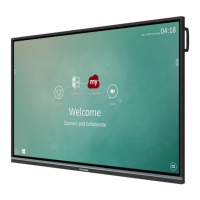
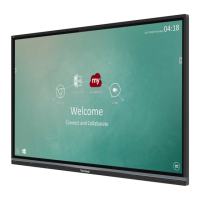
Describes the customizable welcome screen and its features.
Explains the icons and functions of the ViewBoard tool bar.
Explains how to access and use the On-Screen Display menu for settings.
Guides on configuring Wi-Fi, Ethernet, and Bluetooth connections for the device.
Introduces the digital whiteboard application and its features.
Describes the wireless screen sharing feature for casting content.
Interactive teaching tool for classroom quizzes and polls with up to 30 users.
Troubleshooting steps for problems with the remote control.
Steps to diagnose and resolve unexpected unit power-offs.
Outlines the terms and conditions of the limited warranty provided by ViewSonic.
Specific warranty coverage details for products sold in Mexico.
| Product color | Black |
|---|---|
| Product design | Digital signage flat panel |
| Placement supported | Indoor/outdoor |
| Panel mounting interface | 400 x 600 mm |
| Panel life | - h |
| Pixel pitch | - mm |
| Response time | 8 ms |
| Display diagonal | 65 \ |
| Touch technology | Multi-touch |
| Display brightness | 350 cd/m² |
| Display technology | LED |
| Native aspect ratio | 16:9 |
| Contrast ratio (typical) | 1200:1 |
| Display number of colors | - |
| Internal memory | 2 GB |
| Processor cores | 4 |
| Processor model | A53 |
| Processor family | ARM Cortex |
| Processor frequency | 1.2 GHz |
| Internal storage capacity | 16 GB |
| Operating system installed | Android 5.1 |
| USB version | 2.0/3.2 Gen 1 (3.1 Gen 1) |
| USB ports quantity | 6 |
| HDMI ports quantity | 3 |
| Ethernet LAN data rates | 10, 100 Mbit/s |
| VGA (D-Sub) input ports | 1 |
| RMS rated power | 32 W |
| Number of built-in speakers | 2 |
| AC input voltage | 100 - 240 V |
| Power consumption (standby) | 0.5 W |
| Power consumption (typical) | 350 W |
| Operating temperature (T-T) | 0 - 40 °C |
| Operating relative humidity (H-H) | 10 - 90 % |
| Package depth | 220 mm |
| Package width | 1697 mm |
| Package height | 1071 mm |
| Package weight | 60001 g |
| Sustainability certificates | RoHS, ENERGY STAR |
| Certification | cTUVus, FCC, Mexico Energy, CE, CB, ErP, WEEE |
| Depth | 99 mm |
|---|---|
| Width | 1521 mm |
| Height | 992 mm |
| Weight | 47000 g |


Loading...