EasyManua.ls Logo

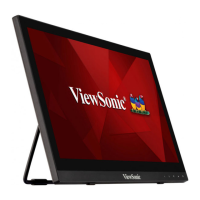
ViewSonic TD1655 - User Manual

ViewSonic TD1655
47 pages
Print Icon
To Next Page IconTo Next Page
Loading...
TD1655
Display
User Guide
Model No. VS18170
P/N: TD1655
IMPORTANT: Please read this User Guide to obtain important information on installing and using your product in
a safe manner, as well as registering your product for future service. Warranty information contained in this User
Guide will describe your limited coverage from ViewSonic® Corporation, which is also found on our web site at
http://www.viewsonic.com in English, or in specific languages using the Regional selection box in the upper right
corner of our website. “Antes de operar su equipo lea cu idadosamente las instrucciones en este manual”

Questions and Answers

  • K
    Kayla KrauseAug 19, 2025
    Why is there no power on my ViewSonic TD1655?
    • A
      Alexandra CrawfordAug 19, 2025
      First, ensure the monitor is turned on using the power button. Then, check that the power cord is securely connected to both the monitor and the power outlet. To verify the outlet is working, plug another electrical device into it.
  • J
    juanjonesAug 21, 2025
    What to do if my ViewSonic Monitor power is on but there is no image?
    • R
      richardsoncodyAug 21, 2025
      Check that the video cable connecting your monitor to the computer is properly connected. Also, adjust the brightness and contrast settings. Finally, ensure the correct input source is selected.
  • Z
    Zachary RamosAug 23, 2025
    Why are the colors wrong on my ViewSonic Monitor?
    • C
      Christina AdamsAug 25, 2025
      If you notice missing colors like red, green, or blue, inspect the video cable to ensure it's properly and securely connected. Loose or broken pins in the cable connector could cause an improper connection. You can also connect the monitor to another computer to test it.
  • R
    Robert ButlerAug 26, 2025
    What to do if the screen image is too light or dark on ViewSonic Monitor?
    • N
      nathan71Aug 26, 2025
      Adjust the brightness and contrast settings using the OSD Menu. If that doesn't work, try resetting the monitor to its factory settings.
  • K
    Katherine HansenAug 28, 2025
    Why does my ViewSonic TD1655 Monitor screen image cut in and out?
    • S
      Shannon WestAug 28, 2025
      Ensure that the correct input source is selected. Check the video cable connector for bent or broken pins, as these can cause a bad connection. Also, verify the video cable connecting the monitor to the computer is properly and securely connected.
  • J
    julie98Aug 30, 2025
    How to fix a blurred screen image on ViewSonic Monitor?
    • T
      Tiffany MarshAug 30, 2025
      Adjust the resolution to the correct Aspect Ratio. If the issue persists, reset the monitor to its factory settings.
  • B
    Brooke PatelSep 1, 2025
    What to do if the screen isn’t centered correctly on ViewSonic TD1655?
    • D
      Donald AdkinsSep 1, 2025
      Adjust the horizontal and vertical controls via the OSD Menu. Check the Aspect Ratio. If problems persist, reset the monitor to factory settings.
  • D
    Daniel DavisSep 3, 2025
    Why does my ViewSonic Monitor screen appear yellow?
    • D
      Donna DurhamSep 3, 2025
      Make sure the 'Blue Light Filter' is turned Off.
  • G
    Gabriel OlsenSep 5, 2025
    What to do if the OSD Menu does not appear on my ViewSonic TD1655?
    • K
      Katie SavageSep 5, 2025
      First, check if the OSD Menu is locked. If it is, press and hold the 3 and 5 keys for 10 seconds. If that doesn't work, turn off the monitor, unplug the power cord, plug it back in, and then turn the monitor back on. As a last resort, try resetting the monitor to factory settings.
  • I
    isandersSep 7, 2025
    What to do if control panel keys do not work on ViewSonic TD1655?
    • A
      Andrea DaySep 7, 2025
      Ensure you are pressing only one key at a time. If the problem continues, restart the computer.

Summary

Safety Precautions

Introduction

Package Contents

Lists all items included in the product package.

Product Overview

Details the physical layout and ports of the display.

Initial Setup

Installing the Cover

Instructions for attaching the protective cover to the device.

Using the Cover and Stand

Guide on how to use the included cover as a stand.

Making Connections

Connecting to Power

Explains the different configurations for powering the monitor.

Connecting External Devices and Touch Connection

Details how to connect external devices via Type C and Mini HDMI.

Touch Function Control

Information on using and calibrating the touchscreen functionality.

Power Delivery

Explains how the monitor can power connected notebooks or phones.

Power Delivery - Further Information

Additional details and notes on power delivery configurations and limitations.

Using the Monitor

Adjusting the Viewing Angle

Instructions on how to adjust the monitor's tilt angle using the stand.

Turning the Device On;Off

Steps to power the monitor on and off.

Using the Control Panel Joy Key

Guide on using the joy key for menu navigation and settings.

Quick Menu

How to access and use the quick menu for common adjustments.

Hot Keys

Explains special functions accessed via control panel keys.

Configuring the Settings

General Operations

Step-by-step guide to navigating and changing monitor settings via OSD.

Appendix

Specifications

Detailed technical specifications of the monitor.

Glossary

Definitions of technical terms used in the manual.

Troubleshooting

Common problems and their solutions for the monitor.

Maintenance

Guidelines for cleaning and general care of the monitor.

Regulatory and Service Information

Compliance statements and service contact information.

ViewSonic TD1655 Specifications

General IconGeneral
Colorsilver
Screen Typeled
Tiltableyes
Touch Screenno
Webcamno
OS Compatibilitynot applicable
Screen Size15.6 inches
Panel Typeips
Aspect Ratio16:9
Resolution1920 x 1080
Native Resolution1920 x 1080
Refresh Rate60hz
Horizontal Viewing Angle178 degrees
Vertical Viewing Angle178 degrees
Response Time6.5 milliseconds
Brightness250 candela per square meter
Contrast Ratio50, 000, 000:1
Synchronizationnot applicable
Horizontal Scan Rate82 kilohertz
HDRno
Built-In Speakersyes
HDMI Ports1
Headphones Outputyes
Voice Assistantno
Power Saving Mode0.3 watts
Power Consumption10.5 watts
Depth with Stand0.6 inches
Height with Stand8.8 inches
Width with Stand14 inches
Depth without Stand0.6 inches
Height without Stand8 4/5 inches
Net Weight without Stand2.2 pounds

Related product manuals