EasyManua.ls Logo

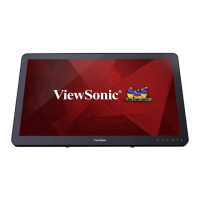
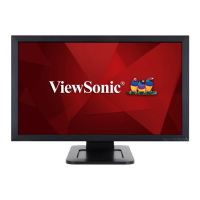
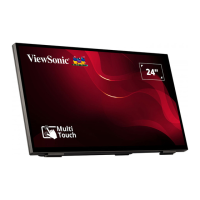
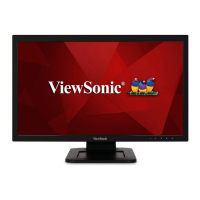
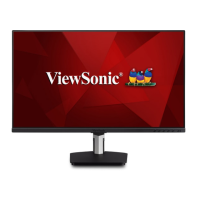
ViewSonic TD2455 - User Manual

ViewSonic TD2455
63 pages
Print Icon
To Next Page IconTo Next Page
Loading...
TD2455
Display
User Guide
Model No. VS17978
P/N: TD2455
IMPORTANT: Please read this User Guide to obtain important information on installing and using your product in
a safe manner, as well as registering your product for future service. Warranty information contained in this User
Guide will describe your limited coverage from ViewSonic® Corporation, which is also found on our web site at
http://www.viewsonic.com in English, or in specific languages using the Regional selection box in the upper right
corner of our website. “Antes de operar su equipo lea cu idadosamente las instrucciones en este manual”

Questions and Answers

  • P
    peter97Aug 21, 2025
    How do I adjust the brightness on my ViewSonic TD2455 if the screen is too light or dark?
    • B
      Bill AndersonAug 21, 2025
      Adjust the brightness and contrast settings via the OSD Menu. If that doesn't work, reset the monitor to factory settings.
  • T
    Tony GilesAug 25, 2025
    What to do if my ViewSonic TD2455 has power but no image?
    • K
      Kathleen DuranAug 25, 2025
      Make sure the video cable connecting your ViewSonic monitor to the computer is properly and securely connected. Also, adjust the brightness and contrast settings. Lastly, ensure the correct input source is selected.
  • J
    Jessica BruceAug 26, 2025
    Why does the screen image cut in and out on my ViewSonic TD2455 Monitor?
    • C
      Crystal HunterAug 26, 2025
      Ensure the correct input source is selected. Check for bent or broken pins in the video cable connector. Also, make sure the video cable connecting the monitor to the computer is properly and securely connected.
  • A
    ashley23Aug 28, 2025
    Why are the colors wrong on my ViewSonic monitor?
    • T
      Thomas GloverAug 28, 2025
      If any colors (red, green, or blue) are missing, check the video cable to make sure it is properly and securely connected. Loose or broken pins in the cable connector could cause an improper connection. You can also connect the monitor to another computer.
  • Q
    qjonesAug 30, 2025
    How do I fix a blurred screen image on my ViewSonic TD2455?
    • C
      Crystal Smith DDSAug 30, 2025
      Adjust the resolution to the correct Aspect Ratio. If the image is still blurred, reset the monitor to factory settings.
  • J
    james77Sep 1, 2025
    Why is there no image on my ViewSonic TD2455 when an external device is connected?
    • J
      jasminegreenSep 1, 2025
      Ensure the power is on. Adjust brightness and contrast via the OSD Menu. Check the connecting cable and make sure it is properly and securely connected; loose or broken pins in the cable connector could cause an improper connection.
  • S
    sfullerSep 3, 2025
    How to troubleshoot no audio output on ViewSonic TD2455?
    • P
      pmathisSep 3, 2025
      If you're using headphones, make sure the mini stereo jack is connected. Also, ensure the volume is not muted or set to 0. Finally, check the Audio Input setting.
  • K
    katelyn46Sep 5, 2025
    Why are my USB devices not working when connected to my ViewSonic TD2455?
    • K
      Kelsey FrederickSep 6, 2025
      First, make sure the USB cable is connected properly. If that doesn't work, try changing to another USB port. Some USB devices require a higher electric current; connect the device directly to the computer.
  • F
    Franklin JonesSep 7, 2025
    What to do if the OSD Menu is not appearing on my ViewSonic monitor?
    • P
      Patricia FordSep 7, 2025
      Check whether the OSD Menu is locked. If it is, press and hold the 2 and 3 key for 10 seconds. If that doesn't work, turn off the monitor, unplug the power cord, plug it back in, and then turn on the monitor. As a last resort, reset the monitor to factory settings.
  • A
    Andre PetersonSep 9, 2025
    How to center the screen correctly on my ViewSonic TD2455?
    • A
      Allen CoxSep 10, 2025
      Adjust the horizontal and vertical controls via the OSD Menu. Check the Aspect Ratio. If that doesn't work, reset the monitor to factory settings.

Summary

Safety Precautions

Initial Setup

Installing the Stand

Step-by-step instructions for attaching the monitor stand.

Wall Mounting

Guides on how to mount the monitor to a wall using VESA standards.

Making Connections

Connecting to Power

Details the steps for connecting the monitor to a power source.

HDMI Connection

Instructions for connecting the monitor using an HDMI cable.

DisplayPort Connection

Instructions for connecting the monitor using a DisplayPort cable.

Using the Monitor

Configuring OSD Settings

Guides on navigating and changing monitor settings via the OSD menu.

Appendix

Troubleshooting

Offers solutions to common problems encountered while using the monitor.

ViewSonic TD2455 Specifications

General IconGeneral
Colorblack
Screen Typeled
Tiltableyes
Touch Screenyes
Webcamno
OS Compatibilitychrome, linux, mac, windows
Screen Size24 inches
Panel Typeips
Aspect Ratio16:9
Resolution1920 x 1080
Native Resolution1920 x 1080
Refresh Rate60hz
Horizontal Viewing Angle178 degrees
Vertical Viewing Angle178 degrees
Response Time14 milliseconds
Brightness250 candela per square meter
Contrast Ratio1000:1
Synchronizationvsync
HDRno
Built-In Speakersyes
HDMI Ports1
USB Type B Ports1
Display Port Inputs1
Depth with Stand11.3 inches
Height with Stand16.8 inches
Width with Stand21.2 inches
Depth without Stand2 inches
Height without Stand12.6 inches
Net Weight without Stand14.2 pounds

Related product manuals