EasyManua.ls Logo

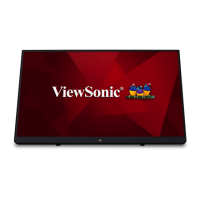
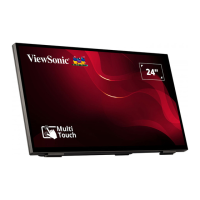
ViewSonic TD2465 - User Manual

ViewSonic TD2465
57 pages
Print Icon
To Next Page IconTo Next Page
Loading...
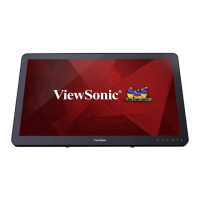
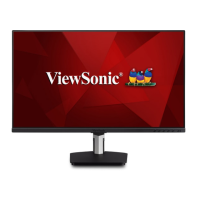
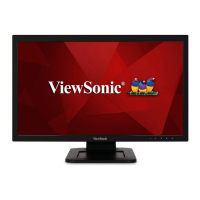
TD2465
Display
User Guide
Model No. VS19150
P/N: TD2465
IMPORTANT: Please read this User Guide to obtain important information on installing and using your product in
a safe manner, as well as registering your product for future service. Warranty information contained in this User
Guide will describe your limited coverage from ViewSonic® Corporation, which is also found on our web site at
http://www.viewsonic.com in English, or in specific languages using the Regional selection box in the upper right
corner of our website.

Other manuals for ViewSonic TD2465

Questions and Answers

  • Z
    zcontrerasAug 18, 2025
    How to fix a ViewSonic TD2465 that has no power?
    • D
      Desiree DaughertyAug 18, 2025
      If your ViewSonic Monitor isn't powering on, ensure it's turned on using the Power button. Check that the power cord is securely connected to both the monitor and the power outlet. To verify the outlet is working, plug another electrical device into it.
  • P
    perezlisaAug 21, 2025
    How to adjust brightness on ViewSonic TD2465 Monitor?
    • O
      omillerAug 21, 2025
      If the screen image on your ViewSonic Monitor is too light or dark, adjust the brightness and contrast settings via the OSD Menu. Alternatively, reset the monitor to factory settings.
  • K
    kendragonzalezAug 23, 2025
    What to do if my ViewSonic TD2465 Monitor has power but no image?
    • M
      melissa20Aug 23, 2025
      If your ViewSonic Monitor has power but no image, make sure the video cable connecting it to the computer is properly connected. Also, adjust the brightness and contrast settings, and ensure the correct input source is selected.
  • M
    Mary DiazAug 26, 2025
    Why does the screen image cut in and out on my ViewSonic Monitor?
    • M
      mwhiteAug 26, 2025
      If the screen image on your ViewSonic Monitor cuts in and out, ensure the correct input source is selected. Check the video cable connector for bent or broken pins, which could cause a bad connection. Also, make sure the video cable connecting the monitor to the computer is properly and securely connected.
  • J
    Jacob WalshAug 27, 2025
    Why are the colors wrong on my ViewSonic Monitor?
    • M
      Michael FreyAug 28, 2025
      If your ViewSonic Monitor displays wrong or abnormal colors, and any colors (red, green, or blue) are missing, check the video cable to ensure it is properly and securely connected, as loose or broken pins in the cable connector could cause an improper connection. You can also connect the monitor to another computer to test it.
  • B
    Brian BrownAug 30, 2025
    What to do if external device connected to ViewSonic Monitor has no image?
    • K
      ksullivanAug 30, 2025
      If an external device is connected to your ViewSonic Monitor but no image appears, ensure the power is on. Adjust brightness and contrast via the OSD Menu. Check the connecting cable and make sure it is properly and securely connected, as loose or broken pins in the cable connector could cause an improper connection.
  • C
    Corey TaylorSep 1, 2025
    How do I fix a blurred screen image on my ViewSonic Monitor?
    • M
      mariamartinezSep 2, 2025
      If the screen image on your ViewSonic Monitor is blurred, adjust the resolution to the correct Aspect Ratio. You can also try resetting the monitor to factory settings.
  • S
    Steve GarnerSep 4, 2025
    How do I center the screen on my ViewSonic TD2465?
    • J
      Jesse WagnerSep 4, 2025
      If the screen on your ViewSonic Monitor isn’t centered correctly, adjust the horizontal and vertical controls via the OSD Menu. Also, check the Aspect Ratio and try resetting the monitor to factory settings.
  • J
    Jeffrey ChapmanSep 6, 2025
    How to unlock OSD menu on ViewSonic Monitor?
    • D
      Dawn FernandezSep 6, 2025
      If the OSD Menu does not appear or the OSD controls are inaccessible on your ViewSonic Monitor, check whether the OSD Menu is locked. You can also try turning off the monitor, unplugging the power cord, plugging it back in, and then turning on the monitor. Resetting the monitor to factory settings may also resolve this issue.
  • M
    Meredith StewartSep 8, 2025
    Why is there no audio output from my ViewSonic TD2465 Monitor?
    • B
      benjamin21Sep 8, 2025
      If there is no audio output from your ViewSonic Monitor, ensure the mini stereo jack is connected if you are using ear-/headphones. Make sure the volume is not muted, nor set to 0. Also, check the Audio Input setting.

Summary

Safety Precautions

Introduction

Package Contents

Lists items included in the product package.

Product Overview

Details the front and rear views of the monitor and its ports.

Initial Setup

Adjusting the Stand

Instructions for adjusting the monitor's stand for proper positioning.

Stand Installation

Steps for attaching the monitor stand to the display.

Wall Mounting

Guidelines and dimensions for mounting the monitor on a wall.

Using the Security Slot

How to use a security slot to prevent theft or falling.

Making Connections

Connecting to Power

Steps to connect the monitor to a power source.

DisplayPort Connection

How to connect the monitor using a DisplayPort cable.

HDMI Connection

How to connect the monitor using an HDMI cable.

VGA Connection

How to connect the monitor using a VGA cable.

USB Connection

How to connect USB devices for data transfer and touch functionality.

Audio Connection

How to connect audio devices for input and output.

Touch Function Control

Using the Monitor

Adjusting the Viewing Angle

Instructions on how to adjust the monitor's tilt angle.

Turning the Device On;Off

Steps for powering the monitor on and off.

Using the Control Panel Keys

Explanation of how to use the monitor's control panel buttons.

On-Screen Display (OSD) Menu

Guide to navigating and using the OSD menu options.

Hot Keys

Describes special functions accessible via key combinations.

Configuring the Settings

General Operations

Explains general procedures for navigating menus and adjusting settings.

On-Screen Display (OSD) Menu Tree

Provides a detailed breakdown of the OSD menu structure and options.

Touch Screen Modes - Additional Information

Appendix

Specifications

Technical specifications of the monitor, including display, input, and compatibility.

Glossary

Definitions of technical terms used in the manual.

Troubleshooting

Common problems and their possible solutions for monitor issues.

Maintenance

Instructions for cleaning and general care of the monitor.

Regulatory and Service Information

Compliance statements, warranty, and service contact details.

ViewSonic TD2465 Specifications

General IconGeneral
Panel life30000 h
RGB color spacesRGB
Display diagonal24 \
Surface hardness7H
Display brightness250 cd/m²
Display technologyLED
Maximum frame rate60 fps
Native aspect ratio16:9
Native refresh rate60 Hz
Contrast ratio (dynamic)20000000:1
Contrast ratio (typical)3000:1
Built-in processorNo
Operating system installed-
USB version3.2 Gen 1 (3.1 Gen 1)
HDMI version1.4
USB connector typeUSB Type-A, USB Type-B
USB ports quantity3
AC input voltage100 - 240 V
Energy efficiency scaleA to G
Power consumption (standby)0.5 W
Power consumption (typical)24 W
PurposeCommercial
Package depth426 mm
Package width647 mm
Package height138 mm
Package weight7200 g
Tilt angle20 °
RMS rated power4 W
Number of built-in speakers2
Operating temperature (T-T)0 - 40 °C
Operating relative humidity (H-H)20 - 90 %
Product colorBlack
Product designInteractive flat panel
Panel mounting interface100 x 100 mm
Weight and Dimensions IconWeight and Dimensions
Depth326 mm
Width550 mm
Height49 mm
Weight4700 g
Depth (with stand)401 mm
Height (with stand)198 mm
Weight (with stand)5700 g

Related product manuals