EasyManua.ls Logo

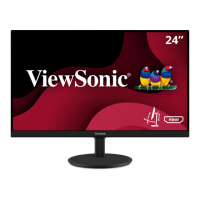
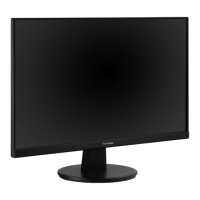
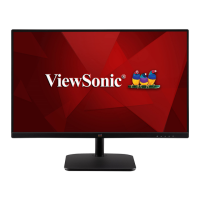
ViewSonic VA2432-mh - User Manual

ViewSonic VA2432-mh
47 pages
Print Icon
To Next Page IconTo Next Page
Loading...
VA2432-mh/-mhd
Display
User Guide
Model No. VS17789
P/N: VA2432-MH/VA2432-MH-W/VA2432-MHD/VA2432-MHD-2
IMPORTANT: Please read this User Guide to obtain important information on installing and using your product in
a safe manner, as well as registering your product for future service. Warranty information contained in this User
Guide will describe your limited coverage from ViewSonic® Corporation, which is also found on our web site at
http://www.viewsonic.com in English, or in specific languages using the Regional selection box in the upper right
corner of our website. “Antes de operar su equipo lea cu idadosamente las instrucciones en este manual”

Questions and Answers

  • T
    Thomas CooperSep 12, 2025
    How to unlock OSD Menu on ViewSonic VA2432-mh?
    • R
      Rachel LarsenSep 12, 2025
      If the OSD Menu does not appear on the screen or the OSD controls are inaccessible on your ViewSonic monitor, check whether the OSD Menu is locked. If it is, press and hold the 3 and 5 key for 10 seconds. You can also turn off the monitor, unplug the power cord, plug it back in, and then turn on the monitor. Resetting the monitor to factory settings is another option.
  • J
    Julie LeeAug 25, 2025
    What to do if ViewSonic VA2432-mh Monitor has power but no image?
    • S
      Samantha SandersAug 25, 2025
      If your ViewSonic Monitor has power but no image, first ensure the video cable connecting the monitor to the computer is properly and securely connected. If the issue persists, adjust the brightness and contrast settings. Also, make sure the correct input source is selected.
  • J
    Juan WigginsAug 25, 2025
    What to do if my ViewSonic VA2432-mh has power but no image?
    • S
      Sara SmithAug 26, 2025
      If your ViewSonic Monitor has power but displays no image, ensure the video cable connecting the monitor to the computer is properly and securely connected. Also, adjust the brightness and contrast settings. Finally, make sure the correct input source is selected.
  • M
    Melissa LewisSep 23, 2025
    What to do if the external device is connected, but no image appears on the screen of my ViewSonic VA2432-mh Monitor?
    • C
      Casey FullerSep 23, 2025
      Ensure the monitor's power is on. Adjust brightness and contrast via the OSD Menu. Check the connecting cable and make sure it is properly and securely connected.
  • K
    Kristen WoodsSep 12, 2025
    How to fix a blurred screen on ViewSonic VA2432-mh Monitor?
    • E
      ealvarezSep 12, 2025
      If your ViewSonic monitor screen image is blurred, adjust the resolution to the correct Aspect Ratio. Alternatively, reset the monitor to factory settings.
  • Y
    Yvette RobertsSep 18, 2025
    Why does the screen appear yellow on my ViewSonic VA2432-mh Monitor?
    • Y
      yvalenciaSep 18, 2025
      Make sure the “Blue Light Filter” is turned Off.
  • K
    Kaitlyn JonesSep 5, 2025
    How to resolve a screen image that is too light or dark on a ViewSonic VA2432-mh Monitor?
    • R
      Ruth JeffersonSep 6, 2025
      Adjust the brightness and contrast settings using the OSD Menu. If this doesn't resolve the issue, reset the monitor to its factory settings.
  • S
    Stacy BergSep 6, 2025
    What causes a ViewSonic VA2432-mh screen image to cut in and out?
    • J
      Jasmine YangSep 6, 2025
      Ensure the correct input source is selected. Inspect the video cable connector for bent or broken pins. Also, verify that the video cable connecting the monitor to the computer is properly and securely connected.
  • S
    Sean EdwardsSep 19, 2025
    What should I do if the OSD Menu does not appear on the screen or the OSD controls are inaccessible on my ViewSonic VA2432-mh?
    • P
      Paula GentrySep 22, 2025
      First, check whether the OSD Menu is locked. If it is not locked, turn off the monitor, unplug the power cord, plug it back in, and then turn on the monitor. If the problem persists, reset the monitor to factory settings.
  • J
    James JohnsonAug 30, 2025
    What causes the ViewSonic Monitor screen image to cut in and out?
    • J
      Joseph WilliamsAug 30, 2025
      If the screen image on your ViewSonic Monitor cuts in and out, ensure that the correct input source is selected. Check the video cable connector for bent or broken pins. Also, make sure the video cable connecting the monitor to the computer is properly and securely connected.

Summary

Safety Precautions

Initial Setup

Installing the Stand

Step-by-step guide for attaching the monitor stand.

Wall Mounting

Instructions and specifications for mounting the monitor on a wall.

Making Connections

Connecting to Power

Guide on how to connect the monitor to a power source.

Connecting External Devices - VA2432-mh

Illustrates connecting external devices to the VA2432-mh.

Connecting External Devices - VA2432-mhd

Illustrates connecting external devices to the VA2432-mhd.

Using the Monitor

Configuring the Settings

Guides on navigating and changing monitor settings via OSD.

Specifications

Troubleshooting

No power

Solutions for the monitor not turning on.

Power is On, but no image appears on screen

Troubleshooting steps when the screen remains blank.

Wrong or abnormal colors

Solutions for incorrect color display.

Screen image is too light or dark

How to adjust brightness and contrast for proper image display.

Screen image cuts in and out

Solutions for intermittent screen display issues.

Screen image is blurred

Steps to resolve a blurry screen image.

The screen isnt centered correctly

How to center the screen image using OSD controls.

The screen appears yellow

Solutions for a yellow tint on the screen.

The OSD Menu does not appear on the screen;the OSD controls are inaccessible

Troubleshooting steps for inaccessible OSD menu or controls.

Control panel keys do not work

Solutions when the monitor's control buttons are unresponsive.

Some menus arent selectable in the OSD

How to resolve unselectable OSD menu items.

No audio output

Steps to fix issues with no sound from the monitor.

The monitor will not adjust

Solutions for when monitor settings cannot be adjusted.

USB devices connected to the monitor do not work

Troubleshooting for non-functional USB devices.

The external device is connected, but no image appears on the screen

Solutions for no image from a connected external device.

Maintenance

Limited Warranty

Mexico Limited Warranty

ViewSonic VA2432-mh Specifications

General IconGeneral
Panel TypeIPS
Refresh Rate75 Hz
Brightness250 cd/m²
Contrast Ratio1000:1
ConnectivityHDMI, VGA
VESA Mount Compatibility100 x 100 mm
Dynamic Contrast Ratio20M:1
Aspect Ratio16:9
Color Support16.7 million colors
Resolution1920 x 1080
Viewing Angles178° horizontal, 178° vertical
Weight3.1 kg
Screen Size24 inches
Response Time5ms (GtG)

Related product manuals