
 To Next Page
A
Andrea MartinSep 12, 2025
Why some menus aren’t selectable in the OSD on ViewSonic Monitor?
- NNicole WhiteSep 12, 2025
Adjust the ViewMode or the input source on your ViewSonic Monitor. If that doesn't work, reset the monitor to factory settings.

Why some menus aren’t selectable in the OSD on ViewSonic Monitor?
Adjust the ViewMode or the input source on your ViewSonic Monitor. If that doesn't work, reset the monitor to factory settings.
Why does the screen appear yellow on ViewSonic Monitor?
Make sure the “Blue Light Filter” is Off on your ViewSonic Monitor.
Lists the items included in the monitor package.
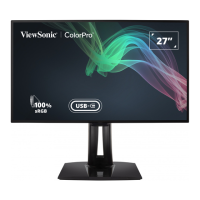
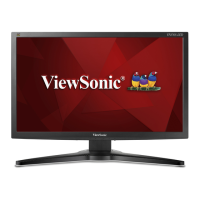
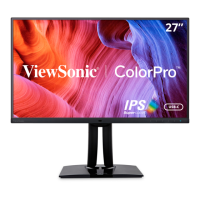
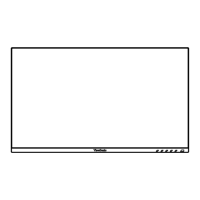
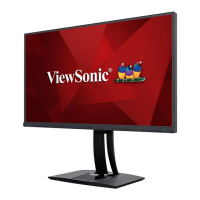
Details the components visible on the front of the monitor.
Details the ports and controls on the rear of the monitor.
Step-by-step guide for attaching the monitor stand.
Instructions and specifications for mounting the monitor on a wall.
Explains how to use a security slot to prevent theft.
Guide on connecting the monitor to a power source.
Instructions for connecting various external devices like HDMI, DP, USB.
General guidance on adjusting the monitor's display angle for optimal viewing.
Instructions on how to adjust the monitor's vertical height.
Instructions on how to tilt the monitor forwards or backwards.
Guide on rotating the monitor screen between landscape and portrait modes.
Instructions on how to swivel the monitor left or right.
Steps for powering the monitor on and off.
How to access and use the monitor's Quick Menu.
Explanation of special functions accessible via control panel keys.
Basic steps for navigating and changing monitor settings via OSD.
Details on selecting different ViewMode presets for various applications.
Guide to adjusting color settings like contrast, brightness, and gamma.
Instructions for adjusting manual image settings like sharpness and aspect ratio.
Covers settings like language, OSD timeout, and power options.
How the monitor detects and adjusts screen orientation automatically.
Information about the hardware color calibration function.
Explains the monitor's support for color blindness simulation modes.
Steps for updating the monitor's firmware using the vDisplayManager software.
Technical specifications of the monitor, including dimensions and compatibility.
Definitions of technical terms used in the manual.
Common problems and their possible solutions for the monitor.
Guidelines for cleaning and general care of the monitor.
Covers FCC, Industry Canada, and CE conformity statements.
Details RoHS2 compliance for European Union directives.
States compliance with India's E-waste Rule 2011.
Provides guidance on environmentally responsible product disposal.
Explains the significance of Pantone validation for color accuracy.
Legal information regarding copyright and trademarks.
Contact information and resources for technical support.
Details the warranty coverage, duration, and exclusions.
 General
| Color | black |
|---|---|
| Screen Type | led |
| Tiltable | yes |
| Wall Mount | 100mm x 100mm |
| Webcam | no |
| OS Compatibility | mac, windows |
| Screen Size | 27 inches |
| Panel Type | ips |
| Aspect Ratio | 16:9 |
| Resolution | 2560 x 1440 |
| Native Resolution | 2560 x 1440 |
| Refresh Rate | 60hz |
| Horizontal Viewing Angle | 178 degrees |
| Vertical Viewing Angle | 178 degrees |
| Response Time | 5 milliseconds |
| Brightness | 350 candela per square meter |
| Contrast Ratio | 1000:1 |
| Synchronization | not applicable |
| HDR | no |
| Built-In Speakers | no |
| Interface Connectors | 1 x displayport, 1 x hdmi, 1 x mini displayport |
| HDMI Ports | 1 |
| USB Type B Ports | 1 |
| Display Port Inputs | 1 |
| Mini Display Port | 1 |
| Power Saving Mode | 0.3 watts |
| Power Consumption | 32 watts |
| Depth with Stand | 8.5 inches |
| Height with Stand | 16.1 inches |
| Width with Stand | 24.1 inches |
| Depth without Stand | 2 inches |
| Height without Stand | 13.9 inches |
| Net Weight without Stand | 15.2 pounds |