EasyManua.ls Logo

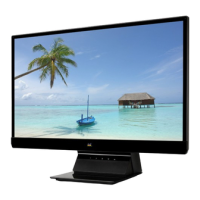
ViewSonic VX2716 - User Manual

ViewSonic VX2716
49 pages
Print Icon
To Next Page IconTo Next Page
Loading...
IMPORTANT: Please read this User Guide to obtain important information on installing and using your product in
a safe manner, as well as registering your product for future service. Warranty information contained in this User
Guide will describe your limited coverage from ViewSonic® Corporation, which is also found on our web site at
http://www.viewsonic.com in English, or in specific languages using the Regional selection box in the upper right
corner of our website.
VX2716
Display
User Guide
Model No. VS19053
P/N: VX2716

Questions and Answers

  • K
    Kenneth PageAug 19, 2025
    How to fix ViewSonic VX2716 Monitor when it has no power?
    • J
      Jacob WilliamsAug 19, 2025
      If your ViewSonic monitor isn't powering on, ensure it's turned on using the power button. Also, check that the power cord is securely connected to both the monitor and the power outlet. To verify the outlet is working, plug another electrical device into it.
  • F
    Frederick GriffinAug 21, 2025
    How to adjust brightness on ViewSonic VX2716 if the screen is too light or dark?
    • D
      Diana BrownAug 21, 2025
      If the screen image on your ViewSonic monitor is too light or dark, adjust the brightness and contrast settings using the OSD Menu. Alternatively, you can reset the monitor to its factory settings.
  • K
    Kimberly BrownAug 23, 2025
    What to do if ViewSonic VX2716 has power but no image?
    • J
      John MendezAug 23, 2025
      If your ViewSonic monitor has power but isn't displaying an image, ensure the video cable connecting the monitor to the computer is properly connected. You may also need to adjust the brightness and contrast settings. Finally, make sure the correct input source is selected.
  • B
    Becky MitchellAug 26, 2025
    Why does my ViewSonic VX2716 have wrong colors?
    • E
      Erin DelgadoAug 27, 2025
      If your ViewSonic monitor is displaying wrong or abnormal colors, and any colors like red, green, or blue are missing, check the video cable to ensure it's properly and securely connected. You can also try connecting the monitor to another computer to see if the issue persists.
  • M
    Mark RubioAug 28, 2025
    What causes ViewSonic VX2716 screen image to cut in and out?
    • E
      Elizabeth BlackAug 28, 2025
      If the screen image on your ViewSonic monitor cuts in and out, first, ensure the correct input source is selected. Then, check the video cable connector for any bent or broken pins. Also, verify that the video cable connecting the monitor to the computer is properly and securely connected.
  • S
    steven50Aug 30, 2025
    How to fix blurred screen image on ViewSonic Monitor?
    • T
      Terri CochranAug 30, 2025
      To fix a blurred screen image on your ViewSonic monitor, adjust the resolution to the correct Aspect Ratio. If that doesn't work, try resetting the monitor to its factory settings.
  • S
    Steven LopezSep 1, 2025
    Why is there no image on my ViewSonic Monitor when an external device is connected?
    • R
      Rebecca ClarkSep 1, 2025
      If you've connected an external device to your ViewSonic monitor but no image appears, first, make sure the power is on. Then, adjust the brightness and contrast via the OSD Menu. Also, check the connecting cable to ensure it is properly and securely connected.
  • D
    dennis53Sep 3, 2025
    Why is there no audio output from my ViewSonic VX2716?
    • F
      Francisco ThomasSep 3, 2025
      If you're experiencing no audio output from your ViewSonic monitor, and you are using headphones, ensure the mini stereo jack is properly connected. Also, make sure the volume isn't muted or set to 0. Finally, check the Audio Input setting.
  • S
    Sherry WrightSep 5, 2025
    How do I center the screen on my ViewSonic VX2716?
    • A
      Andrew SanchezSep 5, 2025
      If the screen on your ViewSonic monitor isn’t centered correctly, adjust the horizontal and vertical controls via the OSD Menu. You should also check the Aspect Ratio. If problems persist, reset the monitor to factory settings.
  • D
    Dawn DelgadoSep 8, 2025
    What to do if the OSD Menu does not appear on ViewSonic VX2716?
    • T
      tsmithSep 8, 2025
      If the OSD Menu does not appear on your ViewSonic monitor or the OSD controls are inaccessible, check whether the OSD Menu is locked. If it is not locked, turn off the monitor, unplug the power cord, plug it back in, and then turn on the monitor. As a last resort, reset the monitor to factory settings.

Summary

Safety Precautions

Introduction

Package Contents

Lists items included in the monitor package.

Product Overview

I;O Ports

Identifies and describes the monitor's input/output connection ports.

Initial Setup

Installing the Stand

Step-by-step guide for attaching the monitor stand.

Wall Mounting

Instructions and specifications for mounting the monitor on a wall.

Using the Security Slot

Explains how to use a security slot locking device to prevent theft.

Making Connections

Connecting to Power

Guide on how to connect the monitor to a power outlet.

Connecting External Devices

Instructions for connecting video and audio cables to other equipment.

Using the Monitor

Adjusting the Viewing Angle

Instructions on how to tilt the monitor for optimal viewing.

Turning the Device On;Off

Steps to power the monitor on and off using the power button.

Using the Control Panel Keys

Overview of the monitor's control panel buttons and their functions.

Quick Menu

How to access and use the Quick Menu for common settings.

Hot Keys

Explanation of special functions accessible via keyboard shortcuts.

Configuring the Settings

General Operations

Basic steps for navigating and adjusting monitor settings via OSD.

On-Screen Display (OSD) Menu Tree

A structured overview of all available OSD menu options and settings.

Appendix

Specifications

Detailed technical specifications for the monitor's hardware.

Glossary

Definitions of technical terms used in the manual.

Troubleshooting

Maintenance

Cleaning the Screen

Recommended methods for cleaning the monitor screen safely.

Cleaning the Case

Instructions on how to clean the monitor's exterior casing.

Blue Light Filter and Eye Health

Calculating Breaks

Recommendations for taking breaks during prolonged monitor use.

Eye and Neck Exercises

Exercises to help minimize eye strain and neck discomfort.

Regulatory and Service Information

Compliance Information

Details on regulatory compliance statements like FCC, CE, RoHS.

Copyright Information

Information regarding copyright and intellectual property.

Customer Service

Limited Warranty

Mexico Limited Warranty

ViewSonic VX2716 Specifications

General IconGeneral
Color depth8 bit
Color gamut72 %
Pixel pitch0.311 x 0.311 mm
Screen shapeFlat
Display diagonal27 \
Surface hardness3H
Anti-glare screenYes
Display technologyLED
Native aspect ratio16:9
Contrast ratio (dynamic)8000000:1
Contrast ratio (typical)1000:1
Display number of colors16.7 million colors
Digital vertical frequency48 - 100 Hz
Digital horizontal frequency24 - 115 kHz
Display brightness (typical)300 cd/m²
HDMI version1.4
Headphone out-
DisplayPort version1.2
RMS rated power4 W
Number of speakers2
AC input voltage100 - 240 V
Power consumption (max)28 W
Power consumption (standby)0.5 W
Power consumption (typical)19 W
Tilt angle range-5 - 20 °
Cable lock slot typeKensington
Panel mounting interface100 x 100 mm
Operating temperature (T-T)0 - 40 °C
Operating relative humidity (H-H)20 - 90 %
Package depth445 mm
Package width680 mm
Package height143 mm
Package weight6400 g
Product colorBlack
Market positioningGaming
Weight and Dimensions IconWeight and Dimensions
Depth (with stand)237 mm
Width (with stand)612 mm
Height (with stand)432 mm
Weight (with stand)4800 g
Depth (without stand)49 mm
Height (without stand)364 mm
Weight (without stand)4100 g

Related product manuals