EasyManua.ls Logo

ViewSonic VX2718-PC-mhd - User Manual

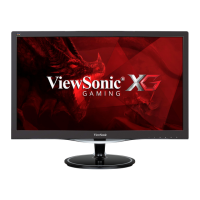
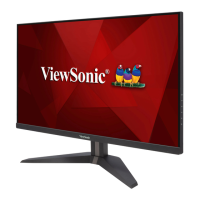
ViewSonic VX2718-PC-mhd
45 pages
Print Icon
To Next Page IconTo Next Page
Loading...
VX2718-PC-mhd
Display
User Guide
Model No. VS18190
P/N: VX2718-PC-MHD
IMPORTANT: Please read this User Guide to obtain important information on installing and using your product in
a safe manner, as well as registering your product for future service. Warranty information contained in this User
Guide will describe your limited coverage from ViewSonic® Corporation, which is also found on our web site at
http://www.viewsonic.com in English, or in specific languages using the Regional selection box in the upper right
corner of our website. “Antes de operar su equipo lea cu idadosamente las instrucciones en este manual”

Questions and Answers

  • E
    Elizabeth LeeSep 9, 2025
    Why are some OSD menus not selectable on my ViewSonic VX2718-PC-mhd Monitor?
    • K
      Kimberly Collins MDSep 9, 2025
      If some menus aren’t selectable in the OSD on your ViewSonic monitor, adjust the ViewMode or the input source. If this doesn’t resolve the issue, reset the monitor to factory settings.
  • J
    Justin WellsSep 12, 2025
    How to troubleshoot no audio output on ViewSonic VX2718-PC-mhd?
    • J
      jeff01Sep 12, 2025
      If you experience no audio output from your ViewSonic monitor, and you are using headphones, ensure the mini stereo jack is properly connected. Also, make sure the volume is not muted and is not set to 0. Finally, check the Audio Input setting.
  • A
    Ashley FranklinSep 14, 2025
    Why are USB devices not working on my ViewSonic VX2718-PC-mhd?
    • B
      Brandon McdanielSep 14, 2025
      If USB devices connected to your ViewSonic monitor do not work, first ensure the USB cable is properly connected. If the issue persists, try changing to another USB port, if available. Note that some USB devices require a higher electric current, so try connecting the device directly to the computer.
  • K
    Krystal SanchezSep 16, 2025
    What to do if external device connected to ViewSonic VX2718-PC-mhd Monitor has no image?
    • M
      Michael HarperSep 16, 2025
      If the external device is connected to your ViewSonic monitor but no image appears on the screen, ensure that the power is on. Adjust the brightness and contrast via the OSD Menu. Also, check the connecting cable and make sure it is properly and securely connected.

Summary

Safety Precautions

Regulatory and Service Information

Compliance Information

Details regulatory requirements and statements for EU member states.

Declaration of RoHS2 Compliance

States compliance with RoHS2 Directive for hazardous substances.

Introduction

Package Contents

Lists items included in the monitor package.

Product Overview

Provides a visual overview of the monitor's front, rear, and I/O ports.

I;O Ports

Identifies and describes the input/output ports on the monitor.

Initial Setup

Installing the Stand

Step-by-step instructions for attaching the monitor stand.

Wall Mounting

Instructions and specifications for mounting the monitor on a wall.

Using the Security Slot

Explains how to use a security slot to prevent theft and tipping.

Making Connections

Connecting to Power

Guides on how to connect the monitor to a power source.

Connecting External Devices

Illustrates how to connect various external devices like computers via DP and HDMI.

Using the Monitor

Adjusting the Viewing Angle

Describes how to tilt the monitor for optimal viewing.

Turning the Device On;Off

Instructions on how to power the monitor on and off.

Using the Control Panel Keys

Explains the function of the monitor's control panel buttons.

Quick Menu

How to access and use the Quick Menu for common settings.

Hot Keys

Details special functions accessible via key combinations.

Configuring the Settings

General Operations

General steps for navigating and using the On-Screen Display (OSD) menu.

On-Screen Display (OSD) Menu Tree

A hierarchical view of all available OSD menu options and their settings.

Appendix

Specifications

Technical specifications for the monitor, including LCD, input, compatibility, and resolution.

Glossary

Defines common terms used in LCD display manuals.

Troubleshooting

Maintenance

General Precautions

Important precautions to follow when maintaining the monitor.

Cleaning the Screen

Instructions for safely cleaning the monitor screen.

Cleaning the Case

Guidelines for cleaning the monitor's external casing.

Product Disposal at End of Product Life

Copyright Information

Customer Service

Limited Warranty

What the warranty covers

Details the scope of the manufacturer's warranty for the product.

What the warranty excludes and does not cover

Lists conditions and damages not covered by the warranty.

How to get service

Provides instructions on how to obtain warranty service and support.

Exclusion of damages

Details the types of damages for which the manufacturer is not liable.

Mexico Limited Warranty

What the warranty covers

Details the scope of the manufacturer's warranty for the product in Mexico.

What the warranty excludes and does not cover

Lists conditions and damages not covered by the warranty in Mexico.

How to get service

Provides instructions on how to obtain warranty service and support for Mexico.

Exclusion of damages

Details the types of damages for which the manufacturer is not liable for Mexico.

Contact Information for Sales & Authorized Service within Mexico

ViewSonic VX2718-PC-mhd Specifications

General IconGeneral
Colorblack
Screen Typeled
Tiltableyes
Wall Mount75mm x 75mm
Touch Screenno
Webcamno
OS Compatibilitywindows, mac
Screen Size27 inches
Panel Typemva
Aspect Ratio16:9
Resolution1920 x 1080
Native Resolution1920 x 1080
Refresh Rate165hz
Horizontal Viewing Angle178 degrees
Vertical Viewing Angle178 degrees
Response Time1 milliseconds
Brightness250 candela per square meter
Contrast Ratio80, 000, 000:1
Synchronizationvsync
Horizontal Scan Rate160 kilohertz
HDRno
Built-In Speakersyes
HDMI Ports1
Display Port Inputs1
Headphones Outputyes
Voice Assistantno
Power Saving Mode0.5 watts
Power Consumption30 watts
Depth with Stand8 43/50 inches
Height with Stand18 7/10 inches
Width with Stand24 1/10 inches
Depth without Stand3 inches
Height without Stand14 3/10 inches
Net Weight without Stand7.28 pounds

Related product manuals