- 34 –
ViewSonic Corporation
Confidential - Do Not Copy VX712
Check for Secondary Display Modes
Test Signal:
Analog: 640*350@70Hz; 640*480@60/67/72/75/85Hz;
720*400@70Hz; 800*600@56/60/72/75/85Hz;
832*624@75Hz, 1024*768@60/70/72/75/85Hz;
1280*1024@60/75Hz
Digital: 640*350@70Hz; 640*480@60/72/75/85Hz;
720*400@70Hz; 800*600@56/60/72/75/85Hz;
1024*768@60/70/72/75/85Hz; 1152*870@75Hz,
1280*720@60Hz, 1280*1024@60Hz
- Normally when the primary mode 1280*1024@60Hz is well adjusted and
compliant with the specification, the secondary display modes will also be compliant
with the spec. But we still have to check with the general test pattern to make sure
every secondary is compliant with the specification.
-
All Modes Reset
After final QC step, we have to erase all saved changes again and restore the factory
defaults. You should do “All Mode Reset” again.
Power Off Monitor
Turn off the monitor by pressing “Power” button.
5.6 Firmware Upgrade Procedure
When you receive the returned monitor, please check whether the firmware version is the
latest. If not, please do the following procedures to upgrade it to the latest version.
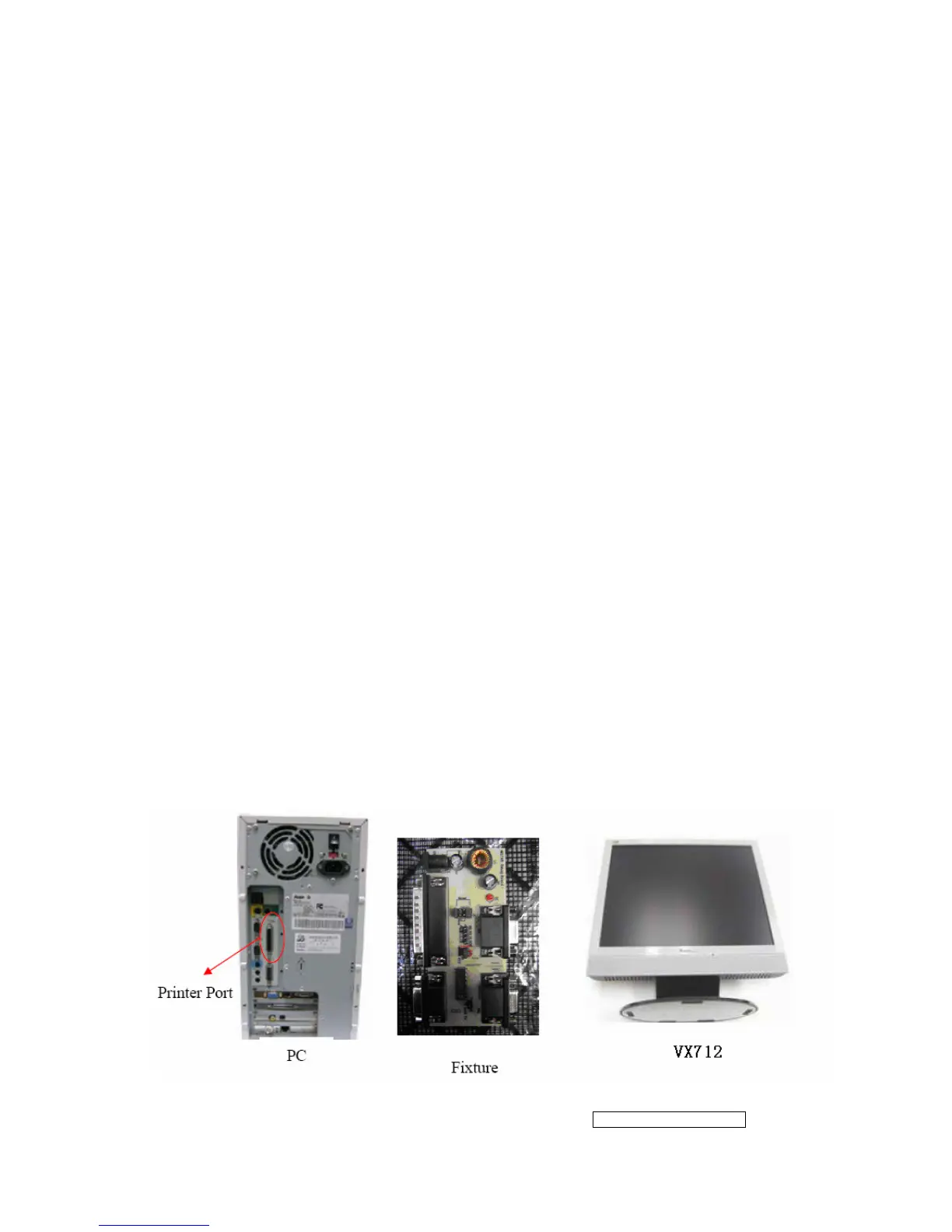
1 Equipment Needed
- VX712 Monitor
- Fixture for Firmware Upgrade
- VGA Cable (P/N: 42.59901.003) *1(Pin 4, 11 should be connected to GND)
- PC (Personal Computer)
- LPT Cable (P/N: 42.59906.001) *1
- Firmware Upgrade Program
- One additional monitor for checking the program execution


 To Next Page