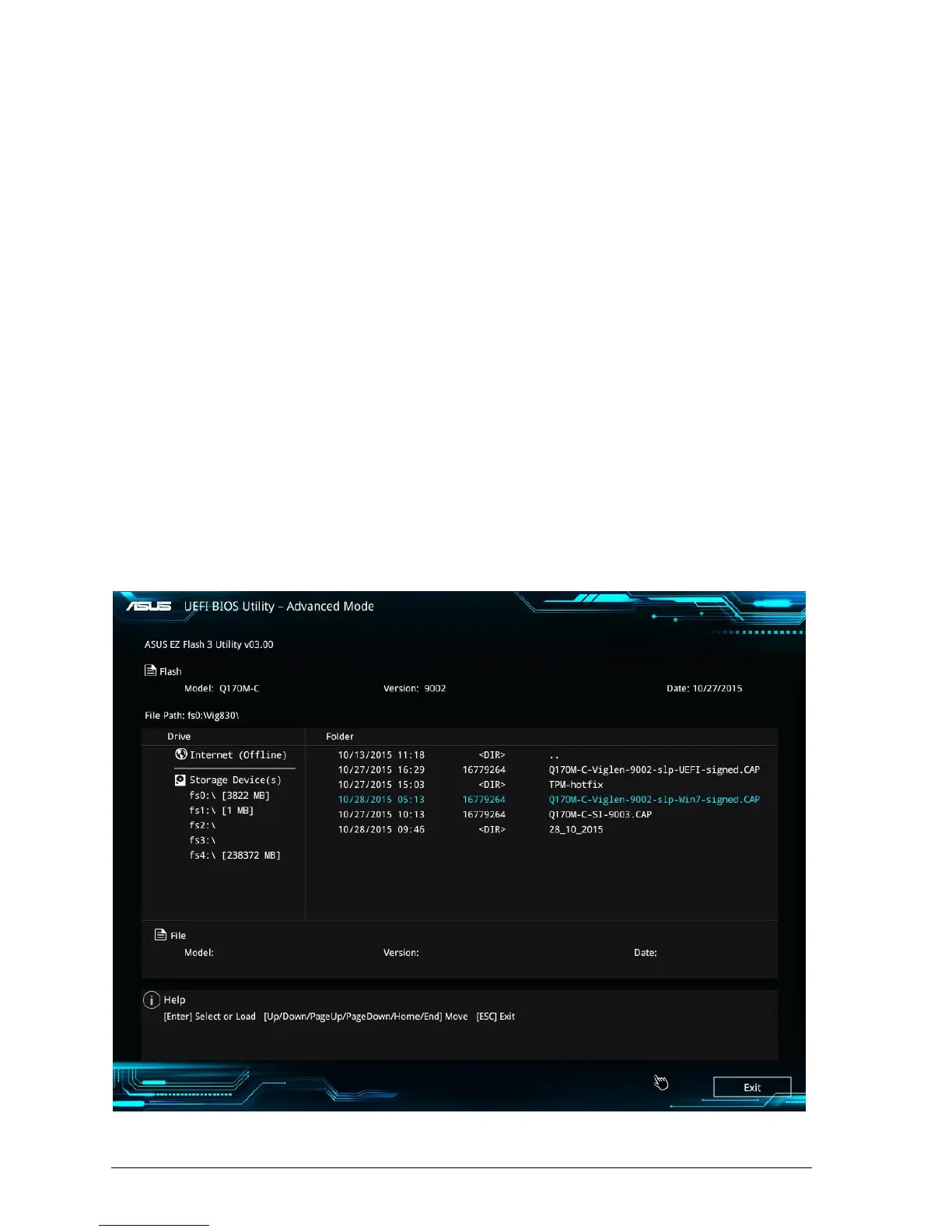
4.3.2 BIOS Update Instructions using EZ-Flash Method
For this method you will require a Flash USB device and required BIOS file.
1. Insert the USB flash disk that contains the latest BIOS file to the USB port.
2. Enter the Advanced Mode of the BIOS setup program. Go to the Tool menu to select ASUS EZ Flash
Utility and press <Enter> to enable it.
3. Press <Tab> to switch to the Drive field.
4. Press the Up/Down arrow keys to find the USB flash disk that contains the latest BIOS, and then press
<Enter>.
5. Press <Tab> to switch to the Folder Info field.
6. Press the Up/Down arrow keys to find the BIOS file, and then press <Enter> to perform the BIOS
update process. Reboot the system when the update process is done.
Note:
• This function supports USB flash disks formatted using FAT32/16 on a single partition only.
• Ensure to load the BIOS default settings to ensure system compatibility and stability. Select
the Load Optimized Defaults item under the Exit menu. .
IMPORTANT!!!!!
During the update process DO NOT shut down the PC or interrupt the process, this could
cause damage to the motherboard.
Figure 33: EZ Flash BIOS update screen



 To Next Page