Vincent
33773366
Vincent
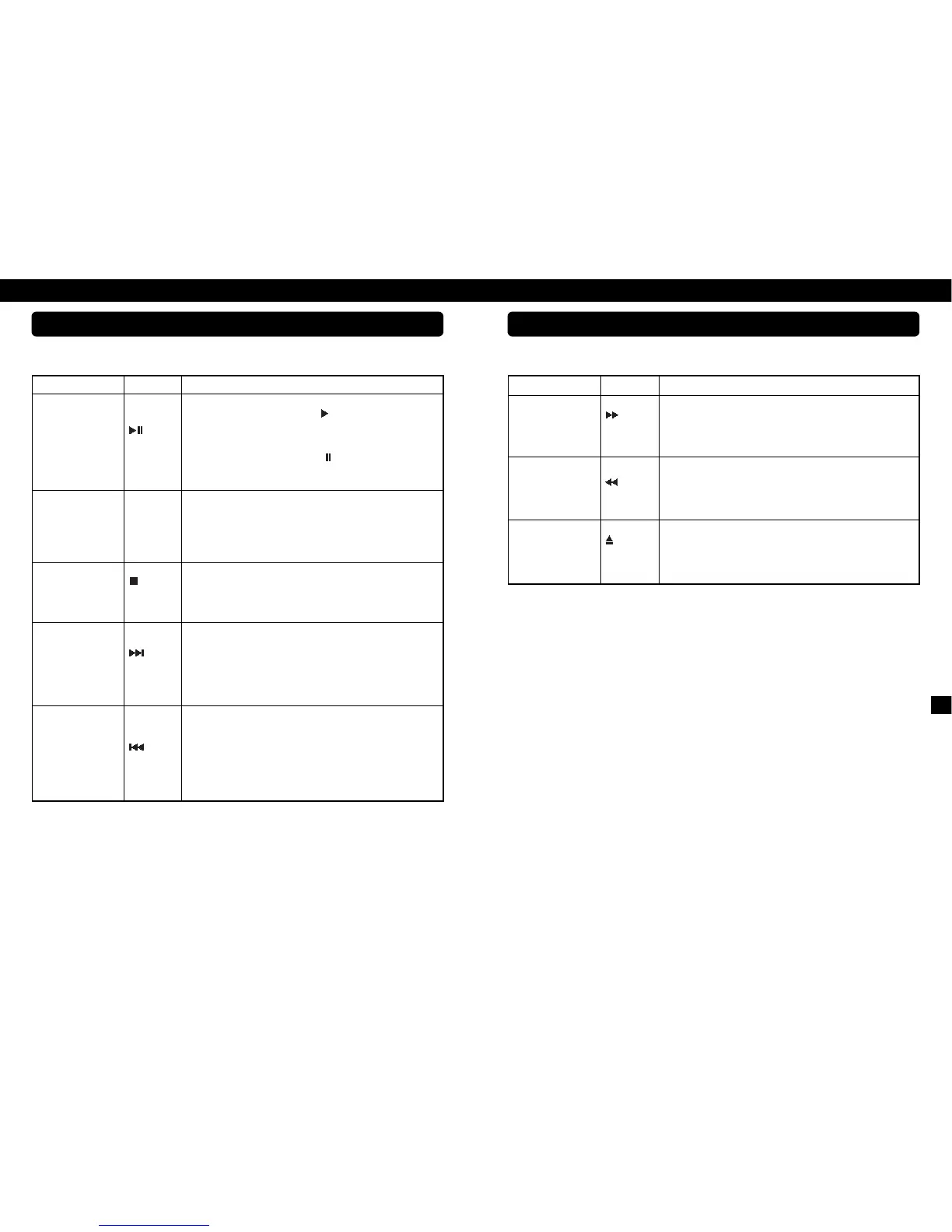
Operation Button(s) Description
Start and pause
playback
(6) (19)
PLAY/
PAUSE
This button, both on the front of the device and on the remote control, starts
playing the inserted CD and the symbol “ “ appears on the display (2)
during play. If there is no CD inserted, “NO DISC” appears in the display and
pressing the button has no effect. If the button is pressed again while a CD is
playing, play will be interrupted at the current position. This “PAUSE” mode is
indicated in the display (2) by the symbol “ ”. During the pause the disc con-
tinues to rotate and when the button is pressed play continues from this positi-
on. The “PAUSE” function should only be used for brief interruptions.
Direct selection
of a track
Number
keys (15)
You can start playing a track at any time by keying in the track number on
the remote control. For numbers over 10, you must press the “+10” button
as often as necessary until it shows the relevant first figure of the number
and then you key in the second figure. If there is no track of the keyed-in
number on the CD, the player switches to “STOP” mode. If the player is
paused, you cannot select any other track directly with the number buttons.
Stop playback
(7)(21)
STOP
While a CD is being played, pressing this button stops the playing. If the
player was in “PAUSE” mode, this mode will also be ended by pressing the
“STOP” button. The total number of tracks on the CD and the total playing time
appear in the display (2) again. This button is on both the front of the device
and the remote control.
Skip to the
following track
(5)(28)
NEXT
When this button is pressed while the CD is playing, the current track stops
playing and the next track in the sequence begins to play. If this button is
pressed in ”STOP” mode, you can choose all the CD tracks one after the
other starting from track 02. Playback can then be started again with the
“PLAY/PAUSE” button (6)(19). With the “CANCEL” button (24) the player
goes back to “STOP” mode. The button is located both on the front of the
device and on the remote control.
Skip to playback
the previous track
(4)(27)
BACK
If this button is pressed once while the CD is playing, the current track stops
and the actual track starts playing from the start again. Further presses skip to
playing the previous tracks in their playing sequence. If this button is pressed in
the “STOP” mode, you can choose all the CD tracks in reverse order starting
with the last track. Playback can then be started again with the “PLAY/PAUSE”
button (6)(19). With the “CANCEL” button (24) the player goes back to
“STOP” mode. The button is located both on the front of the device and on the
remote control.
PLAYBACK FUNCTIONS
OPERATING THE APPLIANCE
Operation Button(s) Description
Fast forward
(20)
(FAST
FORWARD)
The track will be played at higher speed (fast forward) as long as you con-
tinue to hold down this button while the CD is playing. If the button is
released, playback will continue at normal speed. If the CD play is stop-
ped, then this button has no function. This play function too can only be
used via the remote control.
Fast rewind
(22)
(FAST BACK)
The track will be played backwards at higher speed (“rewind”) as long as
you continue to hold down this button while the CD is playing. If the button
is released, play will continue at normal speed in a forward direction. If
the CD playback is stopped, then this button has no function. This play
function too can only be used via the remote control.
Insert/Change the CD
(8)(23)
OPEN/
CLOSE
With this button you open and close the disc tray so that a CD can be inser-
ted or removed. This button is located both on the front of the device and on
the remote control. If the text “OVER” appears in the display (2), then the CD
contains more than 16 tracks. Some of the tracks cannot then be shown in the
display's music menu.
PLAYBACK FUNCTIONS
OPERATING THE APPLIANCE


 To Next Page
 Loading...