10
Section 7: Indicator Light
Solid blue light indicates power is on and the
monitor is operating normally. Flashing blue
light indicates no video source, no horizontal
or vertical signal has been detected or voltage
is low. Please ensure your computer is on
and all video cables are fully inserted and/or
connected.
Section 8: OSD Setup
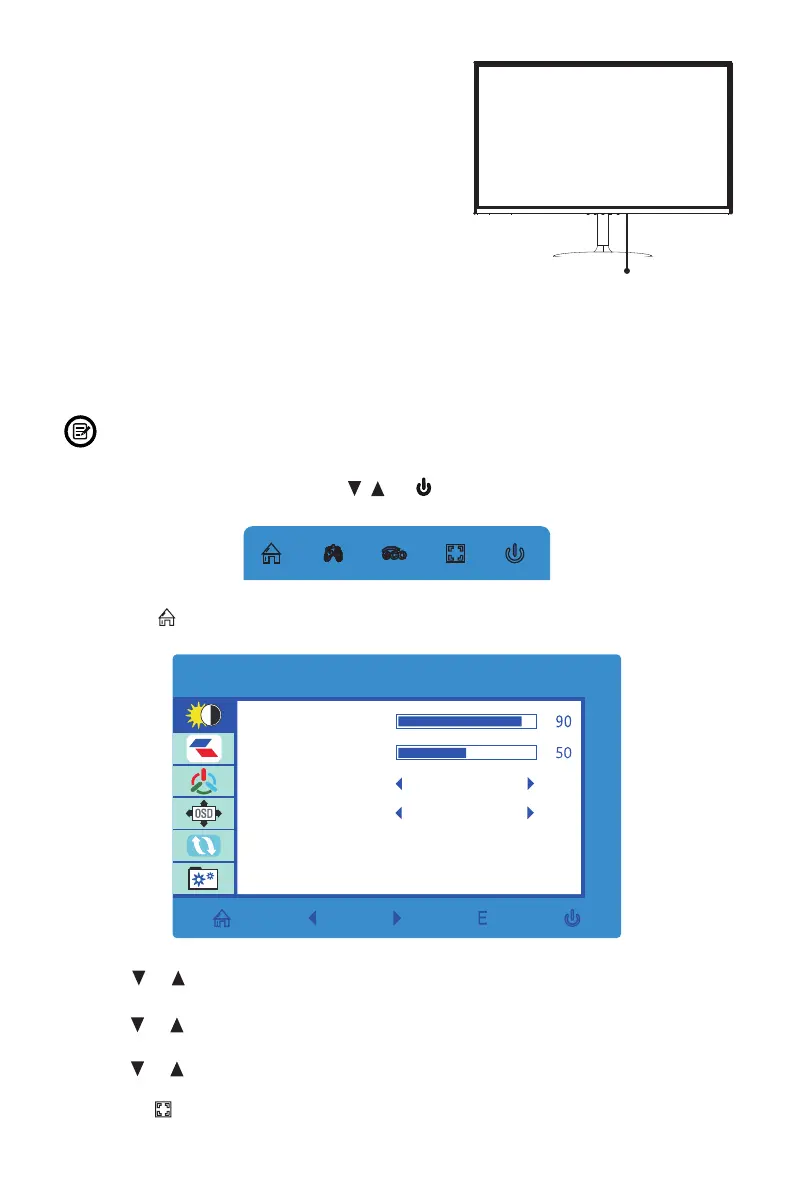
The On-Screen Display (OSD) Menu may be used to adjust your monitor’s settings
and appears on screen after turning on the monitor and pressing the M button.
When using the monitor for the rst time, settings will automatically adjust to
optimal settings according to your computer’s conguration and parts etc.
1. Press any one of the buttons (M, , , E, ) to activate the navigation window.
eco
2. Press M ( ) to enter the OSD menu.
BRIGHTNES S
BRI GHT NES S
CON TRA ST
ECO
DCR
STA NDA RD
OFF
3. Press or to browse functions.
• Highlight the desired function, then press M to enter the sub-menu.
• Press or to browse sub-menus, then press M to highlight the desired
function.
• Press or to highlight an option, then press M to conrm the settings and exit
the current screen.
4. Press E ( ) to exit the current screen.
Indicator Light


 To Next Page