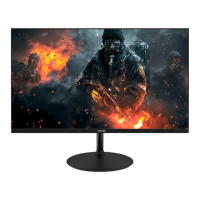
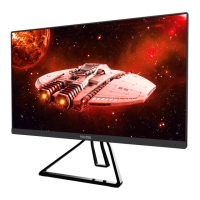
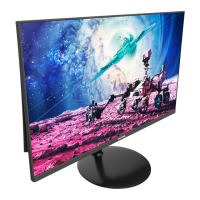
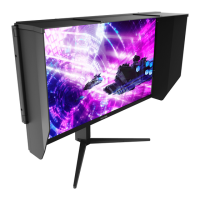
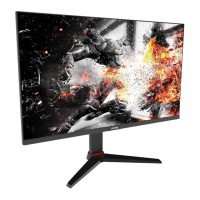
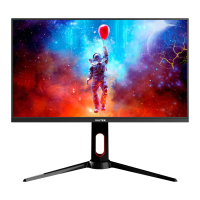
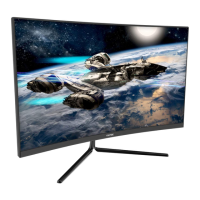
The VIOTEK GFT27DB is a gaming monitor designed for an immersive visual experience. This user manual provides comprehensive instructions for its setup, operation, and maintenance, ensuring users can maximize its features for an optimal gaming and viewing experience.
Function Description
The GFT27DB monitor serves as a high-performance display unit for computers, primarily aimed at gamers due to its advanced features. It connects to a computer via HDMI or DisplayPort (DP) to receive video signals, and also includes an audio output for connecting earphones. The monitor is equipped with an On-Screen Display (OSD) menu, which allows users to adjust various settings such as brightness, contrast, color, picture quality, and audio.
Key functionalities include:
- Video Input: Supports multiple HDMI connections (HDMI-1 2.0, HDMI-2 1.4, HDMI-3 1.4) and a DisplayPort (DP) connection, offering flexibility for connecting to various devices.
- Audio Output: Features an audio output port for connecting earphones, allowing users to receive audio signals directly from the monitor.
- Power Management: Connects to a standard wall outlet via an included power cable, with a power button for turning the monitor on and off. An LED indicator light provides visual feedback on the monitor's power and signal status.
- OSD Menu: A comprehensive OSD menu provides access to a wide range of settings for customizing the display and audio. Navigation is done using dedicated buttons (M, Down, Up, Exit, Power).
- Color Gamut Switching: The "E" button on the monitor can be used to switch between "Limit" and "Full" color gamuts, provided a compatible graphics card and either HDMI or DP connections are in use.
- FreeSync Technology: The monitor supports FreeSync, a feature designed to eliminate screen tearing and stuttering. To use this, users need FreeSync-capable hardware, a DP or HDMI cable, and the latest graphic drivers. The feature is off by default and needs to be enabled through the computer's graphics card menu.
- Multi-Window Modes (PIP/PBP): The monitor offers Picture-in-Picture (PIP) and Picture-by-Picture (PBP) modes, allowing users to display content from multiple input sources simultaneously. PIP displays a secondary input in a smaller window over the main display, while PBP divides the screen into two separate displays for different inputs. Users can adjust the size and position of the PIP window. For optimal PBP viewing, it is recommended to set both panels to the same resolution, ideally 1440p @ 60Hz, to minimize tearing and visual deformation.
- Gameplus Modes: Includes Gameplus modes with various game icons (crosshairs) designed to optimize aim during shooting games, which can also be used in other scenarios. These modes are accessible via the OSD menu.
- LED Effects: The monitor features LED display modes that can be switched or turned off via the navigation window.
Usage Features
The GFT27DB is designed for ease of use and customization, catering to various user preferences and gaming needs.
- Stand Installation: The monitor comes with a stand that can be easily assembled. The process involves attaching the stand stem and base using provided screws and a screwdriver, and then fastening the stem to the monitor. Decorative covers are included to complete the installation. It is crucial to keep the foam underneath the monitor during stand attachment and avoid touching the screen when moving the monitor to prevent damage.
- Mount Installation: For users who prefer wall mounting, the monitor is compatible with VESA mounts (not included). The manual provides instructions for removing the stand (if already attached) and using the provided NO. 2 screws to attach the monitor to a mount or fixture.
- Connectivity:
- Power: A power cable connects the monitor to a wall outlet. It is recommended to use a surge protector if a direct wall outlet is not accessible.
- Video: For optimal refresh rates and performance, using a DisplayPort (DP) or HDMI cable with the corresponding connectors on the monitor and computer is advised. The monitor supports multiple HDMI inputs (2.0 and 1.4 versions) and a DP input.
- Audio: Earphones can be plugged into the audio output port. If earphones are connected to the monitor while other audio devices are connected to the computer, the computer's audio devices will not produce sound. A warning is provided regarding listening to loud audio for prolonged periods to prevent hearing damage.
- OSD Menu Navigation: The OSD menu is accessed by pressing the "M" button. Users can navigate through functions and sub-menus using the "Down" and "Up" buttons, and confirm selections with the "M" button. The "E" button allows users to exit the current screen.
- Picture Quality Settings: The OSD menu offers extensive controls for picture quality, including:
- Brightness/Contrast: Adjusts display brightness, blacklevel, and contrast.
- DCR (Dynamic Contrast Ratio): Can be turned on or off.
- Gamma: Selects between Gamma 2.0, 2.2, and 2.4.
- Picture Mode: Pre-set visual modes for different activities like Standard, Text, Movie, Game, FPS, and RTS.
- Color Setting: Adjusts color temperature (Warm, Cool, User) and allows customization of RGB components.
- Low Blue Light: Adjusts the blue light filtering level to reduce eye strain.
- Hue/Saturation: Adjusts hue and saturation levels.
- Bypass: Turns the bypass function on/off.
- Sharpness: Adjusts display sharpness.
- Response Time: Selects between Off, High, Middle, and Low.
- Noise Reduction: Reduces image noise caused by signal source interference.
- Super-Resolution: Enhances image resolution when the display screen resolution is low.
- Dynamic Luminous Control: Compensates for gray scale display and strengthens gray scale expression.
- FreeSync: Turns the FreeSync function on/off.
- Aspect Ratio: Selects between Wide Screen, 4:3, and Auto.
- Display Settings:
- DP Version: Selects between DP 1.1 and DP 1.2.
- LedMode: Selects LED display mode (Normal, Flicker, Off).
- Audio Settings:
- Mute: Turns mute mode on/off.
- Volume: Adjusts audio volume.
- Audio Source: Selects audio signal input via HDMI or DP.
- Multi-Window Settings:
- Multi-Window: Selects PIP/PBP modes.
- Sub Win2 Input: Selects input signal for PIP/PBP mode.
- PIP Size/Position: Adjusts the size and position of the PIP window.
- Swap: Swaps PIP/PBP signal sources.
- Other Settings:
- Language: Sets OSD language (English, Simplified Chinese, Korean, Spanish).
- OSD H-Position/V-Position: Adjusts the OSD's horizontal and vertical position.
- OSD Transparency: Adjusts the OSD's overall transparency.
- OSD Time Out: Sets how long the OSD remains open after non-use.
- OSD Rotation: Rotates the OSD (Normal, 90, 180, 270) to achieve the best display angle when the user flips the display.
- Reset: Resets monitor configurations to default.
Maintenance Features
Proper maintenance ensures the longevity and optimal performance of the GFT27DB monitor. The manual provides clear guidelines for cleaning and troubleshooting common issues.
- Cleaning:
- Before Cleaning: Always unplug the monitor from the power source.
- Recommended Materials: Use a dry cloth or a lightly damp cloth. Dry cloth is safest. If using a damp cloth, ensure the monitor is completely dry before plugging it back in.
- Avoid: Do not use alcohol or ammonia-based cleaners, liquids, or abrasive cloths. Do not spray cleaner or any liquid directly onto the screen or any part of the monitor.
- Ventilation: The monitor has ventilation openings on the back; avoid blocking them to prevent overheating.
- Troubleshooting (General Problems): The manual lists common issues and their solutions:
- Blank Screen: Check power button, brightness/contrast settings, indicator light (flashing indicates no signal), and ensure the source (e.g., laptop) is powered on and set to mirror/extension mode.
- Out of Focus Image: Ensure the video cable is properly inserted at both ends.
- Flashing Screen: Try an alternative power source, as insufficient power can cause this. Keep non-shielded speakers, fluorescent lighting, AC transformers, and table fans away from the screen to avoid magnetic disturbances.
- Color Bleeds/Unusual Visual Effects: Check if the cable is properly inserted (loose connections can cause bad signals). Try connecting to another video source for comparison.
- Scrolling/Rolling/Unusual Movement: Check if the source frequency is within 55-76Hz. Reconnect and ensure the video cable is secure.
- Indicator Light Not Working: Check if the monitor power is on and if the power cable is properly connected to the monitor and power source.
- Cannot Plug and Play: Check PC and graphics card compatibility requirements.
- Dim Image: Adjust brightness and contrast ratio.
- Image Jitter/Moire Pattern: Nearby electrical equipment may be interfering.
- Light Indicator On/Flashing but No Image: Check if monitor power is on, graphics card is properly installed, and power cable is connected.
- Image Position Not Centered/Incorrect Size: Adjust Clock or Auto settings.
- Color Difference (Colors Not Optimized): Adjust RGB color settings or reset color temperature.
- Safety Precautions:
- Heat Sources: Avoid placing the monitor near heat sources (portable heaters, heating vents) to prevent damage.
- Foreign Objects: Do not insert anything into the monitor, especially ventilation openings.
- Stability: Ensure the monitor is placed on a secure, level surface to prevent it from falling and sustaining damage.
- Non-Use: Unplug the monitor during extended periods of non-use.
- Weight: Do not place heavy items on the monitor or monitor cables.
- Disassembly: Do not attempt to disassemble or remove parts of the monitor. Unauthorized disassembly or modification can lead to damage, exposure to high voltage electricity, and serious injury or death. VIOTEK® disclaims responsibility for injuries or damages resulting from failure to adhere to these precautions.
The GFT27DB monitor is designed to be a reliable and versatile display, offering a rich set of features for an enhanced user experience, particularly for gaming. Adhering to the provided usage and maintenance guidelines will help ensure its long-term performance and safety.

 Need help?
 General

 To Next Page