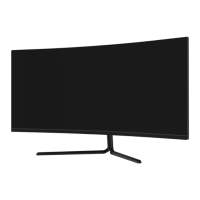
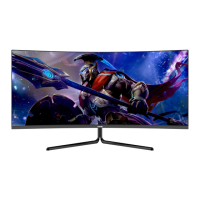
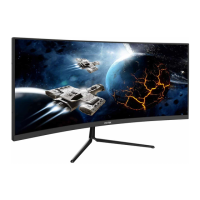
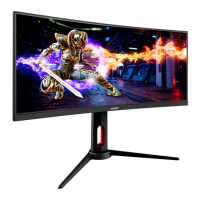
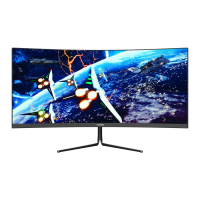
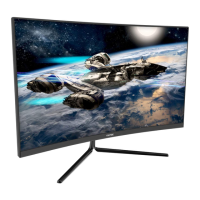
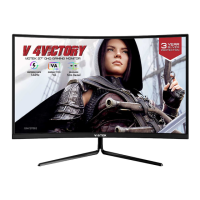
The VIOTEK GNV34DB is a curved monitor designed for an immersive viewing experience, suitable for various applications including gaming, work, and multimedia consumption. This user manual provides comprehensive instructions for its setup, operation, and maintenance, ensuring users can maximize the monitor's features and longevity.
Function Description
The GNV34DB functions as a high-performance display unit, capable of connecting to various devices such as personal computers, gaming consoles, and other media players through its multiple input ports. It is designed to render high-resolution visuals with a curved screen that enhances peripheral vision and reduces eye strain, especially during extended use. The monitor supports a high refresh rate, which is particularly beneficial for fast-paced gaming, providing smoother motion and reduced input lag.
Key functionalities include:
- Displaying Visual Content: The primary function is to display video and image content from connected sources.
- Audio Output: It features an audio output port, allowing users to connect headphones or external speakers for audio playback.
- On-Screen Display (OSD) Menu: An intuitive OSD menu allows for extensive customization of display settings, including brightness, contrast, color temperature, picture modes, and more.
- ECO Modes: Pre-set ECO modes optimize display settings for different activities like standard use, text reading, movie watching, and various gaming genres (FPS, RTS), enhancing the viewing experience and potentially reducing power consumption.
- Gameplus Switching: This feature provides in-game enhancements, such as crosshair overlays, which can be particularly useful for improving aim in shooting games.
- Color Gamut Switching: Users can switch between "Limit" and "Full" color gamuts, offering flexibility for different content and color accuracy requirements.
- AMD FreeSync Support: For compatible graphics cards, this technology synchronizes the monitor's refresh rate with the graphics card's frame rate, eliminating screen tearing and stuttering for a smoother gaming experience.
- Multi-Window Functionality (PIP/PBP): The monitor supports Picture-in-Picture (PIP) and Picture-by-Picture (PBP) modes, allowing content from multiple input sources to be displayed simultaneously on the screen. This is useful for multitasking or comparing content from different sources.
Usage Features
The GNV34DB is designed with user convenience and performance in mind, offering several features that enhance its usability:
- Easy Installation: The monitor comes with a stand that is straightforward to assemble. The manual provides clear steps for attaching the stand stem and base, as well as for removing the adapter for wall mounting. The inclusion of a headphone clip on the stand stem adds a practical touch for cable management.
- Multiple Connectivity Options: Equipped with multiple HDMI ports (HDMI 1.4 and HDMI 2.0) and a DisplayPort (DP), the monitor offers versatile connectivity for various devices. This allows users to connect multiple sources simultaneously and switch between them easily.
- Intuitive OSD Navigation: The monitor's buttons (Menu, Down, Up, Exit, Power) are clearly labeled and provide easy access to the OSD menu and its sub-menus. The navigation window, activated by pressing any of these buttons, simplifies the process of adjusting settings.
- Customizable Display Settings: Users have granular control over various display parameters through the OSD menu. This includes:
- Brightness/Contrast: Adjusting the overall luminance and difference between light and dark areas.
- Color Setting: Fine-tuning color temperature, hue, saturation, and sharpness to match personal preferences or specific content requirements.
- Picture Quality Setting: Enhancing image quality through features like noise reduction and super-resolution, especially beneficial for lower-resolution content.
- Display Settings: Adjusting aspect ratio (Wide Screen, 4:3, Auto) and selecting the DP version.
- Audio Settings: Controlling volume and selecting the audio source (Auto, HDMI, DP).
- Multi-Window Settings: Configuring PIP/PBP modes, including input selection for the sub-window, window size, and position, and the ability to swap signal sources.
- OSD Settings: Customizing the OSD language, position, transparency, and timeout duration.
- ECO Modes for Optimized Viewing: The dedicated ECO mode button allows quick switching between pre-configured display settings tailored for different activities. This ensures optimal visual performance and comfort, whether reading text, watching movies, or playing specific game genres.
- Gameplus Features for Gamers: The Gameplus button provides instant access to crosshair overlays, which can significantly aid in aiming accuracy during first-person shooter games.
- Indicator Light: A clear LED indicator light provides visual feedback on the monitor's status (solid blue for power on, flashing blue for no video source/low voltage), helping users quickly diagnose connection issues.
- Ergonomic Design: The monitor's tilt angle (Forward 5°; Backward 15°) allows for basic ergonomic adjustments, helping users find a comfortable viewing position.
- Mount Installation Flexibility: Beyond the included stand, the monitor supports VESA wall mounting, providing flexibility for different setup configurations.
Maintenance Features
Proper maintenance is crucial for extending the life and ensuring the optimal performance of the VIOTEK GNV34DB monitor. The manual outlines several key maintenance guidelines:
- Safe Cleaning Practices:
- Unplug Before Cleaning: Always disconnect the monitor from the power source before cleaning to prevent electrical hazards.
- Recommended Cleaning Materials: Use a dry cloth or a lightly damp cloth for cleaning. Dry cloth is preferred for safety. If using a damp cloth, ensure the monitor is completely dry before plugging it back in.
- Avoid Harsh Chemicals: Do not use alcohol, ammonia-based cleaners, or any other liquid cleaners directly on the monitor's screen or any part of the unit. These can damage the display surface or internal components.
- No Direct Spraying: Never spray liquid directly onto the monitor. Instead, apply a small amount to a cloth and then wipe the surface.
- Gentle Wiping: Use a soft, non-abrasive cloth to gently remove debris or dust. For stubborn dirt, a lightly dampened non-abrasive cloth can be used.
- Ventilation Management: The monitor has ventilation openings on its back. It is critical to keep these openings clear and unobstructed to prevent overheating, which can lead to performance issues or damage. Avoid placing the monitor near heat sources like portable heaters or heating vents.
- Secure Placement: Always place the monitor on a secure, level surface to prevent it from falling and sustaining damage. Avoid placing heavy items on the monitor or its cables.
- Handling and Storage:
- Careful Disassembly/Assembly: When installing or removing the stand, ensure the monitor is laid on a flat, stable surface to prevent accidental damage.
- Protection During Non-Use: Unplug the monitor during extended periods of non-use to conserve energy and protect against power fluctuations.
- Avoid Inserting Objects: Never insert anything into the monitor's ventilation openings or any other part of the unit.
- Troubleshooting Guidance: The manual includes a comprehensive troubleshooting section to help users diagnose and resolve common issues such as a blank screen, flashing screen, image focus problems, color anomalies, scrolling images, and indicator light malfunctions. This empowers users to perform basic maintenance and problem-solving before seeking professional assistance.
- Authorized Service Only: The manual explicitly states that any disassembly or modification not performed by an authorized technician will void the warranty and can lead to serious injury or death due to exposure to high voltage electricity. This emphasizes the importance of professional service for complex issues.
- Cable Management: Ensuring all video and power cables are securely and properly inserted helps prevent signal loss, flickering, and other display issues. Regularly checking cable connectors for damage (e.g., curved or damaged pins) and replacing faulty cables is a good practice.
- Environmental Considerations: The monitor is designed to operate within specific temperature and humidity ranges. Adhering to these conditions helps maintain optimal performance and prevents damage.

 Need help?
 General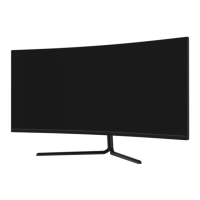

 To Next Page