10
Section 8: OSD
The On-Screen Display (OSD) Menu may be used to adjust your monitor’s settings
and appears on screen after turning on the monitor and pressing the M button.
When using the monitor for the rst time, settings will automatically adjust to
optimal settings according to your computer’s conguration.
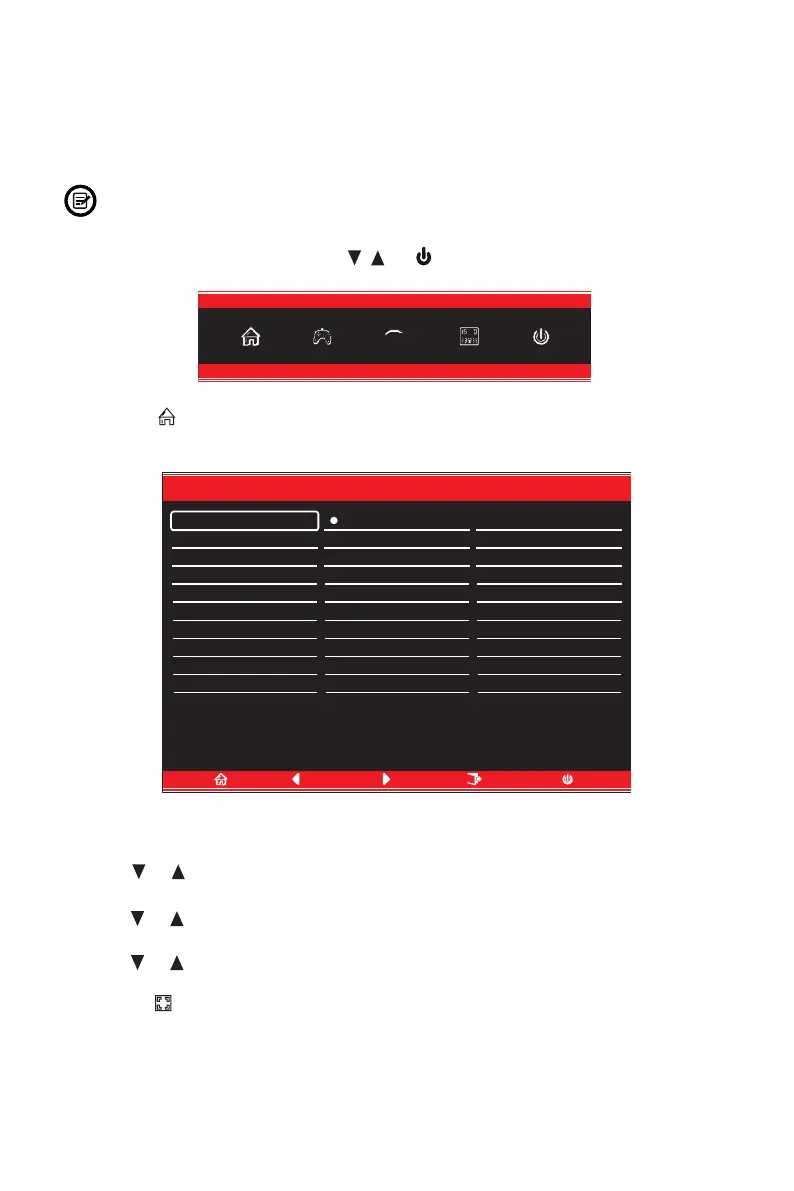
1. Press any one of the buttons (M, , , E, ) to activate the navigation window.
eco
2. Press M ( ) to enter the OSD menu.
DP
Resolution:1920x1080@60Hz
Input Source
Brightness/Contrast
Color Setting
Picture Quality Setting
Display
Audio
Multi-Window
OSD
Other
DP
HDMI 1 (2.0)
HDMI 2 (1.4)
HDMI 3 (1.4)
Window1:
InputSource:DP
Resolution:1920x1080@60Hz
Window2:
InputSource:
Resolution:
DP
Resolution:3440x1440@60Hz
Input Source
Brightness/Contrast
Color Setting
Picture Quality Setting
Display
Audio
Multi-Window
OSD
Other
DP
HDMI 1 (2.0)
HDMI 2 (1.4)
HDMI 3 (1.4)
Window1:
InputSource:DP
Resolution:3440x1440@60Hz
Window2:
InputSource:
Resolution:
3. Press or to browse functions.
• Highlight the desired function, then press M to enter the sub-menu.
• Press or to browse sub-menus, then press M to highlight the desired
function.
• Press or to highlight an option, then press M to conrm the settings and exit
the current screen.
4. Press E ( ) to exit the current screen.



 To Next Page