Need help?
Do you have a question about the Viotek GNV34DBE2 and is the answer not in the manual?
Identifies and explains the function of each physical button on the monitor.
Details all the input and output ports available on the monitor for connectivity.
Provides a detailed list and description of all configurable settings within the OSD menu.
Offers solutions for common issues such as a blank screen or signal loss.
Details input and resolution information for Picture-in-Picture and Picture-by-Picture modes.
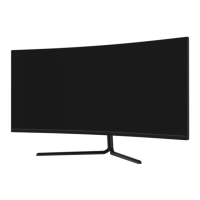
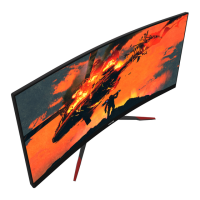
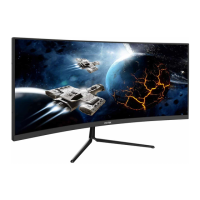
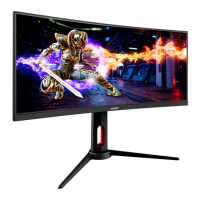
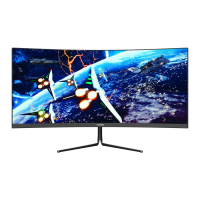
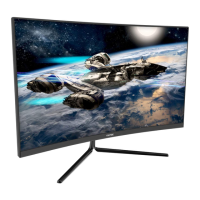
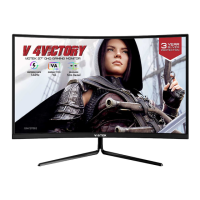
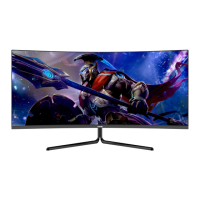
The VIOTEK GNV34DBE2 is a gaming monitor designed to provide an immersive visual experience for users. This monitor offers a range of features tailored for gaming, including various display modes, adaptive sync technology, and multi-window capabilities.
The monitor serves as a display unit for computers and other video sources, offering high-resolution visuals and a fast refresh rate suitable for gaming. It supports multiple input sources, including DisplayPort (DP) and HDMI, allowing for flexible connectivity with different devices. The On-Screen Display (OSD) menu provides comprehensive control over various monitor settings, enabling users to customize their viewing experience.
Monitor Buttons and Navigation: The monitor features a set of intuitive buttons for navigation and control. The "M" Menu Button is used to display the OSD menu or enter sub-menus. The "Down" and "Up" Buttons allow users to navigate through menu options. The "E" Exit Button is used to exit menus. A dedicated Power Button turns the monitor on or off. An LED Indicator changes colors to show the monitor's status, with a solid blue light indicating power on and normal operation, and a flashing blue light indicating no video source, no signal, or low voltage. The "E" button also doubles as a switch between "Limit" and "Full" color gamuts when a compatible graphics card and HDMI or DP cables are used.
Monitor Ports: Connectivity is robust with multiple ports. The Power Connector is for the power cable. An Audio Output port allows for external audio devices. Two DP Connectors (DP1.4) and two HDMI Connectors (HDMI 2.0) provide versatile video input options.
Basic Operation: To set up the monitor, users connect one end of a DisplayPort (DP) or HDMI cable to their PC's graphics card and the other end to the corresponding port on the monitor. The power cable is then connected to the monitor and a power source, ideally a surge protector. The monitor is turned on using the power button.
VIOTEK Adaptive Sync: This feature is crucial for gamers as it eliminates image tearing, stuttering, and ghosting. Adaptive Sync adjusts the monitor's vertical refresh rate to match the frame rate of the graphics card. It is compatible with GPUs that support AMD® FreeSync™ or NVIDIA® G-Sync™. By default, this feature is off and must be manually enabled in the monitor's OSD. To utilize Adaptive Sync, the connecting device must be compatible, have the latest graphic drivers, and be connected via a DisplayPort (DP) cable.
OSD Menu Functions: The OSD menu is the central hub for customizing the monitor. When first used, settings automatically adjust to optimal configurations based on the computer. Users can activate the navigation window by pressing any of the monitor buttons. Pressing the "M" button enters the OSD menu. Navigation through functions and sub-menus is done using the "Down" and "Up" buttons, with "M" confirming selections and "E" exiting screens. Key OSD functions include:
ECO Modes and Gameplus Switching: The monitor offers quick access to ECO modes and Gameplus features. Pressing any navigation button activates the navigation window. The "Down" button switches Gameplus modes, which include various crosshair icons designed to optimize aim in shooting games. The "Up" button switches ECO modes, such as Standard, Photo, Movie, Game, FPS, and RTS, each optimizing settings for different activities. Standard mode is recommended for general use. The "E" button allows switching between "Limited" and "Full" color gamut modes, provided a compatible graphics card and DP or HDMI cables are used.
PIP (Picture in Picture) and PBP (Picture by Picture) Resolution Information: For optimal viewing in PIP/PBP modes, it is recommended to set both panels to the same resolution. For instance, setting both the first and second panels to 1720 x 1440 @ 144Hz resolution is suggested to minimize tearing and visual deformation.
Stand Installation: The monitor comes with a stand that requires assembly. Users are instructed to keep the foam underneath the monitor during installation. The process involves fastening the stand base to the stem using an included screwdriver and screw. The adapter is then removed from the back of the monitor and fastened onto the stem with two screws. Finally, the fully assembled stand is reattached to the monitor. The monitor should be placed on a flat, level surface. A button on the bracket allows for easy removal of the monitor if mounting is desired.
Mount Installation: For mount installation, the monitor should be gently placed on a desktop or table with foam still attached. Any extra parts and foam covering the monitor should be removed. If the stand is already attached, it should be removed by pressing the button on the back. The adapter on the back of the monitor is then removed, and four included screws are tightened onto the mounting holes. The monitor can then be installed on a wall, mount, or fixture.
Troubleshooting: The manual provides a comprehensive troubleshooting section for common issues:
Cleaning: For cleaning, the monitor should be powered off and disconnected from the power cord. Users are warned not to touch cords or cables with wet hands to avoid electric shock. A dry, non-abrasive cloth should be used to gently remove dust and debris. For the exterior, a lightly damp, well-wrung soft cloth can be used. Alcohol, solvent, surfactant, or ammonia-based cleaning solutions should never be used, nor should water or detergent be sprayed directly on the product. After cleaning, the power cord is reconnected, and the monitor and PC are powered on.
 General
| Color | black |
|---|---|
| Screen Type | lcd |
| Tiltable | yes |
| Wall Mount | 75mm x 50mm |
| Webcam | no |
| OS Compatibility | linux, mac, windows, not applicable |
| Screen Size | 34 inches |
| Panel Type | va |
| Aspect Ratio | 21:9 |
| Resolution | 3440 x 1440 |
| Refresh Rate | 144hz |
| Horizontal Viewing Angle | 178 degrees |
| Vertical Viewing Angle | 178 degrees |
| Response Time | 4 milliseconds |
| Brightness | 350 candela per square meter |
| Contrast Ratio | 1, 000, 000:1 |
| Synchronization | freesync (amd adaptive sync) |
| HDR | no |
| Built-In Speakers | no |
| Interface Connectors | 2 x displayport 1.4 |
| HDMI Ports | 2 |
| Display Port Inputs | 2 |
| Depth with Stand | 8.88 inches |
| Height with Stand | 17.88 inches |
| Width with Stand | 31.83 inches |
| Net Weight without Stand | 15.47 pounds |

 To Next Page