Need help?
Do you have a question about the Viotek GNV27DB2 and is the answer not in the manual?
Explains the function and location of each button on the monitor.
Details the various input and output ports available on the monitor.
Detailed breakdown of OSD menu items and their functions for monitor settings.
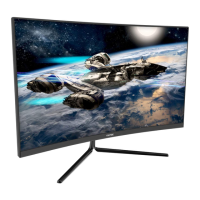
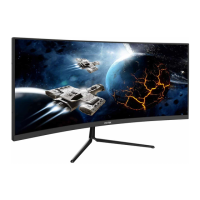
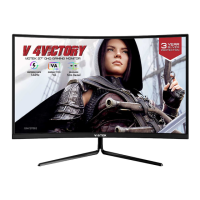
This document is a user manual for the VIOTEK GNV27DB2 Gaming Monitor, providing instructions for setup, operation, and troubleshooting.
The VIOTEK GNV27DB2 is a gaming monitor designed to display video output from a computer or other compatible devices. It features a range of input ports, including DisplayPort (DP) and HDMI, to connect to various video sources. The monitor is equipped with an On-Screen Display (OSD) menu that allows users to adjust various settings such as brightness, contrast, color, and display modes to optimize the viewing experience. A key feature for gamers is the VIOTEK Adaptive Sync, which eliminates image tearing, stuttering, and ghosting by synchronizing the monitor's refresh rate with the graphics card's frame rate. This feature is compatible with GPUs using AMD® FreeSync™ or NVIDIA® G-Sync™ and requires a DisplayPort connection. The monitor also includes ECO modes and Gameplus features, providing optimized settings for different activities and in-game enhancements like crosshairs. An audio output port allows for connection to external speakers or headphones.
The monitor offers a user-friendly interface for basic operation and advanced customization. To get started, users connect the monitor to a power source and a computer using either a DisplayPort or HDMI cable. The power button turns the monitor on or off, and an LED indicator provides visual feedback on its status (solid blue for normal operation, flashing blue for no signal or low voltage).
The OSD menu is the central hub for adjusting monitor settings. It can be accessed by pressing the 'M' (Menu) button after activating the navigation window. Within the OSD, users can navigate through various categories using the 'Up' and 'Down' buttons and select options with the 'M' button. The 'E' (Exit) button allows users to exit the current screen or the OSD menu.
Key OSD functions include:
Beyond the OSD, dedicated buttons provide quick access to specific features:
Troubleshooting tips are provided for common issues such as a blank screen, out-of-focus image, flashing screen, "cannot plug and play" errors, dim image, image jitter/moire patterns, and color problems. These tips guide users to check power, cable connections, graphics card installation, and monitor settings.
The manual outlines clear instructions for cleaning the monitor to ensure its longevity and proper functioning.
The manual also emphasizes general safety precautions, such as unplugging the monitor before cleaning, avoiding blocking ventilation openings, keeping the monitor away from heat sources, and not inserting anything into the monitor's openings. It also warns against disassembling or modifying the monitor, as this can lead to damage, injury, or death and will void the warranty.
 General
| Color | black |
|---|---|
| Screen Type | led |
| Wall Mount | 75mm x 75mm |
| Webcam | no |
| OS Compatibility | windows, mac |
| Screen Size | 27 inches |
| Panel Type | va |
| Aspect Ratio | 16:9 |
| Resolution | 2560 x 1440 |
| Native Resolution | 2560 x 1440 |
| Refresh Rate | 144hz |
| Horizontal Viewing Angle | 178 degrees |
| Vertical Viewing Angle | 178 degrees |
| Response Time | 1 milliseconds |
| Brightness | 250 candela per square meter |
| Contrast Ratio | 3000:1 |
| Synchronization | freesync premium (amd adaptive sync), g-sync compatible (nvidia adaptive sync) |
| HDR | yes |
| Built-In Speakers | no |
| HDMI Ports | 0 |
| Height with Stand | 17.8 inches |
| Width with Stand | 24.26 inches |
| Net Weight without Stand | 10.69 pounds |

 To Next Page