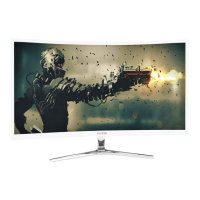
6
Section 3: Product Overview
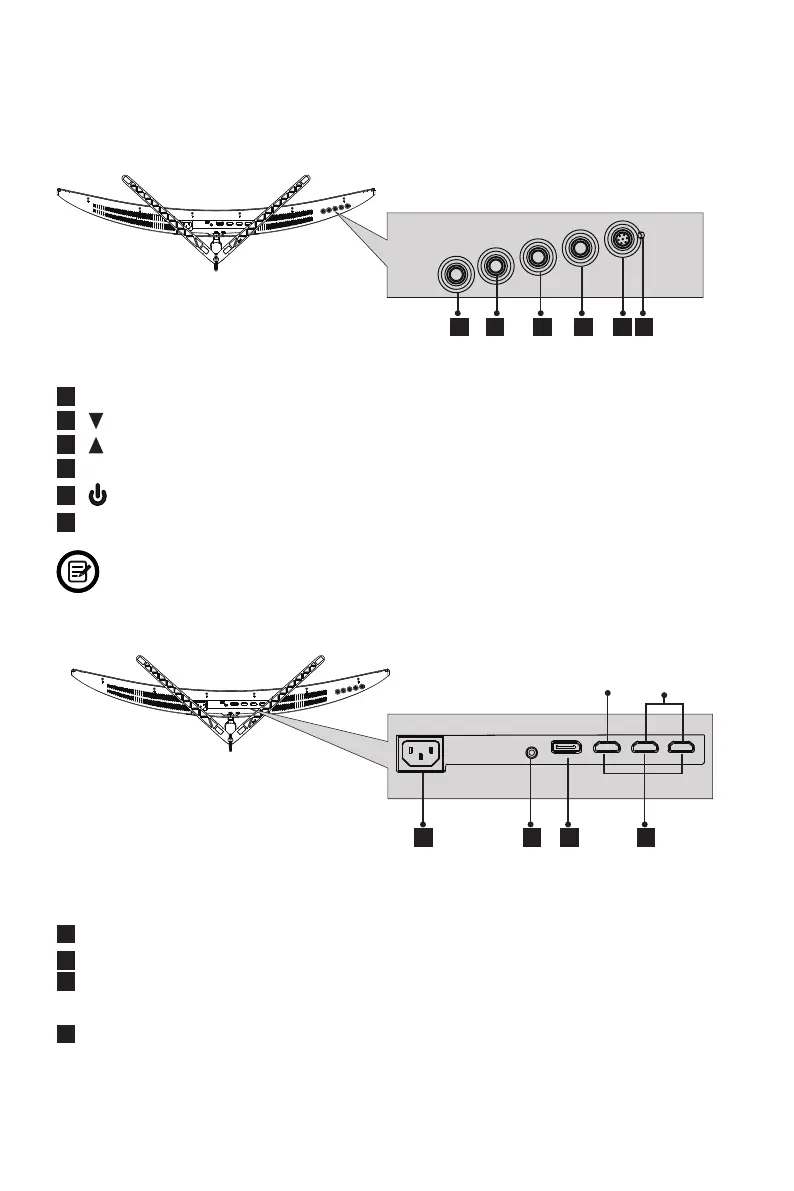
3.1 – Monitor Buttons
3.2 – Monitor Ports
7
Power Connector: Insert the power cable to supply power to the monitor.
8
Audio Output: Insert the audio cable for output of audio signals.
9
DP Connector: Insert one end of the DP cable into the computer’s DP output
and connect the other end to the monitor’s DP port.
10
HDMI Connectors: Insert one end of the HDMI cable into the computer’s
HDMI output and connect the other end to the monitor’s HDMI port.
7 9 10
8
2 3 4 5 61
1
M Menu Button
: Press to display the OSD menu or enter sub-menus.
2
Down Button: Press to move down in the menus.
3
Up Button: Press to move up in the menus.
4
E Exit Button: Press to exit.
5
Power Button: Press to turn the monitor on/off.
6
LED Indicator: Changes colors to indicate status. Refer to Section 7.
The E button can also be used to switch between “Limit” and “Full” color gamuts when
a compatible graphics card and either HDMI or DP connections are in use.
HDMI 2.0 HDMI 1.4


 To Next Page