EasyManua.ls Logo

Viotek H270 - User Manual

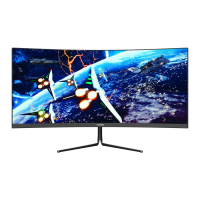
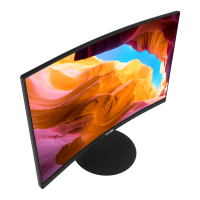
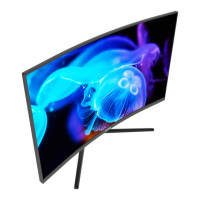
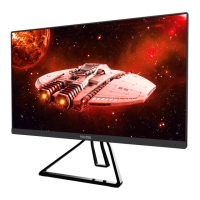
Viotek H270
16 pages
Print Icon
To Next Page IconTo Next Page
Loading...
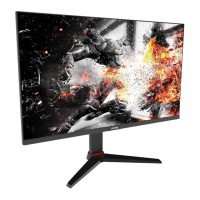
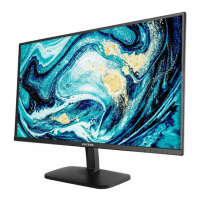
H270
LED MONITOR
USER MANUAL
In order to continue serving our customers and providing the best products, our product information
including our user manuals may receive updates from time to time. Please check our website for the
latest user manuals and product materials.

Questions and Answers

  • V
    Vanessa Myers PhDAug 18, 2025
    What to do if the light indicator is on but there is no image displayed on the Viotek Monitor?
    • A
      amolinaAug 19, 2025
      If the indicator light is on or flashing but there is no image on your Viotek monitor, first verify that the monitor power is on. Then, check if the graphics card is properly installed. Next, ensure the signal line is securely connected to the monitor. Finally, inspect the pins in the interface to ensure they are not curved.
  • R
    Richard JenningsAug 20, 2025
    Why is my Viotek H270 Monitor screen blank?
    • D
      Daniel BowmanAug 21, 2025
      If your Viotek monitor screen is blank, first, ensure the monitor is powered on by pressing the power button. Next, check the brightness and contrast settings to confirm they are set to normal levels. Also, verify if the Indicator Light is flashing, which indicates a lack of signal from your video source. If you are using a notebook or laptop, ensure its settings are in mirror or extension mode and that the device is powered on.
  • D
    Douglas DeanAug 23, 2025
    What to do if my Viotek H270 screen is flashing?
    • G
      gholdenAug 23, 2025
      If your Viotek monitor screen is flashing, it may be due to insufficient power. Try using an alternative power source. Also, ensure that devices such as non-shielded speakers, fluorescent lighting, AC transformers, and table fans are a safe distance away from your screen to avoid magnetic disturbances.
  • M
    Molly JenkinsAug 26, 2025
    How to fix color bleed on my Viotek H270 Monitor?
    • L
      Luis Perry IIAug 26, 2025
      If the color bleeds or visual effects appear unusual on your Viotek monitor, a loose connection can cause a bad signal. If your screen is all red or blue, or any colors disappear, check to see that the cable is properly inserted. You can also try connecting to another video source for comparison.
  • G
    George MurphyAug 28, 2025
    What to do if the Viotek H270 image is out of focus?
    • J
      Jenny MoranAug 28, 2025
      If the image on your Viotek monitor is out of focus, ensure the video cable is inserted properly at both ends.
  • L
    lisa28Aug 30, 2025
    Why is my Viotek H270 Monitor screen scrolling or moving unusually?
    • B
      Bryan BakerAug 30, 2025
      If your Viotek monitor screen appears to be scrolling, rolling, or moving unusually, check that your source frequency is within 55-76Hz. Also, reconnect and ensure your video cable is secure.
  • M
    Michael PetersonSep 1, 2025
    How to fix dim image on Viotek H270 Monitor?
    • L
      Louis LopezSep 1, 2025
      To fix a dim image on your Viotek monitor, adjust the brightness and contrast ratio.
  • C
    Courtney HillSep 3, 2025
    How to fix color difference on Viotek H270?
    • M
      Monique StoneSep 4, 2025
      To fix color differences on your Viotek monitor where colors are not optimized, adjust the RGB color or reset the color temperature.
  • M
    Monica MyersSep 6, 2025
    Why is the indicator light on my Viotek monitor not working?
    • S
      shawnhayesSep 6, 2025
      If the indicator light on your Viotek monitor is not working, check if the power is on and ensure the power line is connected properly.
  • J
    James SwansonSep 8, 2025
    Why is my Viotek monitor image position not centered?
    • D
      Daniel HardinSep 8, 2025
      If the image position on your Viotek monitor is not centered or the size is not right, please adjust the Clock or Auto setting.

Summary

Safety Precautions

Box Contents

Product Overview

Monitor Buttons

Details the function of each physical button on the monitor.

Monitor Ports

Identifies and explains the different input/output ports on the monitor.

Stand Installation

Wall Mounting

Connectivity Options

Connecting the Power Cable

Instructions for connecting the monitor to a power outlet.

VGA Connectivity

Guide to establishing a video connection using a VGA cable.

HDMI Connectivity

Guide to establishing a video connection using an HDMI cable.

Basic Operation

Indicator Light

OSD Setup

OSD Menu Functions

Detailed explanation of OSD menu options and their adjustments.

Troubleshooting

Specifications

1 Year Limited Hardware Warranty

Viotek H270 Specifications

General IconGeneral
Panel TypeVA
Contrast Ratio3000:1
Aspect Ratio16:9
Screen Size27 inches
Ports1x HDMI 1.4
Viewing Angle178°/178°
Color GamutsRGB

Related product manuals