7
Section 4: Connectivity Options
4.1 – Connecting to Headphones
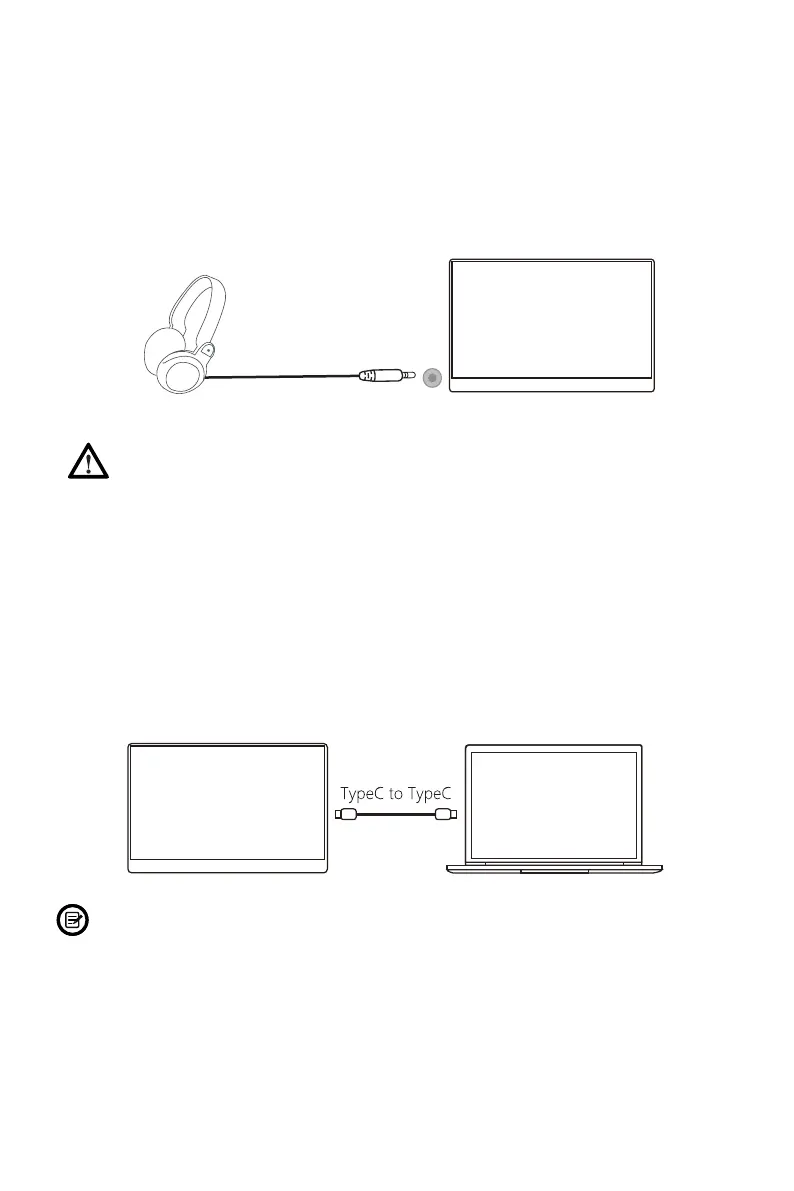
Plug in your headphones, or any 3.5mm-compatible external audio device, to
receive audio signals from your monitor. If your headphones are connected to the
monitor while audio devices are connected to your computer, the audio devices will
not produce sound. Headphones and other audio devices not included.
LinQ (P16C)
Monitor
Listening to loud audio for prolonged periods of time may permanently
damage your hearing.
4.2 – Connecting to a Computer Using Type-C
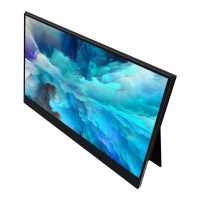
Use a standard Type-C cable (included) to connect the LinQ (P16C) monitor directly
to a computer with a full-featured USB Type-C port that supports DP alt-mode. The
monitor can be used as an extended display.
A single Type-C cable, like the one included, can be used to transfer audio/video
signals and supply power from the computer.
LinQ (P16C)
Monitor
Computer
The power output of every PC/laptop manufacturer is different and may be too low to
consistently power the LinQ (P16C). For optimal performance, use an external power
supply.


 To Next Page