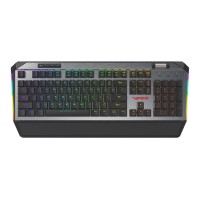
KEY ASSIGNMENTS
Select a Lighting Profile and check the box on Keymap. This gives you access to the SELECTED KEY menu.
You may assign specific functions to each key through the SELECTED KEY menu.
• Single/Combine
• Macro
• Basic
• Advance
SINGLE/COMBINE
This allows you to change the output value of a single key or combine two output values into a single keystroke.
Click a key you wish to change the value of or combine two values into (except for the Windows® key).
Click the Single/Combine tab from the SELECTED KEY menu.
Change the value of the keystroke in the single row or combine two values in the combine row.
Click Save, enable GAME MODE, click Apply.
To restore original function disable GAME MODE, and click Apply.
MACRO
This allows you to assign macro scripts you have created and saved to specific keys.
Click a key you wish to assign a macro to on the keyboard image (except for the Windows® key).
Click on the Macro tab from the SELECTED KEY menu and choose the macro you wish to assign from the list.
Click Save, enable GAME MODE, click Apply.
To restore original function disable GAME MODE, and click Apply.
BASIC
This allows you to assign various Windows® functions to various keys making them hot keys, including opening
multi-media functions, internet browser, file access, and more.
Click a key you wish to assign a basic function to on the keyboard image (except for the Windows® key).
Click on the Basic tab from the SELECTED KEY menu and choose the function you wish to assign from the list.
Click Save, enable GAME MODE, click Apply.
To restore original function disable GAME MODE, and click Apply.


 To Next Page
 Loading...