5
17
Using the On-Screen Menu
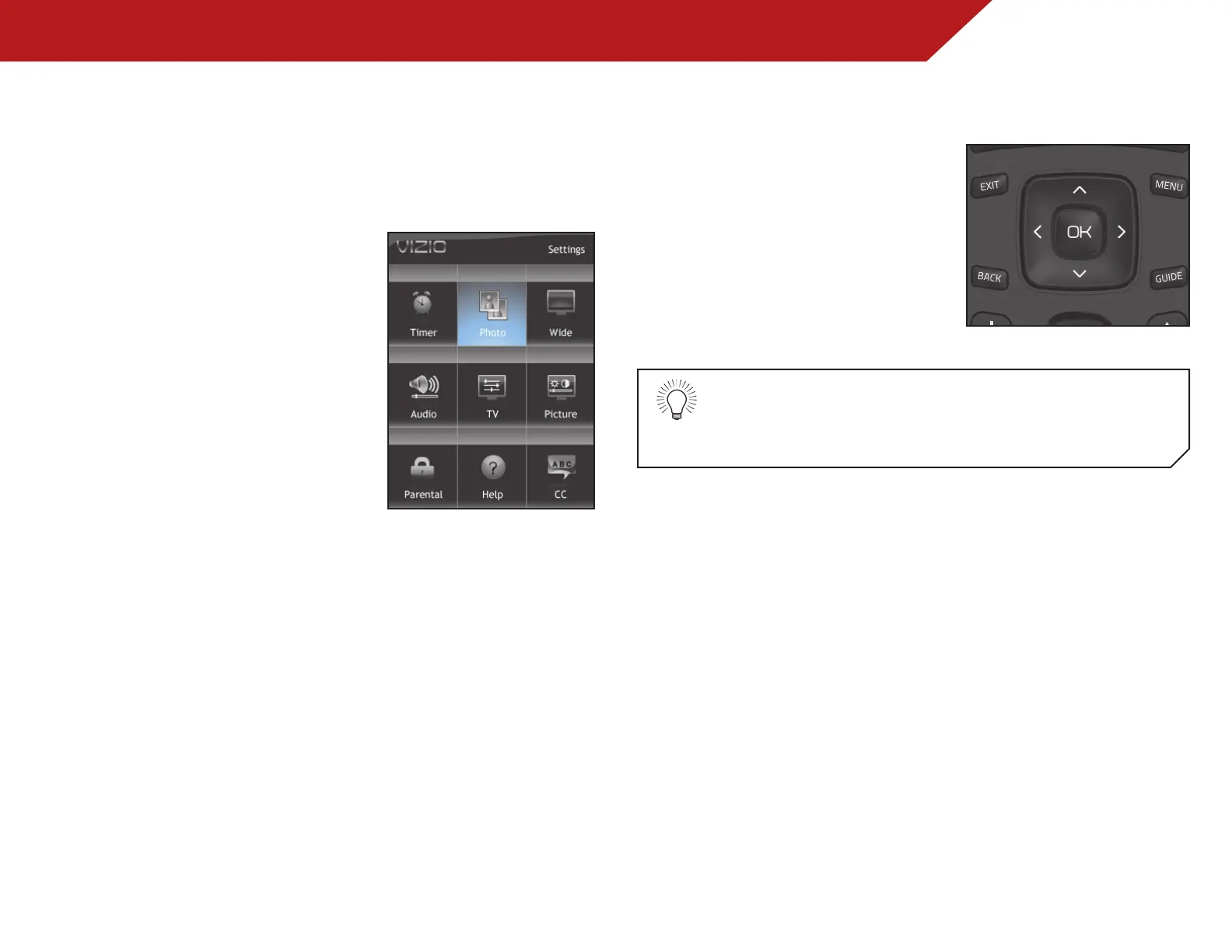
Your TV features an easy-to-use on-screen menu.
To open the on-screen menu, press the MENU button on the
remote. You can also open the on-screen menu by pressing the
VIA button and selecting HDTV Settings from the VIA Dock, then
pressing OK.
From this menu, you can:
• Change the input source
• Change the screen aspect
ratio
• Set up closed captioning
• Activate the sleep timer
• Adjust the picture settings
• Adjust the audio settings
• Change TV settings
NAVIGATING THE ON-SCREEN MENU
To open the on-screen menu,
press the MENU/OK button on the
remote.
Use the Arrow buttons to highlight
a menu option, and press the
MENU/OK button to select that
option.
While navigating the on-screen menu, you can press
the BACK button at any time to return to the previous
menu screen. The EXIT button will close the on-screen
menu.



 To Next Page