5
31
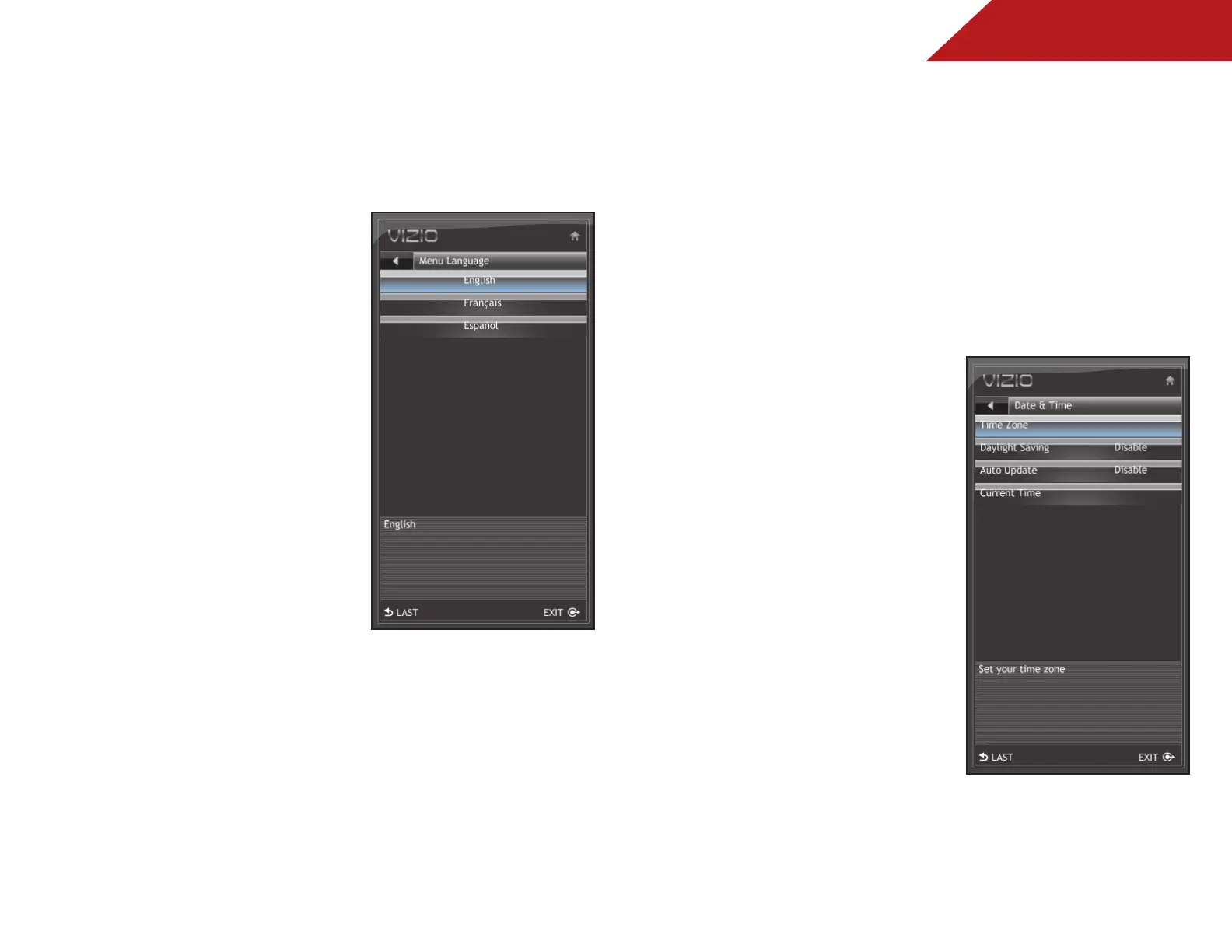
CHANGING THE ON-SCREEN MENU LANGUAGE
Your TV can display the on-screen menu in different languages.
To change the on-screen menu language:
1. Press the MENU button on the
remote. The on-screen menu is
displayed.
2. Use the Arrow buttons on the
remote to highlight the TV icon
and press MENU/OK. The TV
Settings menu is displayed.
3. Use the Arrow buttons to
highlight Menu Language and
press MENU/OK.
4. Use the Arrow buttons to
highlight your preferred
language and press MENU/OK.
5. Press EXIT.
SETTING THE TV’S DATE AND TIME
From the Date & Time menu, you can:
• Set the time zone
• Adjust the time for daylight savings
• Enable or disable automatic date and time updates
• Set the current date and time
Setting the Time Zone
To set the time zone:
1. Press the MENU button on the
remote. The on-screen menu is
displayed.
2. Use the Arrow buttons on the
remote to highlight the TV icon
and press MENU/OK. The TV
Settings menu is displayed.
3. Use the Arrow buttons to
highlight Date & Time and
press MENU/OK.
4. Use the Arrow buttons to
highlight Time Zone and press
MENU/OK.
5. Use the Arrow buttons to
highlight your time zone and
press MENU/OK.
6. Press EXIT.



 To Next Page