5
Sign into Your Google Account
If you have a Google Account and have touched Yes on the ‘Got Google?’ screen,
please follow these instructions:
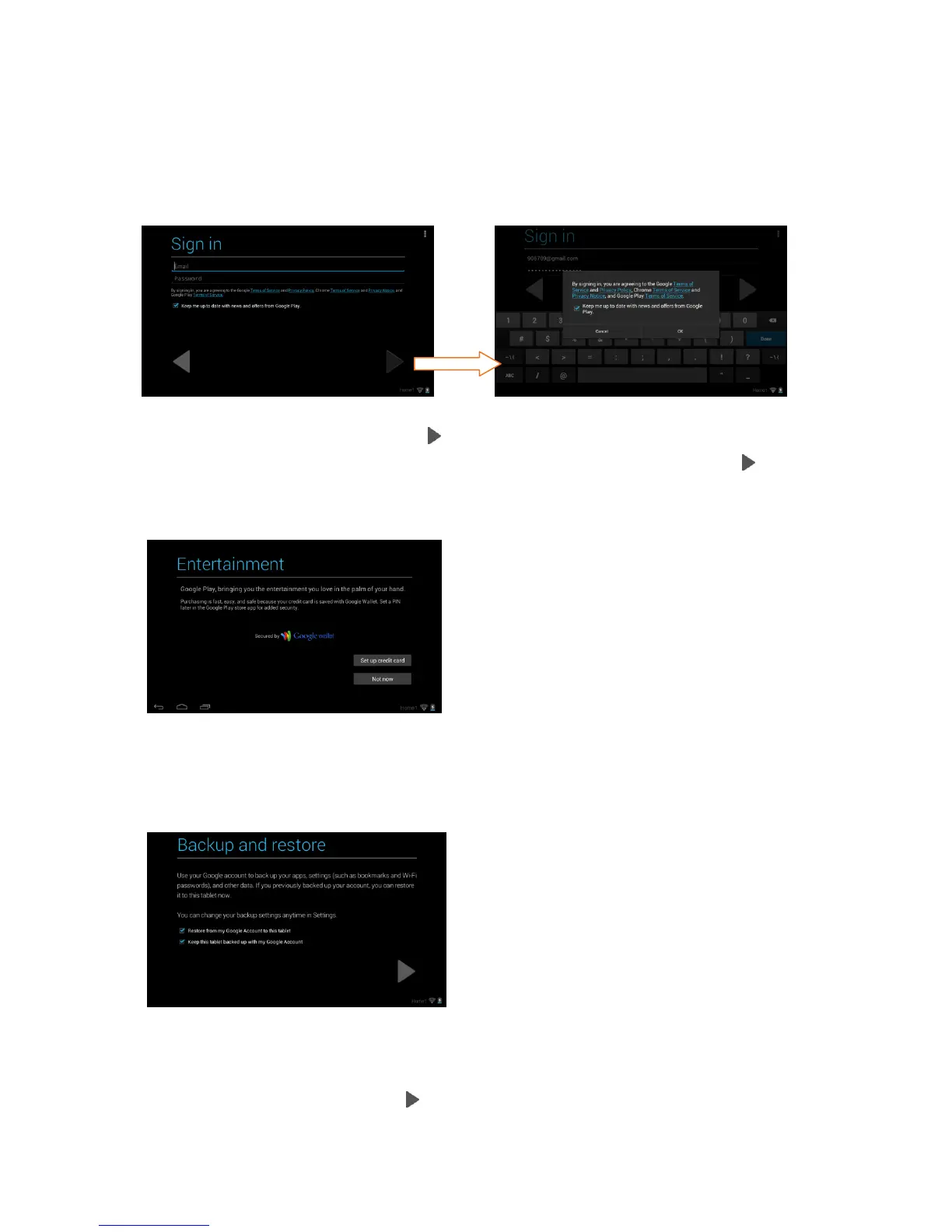
1. Sign In:
To sign into your account enter your Email and Password using the onscreen
keyboard, and then touch Next or Done to continue. Then touch OK to
agree to the Google, Chrome, and Google Play terms and touch Next to
continue.
2. Setup Google Play:
Touch Set up credit card and enter your details to enable easy purchasing of
apps from the Google Play Application Download Store. If you choose not to
setup Google Play, touch Not now.
3. Backup and restore:
You can backup your tablet’s data, apps and settings to the Google Cloud and
also restore your data, apps and settings from the Google Cloud. Touch the
appropriate box to check off and select the desired restore and backup
options and then touch Next to continue.



 To Next Page