5. Now you can start the Web Cam through using most instant messaging and web
conferencing applications that support video. Select the camcorder, ‘iCatchtek
SPCA6330’, from the video settings of the web conferencing application.
6. To return to U-disk mode (PCU mode), press the Shutter button again.
NOTE: Driver is not required for Web Cam mode (PCC mode) on Windows XP (SP3)
version or above.
DELETING CAPTURED IMAGES
Files can be deleted while your camcorder is connected to your HD television or your computer.
Deleting Image Files while Connected to the Television:
After connecting to HDTV, the camcorder enters the Playback Mode mode.
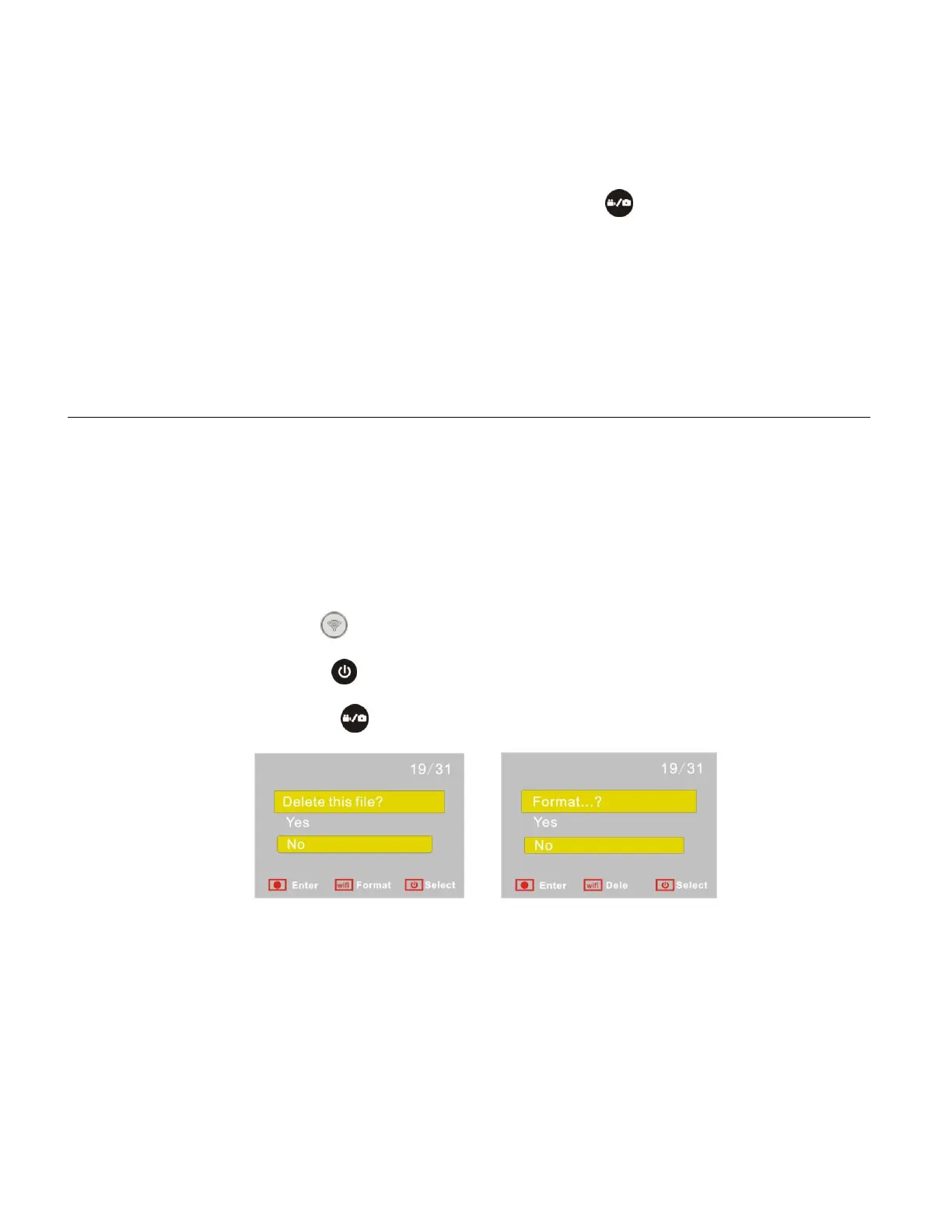
1. In Playback Mode on the HDTV, long press the Shutter button to enter File Deletion Mode.
2. Press the Wi-Fi button to switch between deleting or formatting.
Press the Power button to select ‘Yes’ or ‘No’.
Press the Shutter button to confirm and exit.
Deleting Image Files while Connected to the Computer:
After connecting to the computer, the camera enters portable disc mode.
1. After connecting the camcorder to your computer and opening the ‘DCIM’ folder with your
image files, select the file(s) that you would like to delete.
2. Drag them to the Trash Can icon on your computer desktop or press the Delete key to
delete the files.


 To Next Page