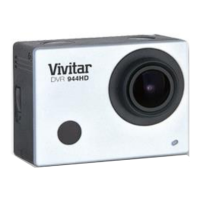
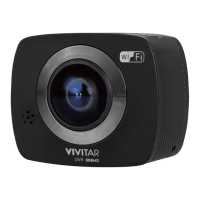
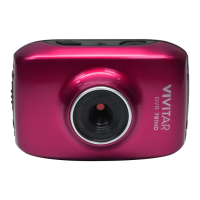
The following options appear on the Home screen:
1. Connect and Add New Camera:
Make sure your Mobile device and your Vivitar Action Cam are connected. See
CONNECTING YOUR ACTION CAM TO YOUR MOBILE DEVICE for more information.
Tap Add New Camera to connect to the camera to the app. , you are
now able to control the camera with the Vivitar Action Cam app.
Once connected, the selected camera appears as “Connected” in
blue with a check mark in the Home screen.
Tap the button with your ‘Connected’ camera to open the Video Capture Live Camera
Mode and begin capturing your images remotely.
CAMERA OPTIONS:
- To add another camera, pair the additional camera to your mobile device and then tap
Add New Camera.
- To change to a different added camera, tap that camera that you would like from the
Home screen. This selects the desired camera and opens the Video Capture Mode
live camera.
- To reconnect when your Action Cam status appears as ‘Disconnected’ on the app, you
need to reconnect your Action Cam to the application. Go to the Wi-Fi Settings on your
mobile device and connect to the camera’s Wi-Fi network. The network name
‘DVR914HD_xxxxxx’ appears – select this network. Go back to the app’s home screen
and your camera will be marked as ‘Connected’ on the main screen. See
CONNECTING YOUR ACTION CAM TO YOUR MOBILE DEVICE for more
information.
- Long tap the button of an added camera to open the following options:
Connect: Tap Connect to reconnect and to open the connected Action cam live mode.
Rename: Allows you to change the name of the camera displayed on the button.
Delete: Removes the selected camera from the list.
Cancel: Exits the menu and returns to the Home screen. NOTE: The Cancel option
appears on iOS devices only.


 To Next Page