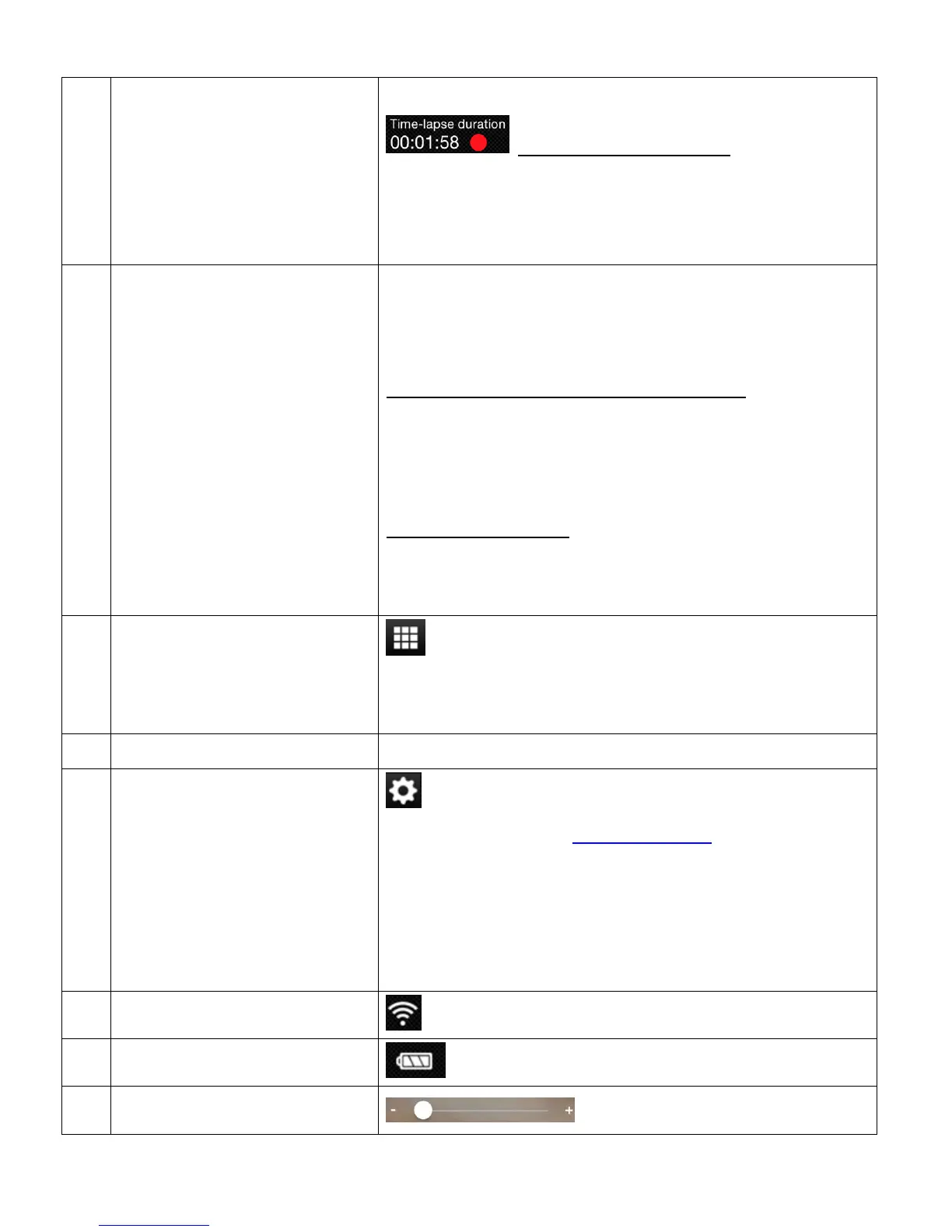
TIME-LAPSE DURATION: During the
recording of your Time-lapse video, the TIME LEFT
changes to Time-lapse duration, which displays the
duration of the time-lapse as it is being recorded.
VIDEO RESOLUTION
SETTINGS
Displays the current selected Video Resolution.
Tap the Video Resolution icon to change resolution setting.
The Video Resolution settings include:
REGULAR VIDEO/SLOW MOTION VIDEO:
QHD 1440P 30fps, FHD 1080P 60fps,
FHD 1080P 30fps (Default), HD 720P 120fps,
HD 720P 60fps
TIME-LAPSE VIDEO:
FHD 1080P 60fps, FHD 1080P 30fps (Default),
HD 720P 120fps, HD 720P 60fps
Tap the Playback Mode icon to open Playback Mode
and view thumbnails of the captured videos and photos
from your camera.
Displays the name of the connected camera.
Tap the Camera Settings icon to display the Camera
Settings options. See ‘Camera Settings’ for more details.
The Camera Settings options include: Frequency, Date
Stamp. Camera information, Change Camera
password, Format storage, and Time-Lapse settings
(Type, Interval, Duration).
Displays the camera’s Wi-Fi signal status.
Displays the battery level of the camera.


 To Next Page