CONNECTING YOUR ACTION CAM TO YOUR MOBILE DEVICE
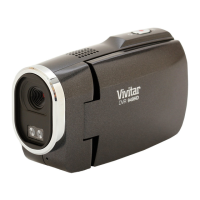
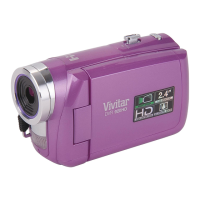
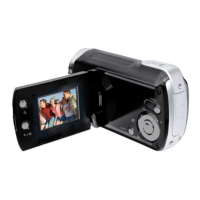
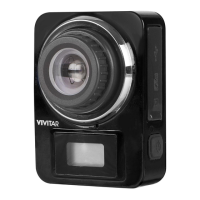
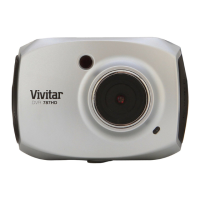
1. LifeCam Camcorder:
Make sure you have installed a TF card and power on your Camcorder.
Power on the camcorder. Then press the Wi-Fi button on the Action Camcorder to enable
the Wi-Fi connection. The Wi-Fi button’s red LED light blinks and the Wi-Fi icon appears
on the LCD.
2. Mobile Device:
Open ‘Settings’ on your mobile device and select Wi-Fi. Enable Wi-Fi on your smartphone
or tablet and search for the camera’s wireless AP signal. The ‘DVR936’ network name will
appear.
Tap this network name to select your action camcorder’s Wi-Fi network connection. You
will be prompted for the first time to join the network and enter a password (see below).
When connected successfully, a check appears by the selected Wi-Fi network on your
smartphone or tablet. The camcorder’s red LED Wi-Fi light stops blinking to indicate the
successful connection.
NOTE: The first time connecting to the camcorder,you need to enter the following
password: “1234567890”.
3. To launch the application:
Tap the Action Cam application icon on the Home Screen or from the App list of the
smartphone or tablet to open it. Now you can preview images from your phone, from your
camera and use your mobile device to control the camcorder settings and capture your
images.







 To Next Page