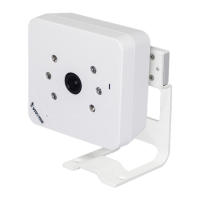
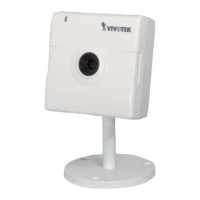
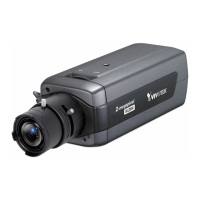
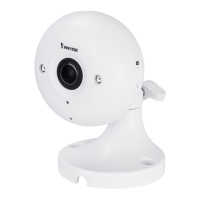
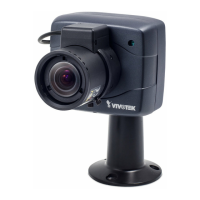
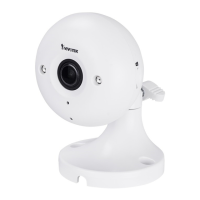
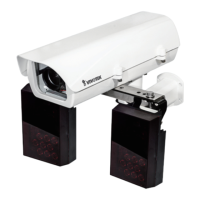
The VIVOTEK IP8130W/8131W are compact cube network cameras designed for indoor surveillance, ideal for offices, shops, and homes. These cameras offer a range of features for effective monitoring and ease of use.
Function Description:
The primary function of these devices is indoor surveillance, providing clear video in various environments. The IP8131/31W models are enhanced with IR LEDs and an IR-cut filter, enabling clear video even in completely dark conditions. A built-in microphone further augments surveillance capabilities by recording sound within a 6-meter radius. The cameras utilize industry-standard H.264 compression technology to reduce file sizes and conserve network bandwidth. For wireless models (IP8130W/31W), 802.11b/g/n compatible wireless connection is supported, simplifying installation and reducing costs. The WPS (Wi-Fi Protected Setup) function on these wireless models facilitates easy and straightforward wireless configuration. VIVOTEK also provides the multi-lingual 32-channel recording software ST7501 for setting up an IP surveillance system, and the iViewer smart phone application (for iPhone and Android) for off-site live video monitoring.
Important Technical Specifications:
- Resolution: 1 Megapixel (1MP)
- Wireless Connectivity: 802.11n WLAN (for IP8130W/8131W models)
- Wireless Configuration: WPS support
- Compression Technology: H.264
- Audio: Built-in microphone (6-meter radius)
- Night Vision (IP8131/31W): IR LEDs and IR-cut filter
- Power Input: +12V, 1A (via power adaptor)
- Ethernet: 10/100 RJ45 Socket
- I/O: General I/O Terminal Block (DI-, DI+, Audio GND, Audio Out)
- Storage: MicroSD/SDHC/SDXC Card Slot, compliant with 8GB, 16GB, 32GB, or 64GB capacity SD cards.
- LED Status Indicators:
- Steady Red: Powered on, during system boot, or no network connection.
- All LED off: Powered off.
- Blinking Blue (every 0.15 sec): Searching for WPS.
- Blinking Green (every 1 sec): Network connected (wired or wireless).
- Blinking Green and RED intermittently: Upgrading firmware.
- Blinking Orange (every 0.15 sec): Restoring default.
Usage Features:
- Installation: The camera can be attached to a stand, and the shooting angle can be adjusted. Screws are included for securing the stand to a mounting surface. Users are advised to record the MAC address before installation.
- Network Deployment:
- LAN Connection: Connect external devices (sensors, alarms) to the I/O terminal block. Connect the camera to a switch via Ethernet cable or directly to a computer. Power is supplied via the included power cable.
- Internet Connection via Router: The manual provides detailed steps for connecting the camera behind a router, including port forwarding configurations for HTTP, RTSP, RTP (audio/video), and RTCP (audio/video) ports. It also mentions VIVOTEK's automatic port forwarding feature via UPnP.
- Internet Connection with Static IP: Instructions are provided for using a static IP for the Network Camera.
- Accessing the Network Camera:
- Web Browsers: Access is typically done via web browsers (e.g., Microsoft Internet Explorer or Mozilla Firefox) by entering the camera's IP address. The Installation Wizard 2 (IW2) helps locate cameras on a LAN. For first-time users, a plug-in installation may be required. For Mozilla Firefox users, Apple's Quick Time is used for live video streaming.
- ActiveX Controls: Users may need to enable ActiveX controls in their browser settings (Tools > Internet Options > Security > Custom Level) for proper functionality. The camera uses a 32-bit ActiveX plugin, so a 64-bit IE browser cannot be used for management/view sessions.
- RTSP Players: The camera can be accessed using RTSP players.
- 3GPP-compatible Mobile Devices: Mobile devices supporting 3GPP can access the camera.
- VIVOTEK Recording Software: The camera is compatible with VIVOTEK's recording software.
- Wireless Connection:
- WPS Button: For wireless models, WPS allows for easy setup with compatible Access Points (APs). The process involves disconnecting the LAN cable, connecting power, pressing the camera's WPS button, and then the AP's WPS button. The camera's LED indicates the status of the WPS process. WPA2/AES encryption is recommended.
- Manual Configuration: Alternatively, wireless settings (SSID, Encryption type, Pre-shared key) can be manually configured via a wired connection through the Configuration > Wireless > WLAN page. After saving, the Ethernet cable should be disconnected, and the camera rebooted.
- Digital Input: The camera supports digital input devices. Users can connect a digital input device to the input pins and configure the camera to report the signal status (High or Low) from the Applications > Digital Input page.
Maintenance Features:
- Hardware Reset: A reset button is available on the rear panel.
- Reset: Press and release the button to reboot the Network Camera.
- Restore: Press and hold the button until the status LED rapidly blinks to restore factory default settings. The status LED will blink green and red during normal operation after a successful restore.
- Firmware Upgrade: The LED status indicator "Blinking Green and RED intermittently" signifies firmware upgrading.
- Troubleshooting:
- If wireless setup fails, users are advised to re-try the process or use a wired connection for manual configuration.
- If a camera is assigned a fixed IP outside the AP's network segment, wireless setup will fail.
- Wired connections have higher priority; to switch to wireless, disconnect the Ethernet cable and reboot the camera.
- If the onscreen Java control malfunctions (e.g., due to connecting to different cameras with the same IP or different firmware versions), removing browser cookies can resolve the issue.
- It is highly recommended to set a password for the Network Camera to prevent unauthorized access.

 Need help?
 General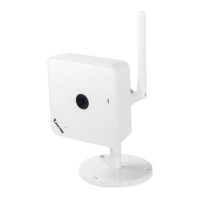

 To Next Page