4
CHANGING THE SCREEN ASPECT RATIO
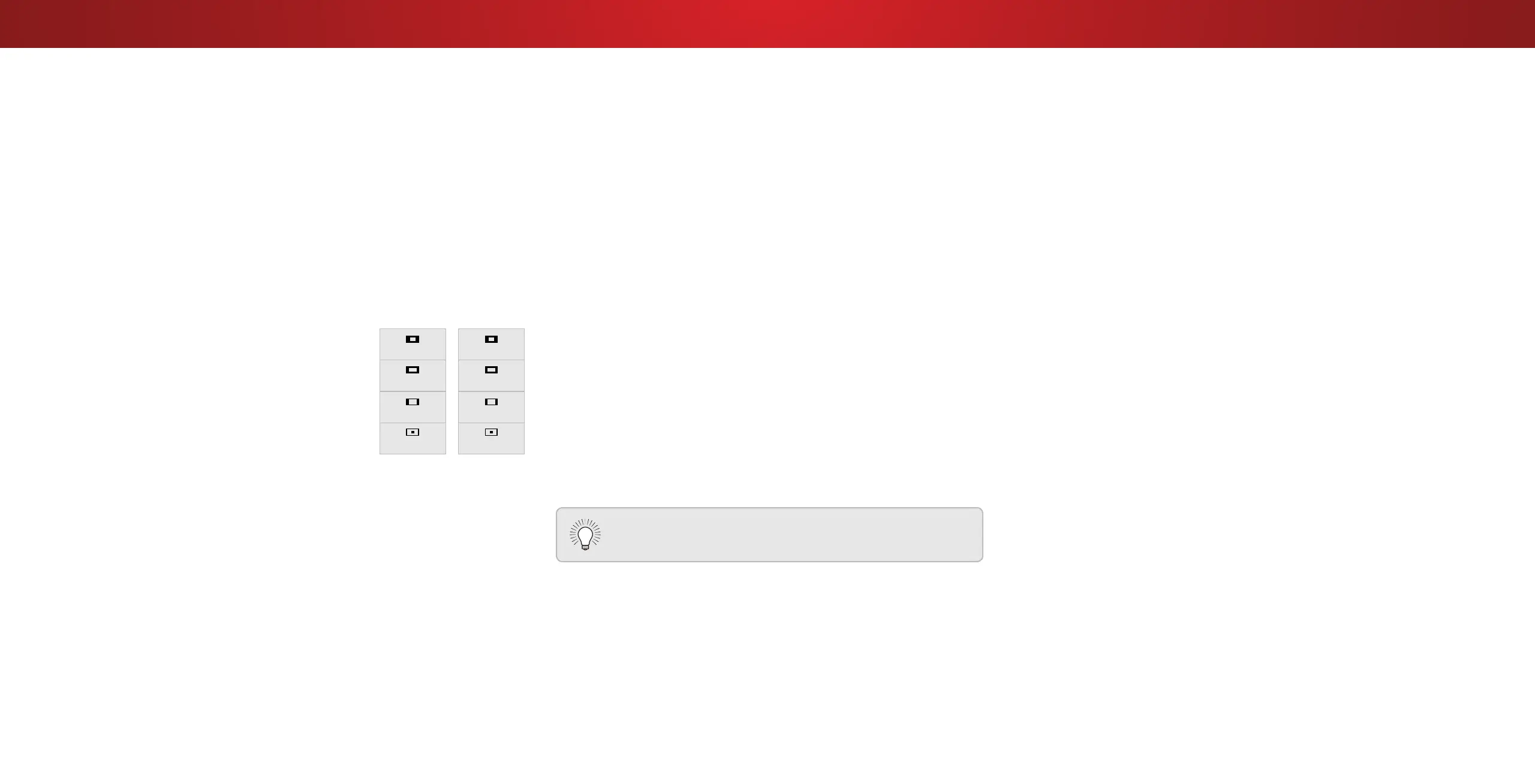
The TV can display images in ve dierent modes: Normal, Stretch,
Panoramic, Wide, and Zoom. Each mode displays the picture
dierently.
Some programs have black bars on the top or sides of the picture
so that the picture keeps its original shape. Examples include
wide-screen movies and older television programs.
To change the screen aspect ratio:
1. Press the WIDE button on the
remote.
2. Use the Arrow buttons to
highlight the aspect ratio you
wish to view and press OK.
• Normal preserves the content’s
original aspect ratio and size.
• Standard Denition (480i and
480p—old TV programs) - Since
the 4:3 aspect ratio is not large
enough to ll the TV’s screen,
black bars are added to the left
and right of the display image.
• 720p and 720i HD - Fills a 720p or 1080p screen.
• 1080p and 1080i HD - Fills a 720p or 1080p screen.
• Stretch expands a widescreen image to ll the screen from
top to bottom and stretches it half as much from right to
left. Figures appear tall and thin.
• Standard Denition - Not available.
• 720p and 720i HD - If you are watching widescreen
1.85:1 content, the image will ll the screen. With 2.35:1
widescreen content, one-sixth of the image is cut o by
the left and right sides of the screen.
• 1080p and 1080i - Not available.
• Panoramic stretches a 4:3 aspect ratio picture to the left
and right edges of the screen. The center of the image is
Panoramic
Wide
Zoom
Normal
Stretch
Wide
Zoom
Normal
Note: Aspect ratio settings may
vary by Input source.
not stretched, but the sides of the image are extremely
stretched. If you are watching widescreen (1.85:1 or 2.35:1)
content with black bars on the top and bottom, the black
bars will still appear on the top and bottom of the display
image.
• Standard Denition (480i and 480p) - Fills the screen
from the left to right edges.
• 720p and 720i - Not available.
• 1080p and 1080i - Not available.
• Wide stretches a 4:3 aspect ratio picture to the edges of
the screen. Since the picture is being stretched, the display
image may appear distorted—gures appear short and fat.
If the program is already formatted for widescreen viewing
(1.85:1 or 2.35:1), then black bars will appear on the top
and bottom of the display image.
• Zoom expands images evenly in all directions (33% taller
and 33% wider) with black bars to t the screen. A 720p
image will ll a 1080p screen.
• Standard Denition - Not available.
• 720p and 720i HD - Fills a 1080p screen
• 1080p and 1080i - Not available.
Tip: The aspect ratio cannot be changed for Ultra HD
content or for any video content on HDMI-5.
23


 To Next Page