20
6
E321MV
Viewing a USB Photo Slideshow
Your player features a USB port where you can connect and share a USB thumb
drive containing your photos.
The TV supports the following file types:
MediaType FileTypes
Images
.jpeg
.jpg
To play USB media, you must first save your images onto a USB thumb drive.
Remember:
• TheUSBthumbdrivemustbeformattedasFAT32
• FilesontheUSBthumbdrivemustbeasupportedletype
• TheUSBthumbdrivemusthaveaminimum1GBmemory
• TheTVwillnotplaymediafromexternalharddrivesormp3players
To play your USB media:
1. Load your photos onto a USB thumb drive using your home computer.
2. Insert the USB thumb drive into the USB port on the back of the TV.
3. Press the MENU button on the remote. The on-screen menu is displayed.
4. Use the Arrow buttons on the remote to highlight the Photo icon and press
OK. The Photo screen is displayed.
5. Use the Arrow buttons on the remote to highlight the photo you would like
to be displayed first, then press the Play button. The slideshow begins.
• Topausetheslideshow,pressthePausebutton.
• Togotothepreviousphoto,presstheStopbutton.
• Toexittheslideshow,presstheEXITbutton.
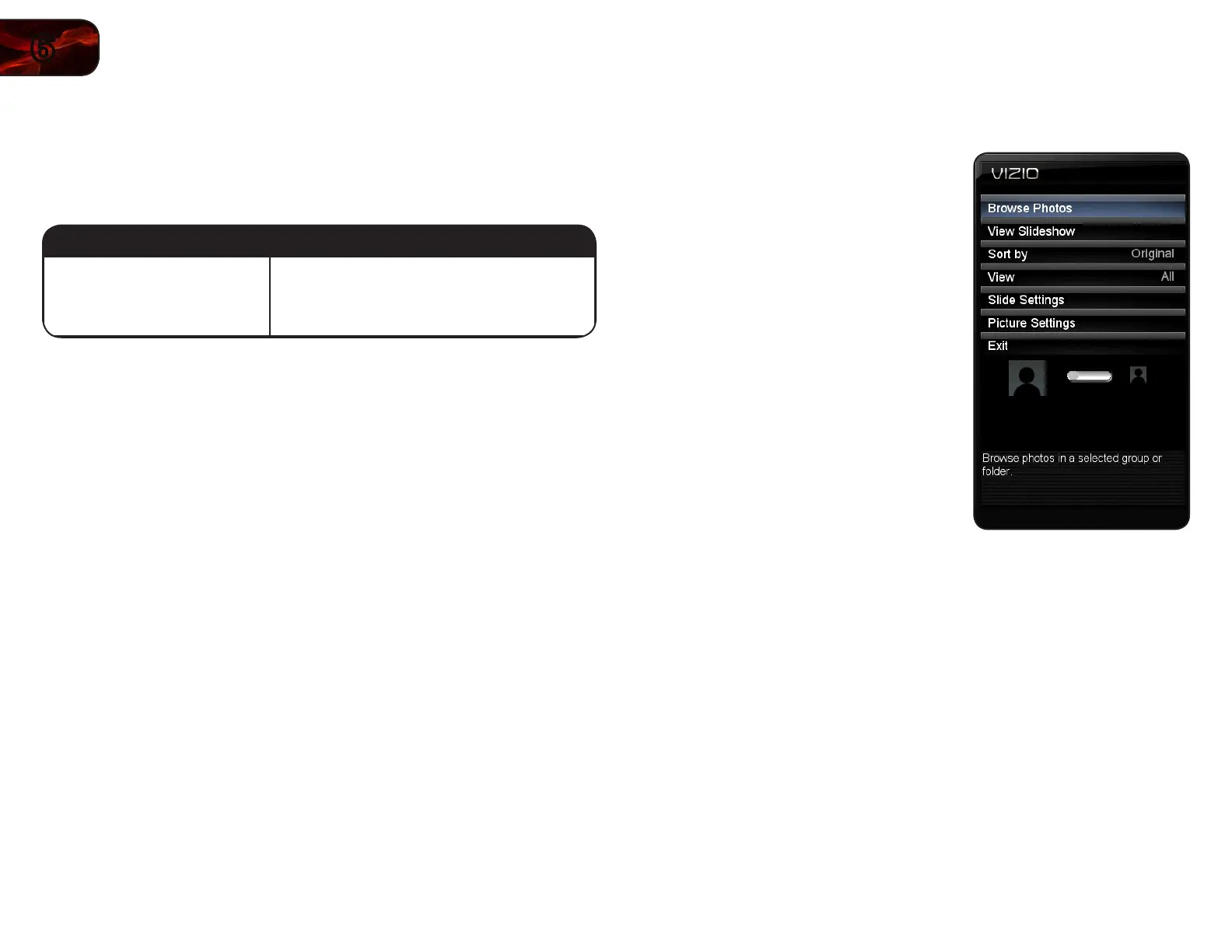
Using the Photo Menu
The Photo menu has several options:
• Browse Photos-Allows you to
highlight and select a photo from
the thumbnail gallery.
• View Slideshow - Start a
full-screen photo slideshow.
• Sort by -Changethedisplayorder
ofphotos.ChooseOriginal, Title
A-Z, Title Z-A, Oldest First, or
Newest First.
• View-ChooseFolders(individual
foldersandtheircontents),
Favorites,orAll.
• Slide Settings-Changethe
slideshowsettings.Available
optionsareRepeat,Shuffle,Full
Screen (thismaydistortsome
photostollthescreen),and
Speed (SloworFast).
• Picture Settings-Changethe
displaysettings.See
Adjustingthe
PictureSettings
onpage25.
• Thumbnail Size-Movetheon-screenslidertochangethesizeof
displayedthumbnailimages.ChooseLargeorSmall.


 To Next Page