Need help?
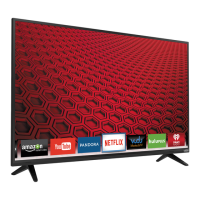
Do you have a question about the Vizio E55-C2 and is the answer not in the manual?
Provides essential safety guidelines for operating the TV to prevent hazards like electric shock or fire.
Guidance on protecting the TV from lightning storms and avoiding proximity to power lines.
Check all items included in the TV package to ensure nothing is missing or damaged.
Instructions for attaching the TV stand or mounting the TV on a wall.
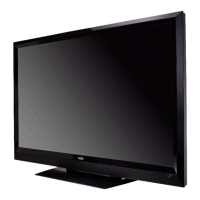
Identifies the front panel components and rear panel ports for connectivity.
Details the functions of each button on the VIZIO remote control.
Step-by-step guide on how to replace the batteries in the remote control.
Guide on connecting various devices like Blu-ray players, game consoles, and audio systems.
Explains different types of AV, Coaxial, Component, and HDMI cables for connection.
Instructions for connecting audio devices such as receivers or sound bars.
Details on establishing audio connections using the HDMI ARC feature.
Steps to connect the TV to a home network via Ethernet or Wi-Fi.
Advanced settings for manual network setup, including IP and DNS configuration.
Locating MAC addresses and connecting to hidden wireless networks.
Verifies the TV's network connection status and performance.
Walkthrough for initial TV setup, including language, country, network, and registration.
Selects the input source for connected external devices.
Explains how to navigate through the TV's on-screen menu system.
Adjusts the picture's aspect ratio (Normal, Stretch, Wide, Zoom).
Options for displaying video when the on-screen menu is active (Overlay, Viewport).
Manually adjusts settings like Brightness, Contrast, Color, and Sharpness.
Fine-tunes picture quality with options like Black Detail and Reduce Noise.
Adjusts color temperature and manages custom picture modes.
Calibrates colors using HSB, gain, offset, and white balance adjustments.
Saves custom picture settings and manages custom modes.
Protects custom picture settings from accidental changes and removes unused modes.
Manages TV speakers, surround sound, volume leveling, and balance.
Customizes audio output with equalizer settings and manages custom audio modes.
Resets custom audio equalizer settings to factory defaults.
Sets timers for automatic TV turn-off and power saving features.
Configures the screen saver delay and option to blank the screen during audio.
Chooses the signal source (Antenna/Cable) and performs a channel scan.
Adds new channels manually or skips unwanted ones.
Selects analog or digital audio language for programs broadcast in multiple languages.
Enables or disables the display of closed captions for programs.
Adjusts the style, size, color, and opacity of digital closed captions.
Assigns custom names to input sources for easier identification.
Displays technical data and status about the TV and its network connection.
Sets the on-screen menu language and the TV's time zone for accurate display.
Restores TV settings to defaults and enables/disables program-related information display.
Sets up parental controls to prevent viewing of certain channels or programs.
Blocks specific content ratings or unrated shows to restrict viewing.
Modifies the parental control passcode and resets content lock settings.
Adjusts how the picture is displayed when the on-screen menu is open.
Selects the screen aspect ratio for optimal picture display.
Assigns a custom name for DLNA content sharing.
Enables control of connected HDMI devices using the TV remote.
Turns the TV's front power indicator light on or off.
Connects a USB drive to play photos, music, and videos.
Guidance on formatting USB drives and safely removing them.
Navigates and views media files using Photo, Music, and Video players.
Accesses and launches V.I.A. Plus applications via the dock or dedicated keys.
Manages, adds, and deletes applications in the fullscreen app view.
Organizes, adds, and removes apps from the My Apps tab.
Addresses issues like no signal, no power, no image, no sound, color, and remote problems.
Resolves problems related to image quality, distortion, display size, and screen noise.
Information regarding FCC compliance and potential radio interference.
Disclaimers regarding the use of third-party internet services via VIA.
Terms and conditions governing the use of VIZIO software and VIA services.
 General
| Screen Size | 55 inches |
|---|---|
| Resolution | 1920 x 1080 |
| Refresh Rate | 120Hz Effective Refresh Rate |
| Smart TV | Yes |
| HDMI Ports | 3 |
| USB Ports | 1 |
| Display Type | LED |
| Built-in Wi-Fi | Yes |
| Smart TV Platform | Vizio Internet Apps Plus |


 To Next Page