3
Note: The images shown here are for illustrative purposes only and may be subject to change. The actual on-screen image and text may vary, depending on the model.
Deleting a Custom Picture Mode
Custom picture modes that are no longer needed can be deleted.
To delete a custom picture mode:
1. From the PICTURE MODE EDIT
menu, use the Arrow buttons
to highlight Delete Picture
Mode, and then press OK. The
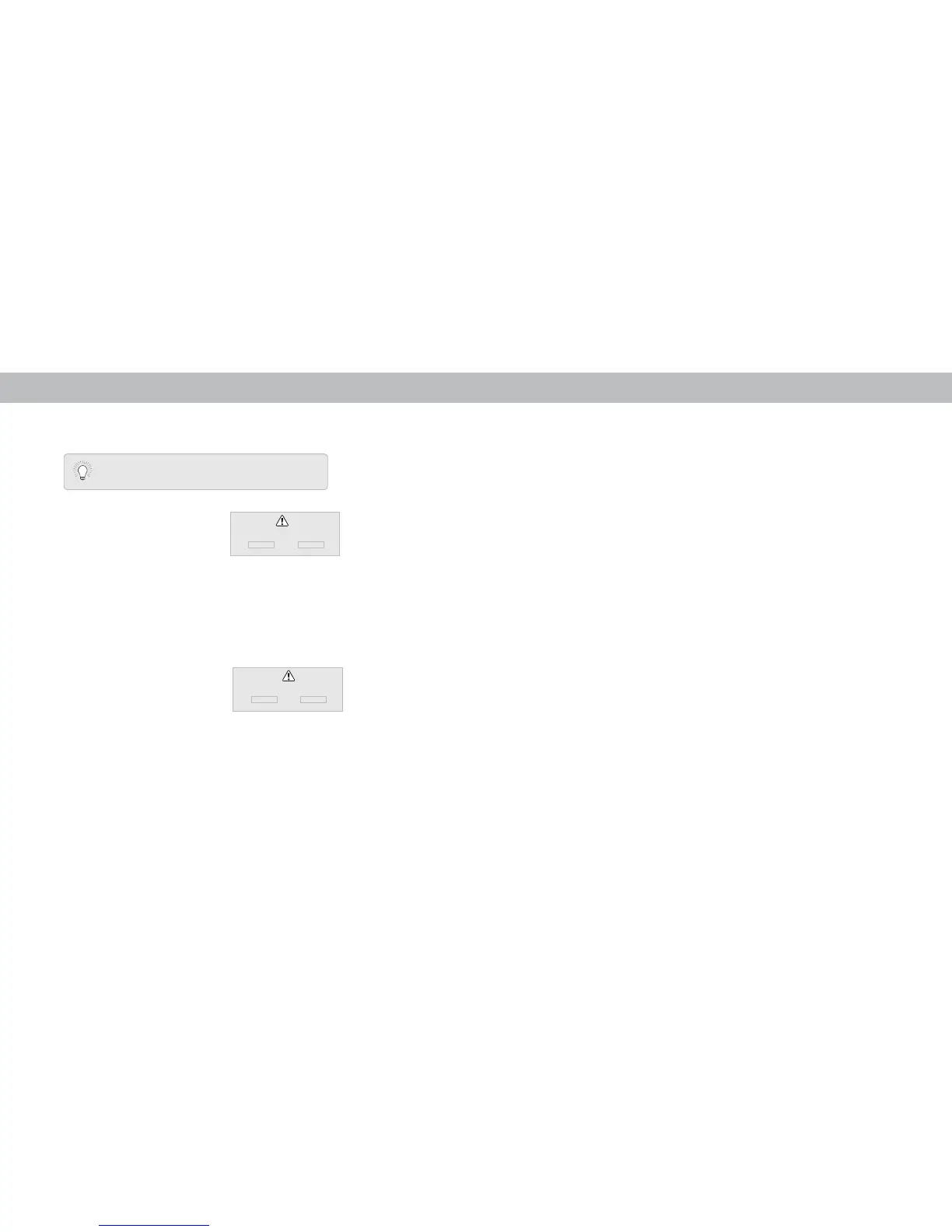
DELETE PICTURE MODE window
is displayed.
2. Use the Left/Right Arrow buttons to highlight Delete and press
OK.
3. Press the EXIT button to exit the menu screens.
Resetting a Picture Mode
A preset picture mode that has been edited can be restored to the
factory default settings.
To reset a customized preset picture mode:
1. From the PICTURE MODE EDIT
menu, use the Arrow buttons
to highlight Reset Picture
Mode, and then press OK. The
RESET PICTURE MODE window is
displayed.
2. Use the Left/Right Arrow buttons to highlight Reset and press
OK.
3. Press the EXIT button to exit the menu screens.
Inputs assigned to a deleted custom picture mode
become assigned to the
Calibrated
picture mode.
To delete the user created Custom 1 picture mode,
select the Delete button.
Delete Cancel
Select Reset to restore Standard
picture mode to factory defaults.
Reset Cancel
16




 To Next Page