In the system settings, you can customize the Volla Phone Quintus with
Ubuntu Touch for your personal use.
TIPS FOR CUSTOMIZING THE MOBILE CONNECTION:
1. tap on the entry for the “Network” in the settings
2. activate mobile data.
3. select 2G/3G/4G as the connection type.
4. call up “Network provider 8 APN” and then “Access point”.
5. make sure that the green check mark is set next to both entries.
TIPS FOR ADJUSTING THE FONT SIZE AND COLORS:
1. install the “UT Tweak Tool” app from the App Store
2. after starting the app, enter your PIN or password to unlock the
device.
3. to change the font size, tap on “Scale”.
4. to use a dark mode with white text on a black background instead
of black text on a white background, you can go to “Background
& Appearance” in the system settings and use the corresponding
switch.
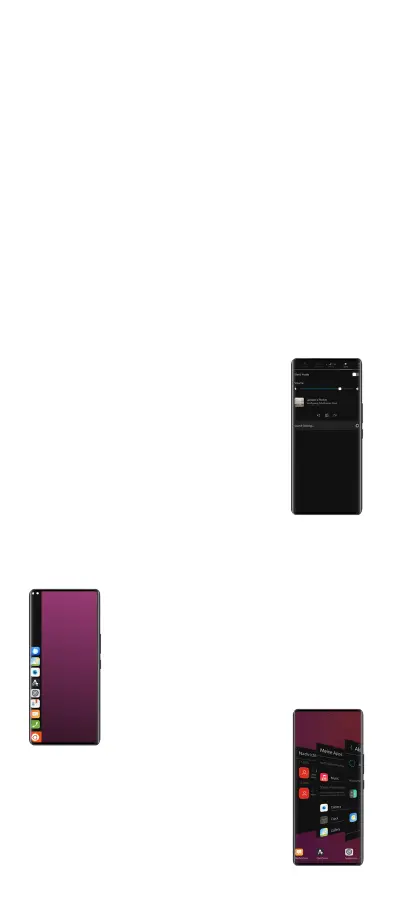
QUICK SETTINGS
You can call up the quick settings with a swipe
gesture from the top edge downwards. For
example, you can activate or deactivate the WLAN
here and check the connection to the mobile
network.
The settings are grouped into tabs that you can
scroll through horizontally to switch between
settings.
SIDEBAR
With a swipe gesture from the left edge to the right,
you can show the sidebar (dock) of Ubuntu Touch
at any time. It shows important and currently open
apps. The button at the bottom of the sidebar
opens an overview of all installed apps in a grid
arrangement.
FAN VIEW
With a swipe gesture from the right edge to the left,
you can call up an overview of the open apps, which
are displayed as fans. This allows you to switch to
one of the open apps or close an open app with a
swipe gesture from bottom to top.
3
Settings
Open and close apps


 To Next Page