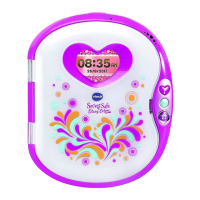
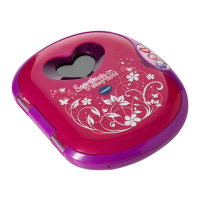
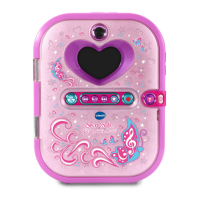
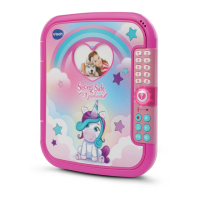
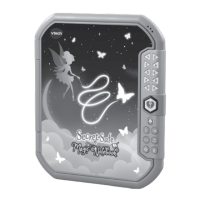
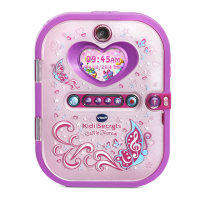
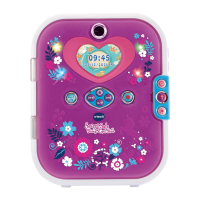
The VTech® Secret Safe Diary Light Show is a beautifully designed electronic diary with a large 2.4" colour screen, perfect for writing diary entries, playing games, and keeping secrets safe. It features advanced face recognition technology for unlocking, with an option to add a number password for extra security. The diary's cover includes a light effect that synchronises with music, adding a fun and interactive element. Users can also take care of a virtual pet Unicorn and engage in various learning activities covering spelling, typing, maths, and logic. The diary is equipped with a QWERTY keyboard, an alarm clock, and the ability to connect to a PC or use a MicroSD card for transferring songs.
Function Description:
The Secret Safe Diary Light Show offers a wide range of functions. The Unlock Button allows users to unlock the diary using face recognition by looking into the screen and following instructions. Face unlock can be turned on or off, and a number password can be set for additional security. The RESET Button is used to activate normal play mode when first using the diary and to clear both face unlock and number passwords, prompting a re-setup upon the next power-on.
The Shutter Button enters Camera Mode, where users can take photos and videos. The Swap Button (Camera/Video Button) switches between photo and video modes. In Camera Mode, the Toggle Button (Star Button) allows selection of different functions like using the rear or front camera, or setting a 5-second countdown for photos and videos, or taking 5 continuous photos. The 3 Music Buttons (Previous/Rewind, Play/Pause, Next/Fast Forward) control music playback, allowing users to enter Music Mode, play/pause songs, skip tracks, or fast forward/rewind. The Toggle Button (Star Button) in Music Mode offers shuffle, replay, repeat, and default playback options.
The Clock Button displays the current date, time, and day of the week. The Light Button turns the cover lights on or off during games and selects light patterns in the Music Player. The 6 Category Buttons provide access to different sections: My Photo and Voice Diary, My Unicorn, My Dressing Room, My Art Room, My Games and Activities, and My Tools.
The 26 Letter Buttons and 10 Number Buttons are used for writing in the diary, entering text in Card Creation, or typing in games. The 4 Arrow Buttons navigate selections on screen or move in activities. The OK Button confirms selections, while the Backspace Button deletes typed characters. The Shift Button, when held down with a letter or number, inputs capital letters or symbols. The Escape Button returns to the previous screen.
The Function Button displays a pop-up bar with activity-specific functions. The Help Button repeats current questions or instructions. The Emoticon Button adds icons to diary entries, and the Symbol Button inserts symbols into diary entries and Card Creation. The Save Button saves diary entries, photos, videos, cards, and other created information. The Space Bar inserts spaces between words, letters, or numbers.
For connectivity, the USB Port allows connection to a computer for file transfers. A Memory Card Slot (microSD) is available for memory expansion. A Supporting Stand at the bottom allows the diary to stand upright. An Audio Jack is provided for earphones or headphones. The Microphone is used for recording voice memos or playing games like 'Talk to Me'. Volume Buttons adjust the sound level.
Usage Features:
The diary activates into 'Normal Mode' after an initial setup involving pressing the Unlock and RESET buttons. Setting up face unlock requires positioning the face within a circle on the screen and mimicking various expressions (casual, smiling, laughing, angry, funny). The surrounding hearts on the screen indicate face detection. If face unlock is already set, the diary will recognise the user's face and open, or prompt for a number password if not recognised. A 4-digit number password can be set and changed in My Tools.
In My Photo and Voice Diary, users can select a date, write entries with text and special icons, and add photos and voice memos. Entries can be reviewed, edited, and searched.
My Unicorn allows users to care for a virtual unicorn. Users can select from 50 colour combinations, show their happy face to the unicorn for a reaction, give it a name, and check its status (Satisfaction, Happiness, Cleanliness Levels). Actions include feeding, playing mini-games, giving showers, and medicine. Users can also change the unicorn's location, decorate its home with items from the Unicorn Chest, use face recognition to show their face to the unicorn, take photos with the unicorn, and change its colour.
My Dressing Room has two activities: Fitting Room and Dress Up. In Fitting Room, users take a photo of their face, select skin colour, and dress up with various items like patterns, hair accessories, hair styles, and clothes. An Auto Mode randomly chooses a style. In Dress Up, users select a photo or take a new one, then add make-up (blush, mascara, eye shadow, lipstick, others) and adjust their shape, size, and positioning.
My Art Room includes Photo Editor, Video Editor, Card Creation, and Gallery. Photo Editor allows users to select a photo or take a new one and dress themselves up with frames, hair accessories, glasses, earrings, necklaces, face accessories, and stickers, adjusting their shape, size, and positioning. Video Editor enables adding special effects to videos, such as background music, borders, and speed adjustments. Card Creation allows users to add new cards from templates, enter content, and add photos. Colouring cards can be printed. The Gallery displays all taken pictures and videos, with options to delete or view cards created in Card Creation.
My Games and Activities offers 10 games:
- Pick the Apples: Type letters on the keyboard to pick apples before they wither, with 3 difficulty levels.
- Growing Spelling: Type words to make a plant grow, with 3 difficulty levels.
- Maths Challenge: Solve equations quickly, with 5 difficulty levels.
- Order Up: Complete customer food orders by choosing correct items, with 3 difficulty levels.
- Photo Puzzle: Arrange photo pieces into correct order, with 3 difficulty levels.
- Dancing Game: Press arrow buttons when they enter a circle.
- Bubble Blast: Connect 3 same-colour bubbles to clear them, with 3 difficulty levels.
- Talk to Me: Talk into the microphone and hear voice playback with a unicorn effect.
- Crystal Ball: See lucky things like colour, animal, number, item, and words of wisdom.
- Similar Face: Scan faces to see how similar they are.
My Tools provides 8 settings:
- Contrast, Volume, and Background music: Adjust screen brightness, volume, and turn background music on/off.
- Alarm: Set an alarm time and sound, or record a custom sound.
- Date and Time: Set date, time, and clock background.
- Number Password: Turn number password on/off or change it.
- Face Unlock: Turn face unlock on/off.
- Event Alert: Set special event dates and times with pop-up reminders.
- Music Player Auto-off Timer: Set a timer for the Music Player to turn off.
- Memory Settings: View available memory space on the diary or memory card, and format memory.
Maintenance Features:
To ensure optimal performance and longevity, the diary should be kept clean by wiping it with a slightly damp cloth. It should be stored away from direct sunlight and heat sources. Batteries should be removed during long periods of non-use to prevent damage. The diary should not be dropped on hard surfaces or exposed to excess moisture.
When connecting to a computer for file transfers, the diary must be turned OFF. The USB rubber cover should fully cover the USB port when not in use. To prevent data loss, users should back up important data from their memory card before using it. When connected to a computer, avoid inserting or removing a memory card and disconnecting the diary while files are transferring. Always safely remove hardware from the computer before physically disconnecting the diary.
For troubleshooting, if the diary stops working, remove and replace batteries, then turn it ON. If images are unclear, ensure the diary is held steadily, lighting conditions are good, and the camera lens is clean. If the computer connection fails, check USB cable connections and review the manual's connection procedure. If a memory card isn't detected, check if it's correctly inserted, is a supported type (microSD or microSDHC), and has a FAT or FAT32 file system (NTFS or exFAT are not supported). Back up data and format the card if necessary. If files cannot be saved, check if the memory card or internal memory is full. If transferred files are not visible, ensure they are placed in the correct directories (DOWNLOAD/PHOTO for photos, DOWNLOAD/VIDEO for videos, MUSIC for songs) and are in supported formats (Standard Baseline JPEG for photos, AVI (Motion JPEG) for videos, MP3 for songs). If the screen displays incorrectly, turn off the diary, remove batteries for a few minutes, then replace them. If problems persist, contact Consumer Services.


 To Next Page
 General