23
23
Index
Contents
Index
Contents
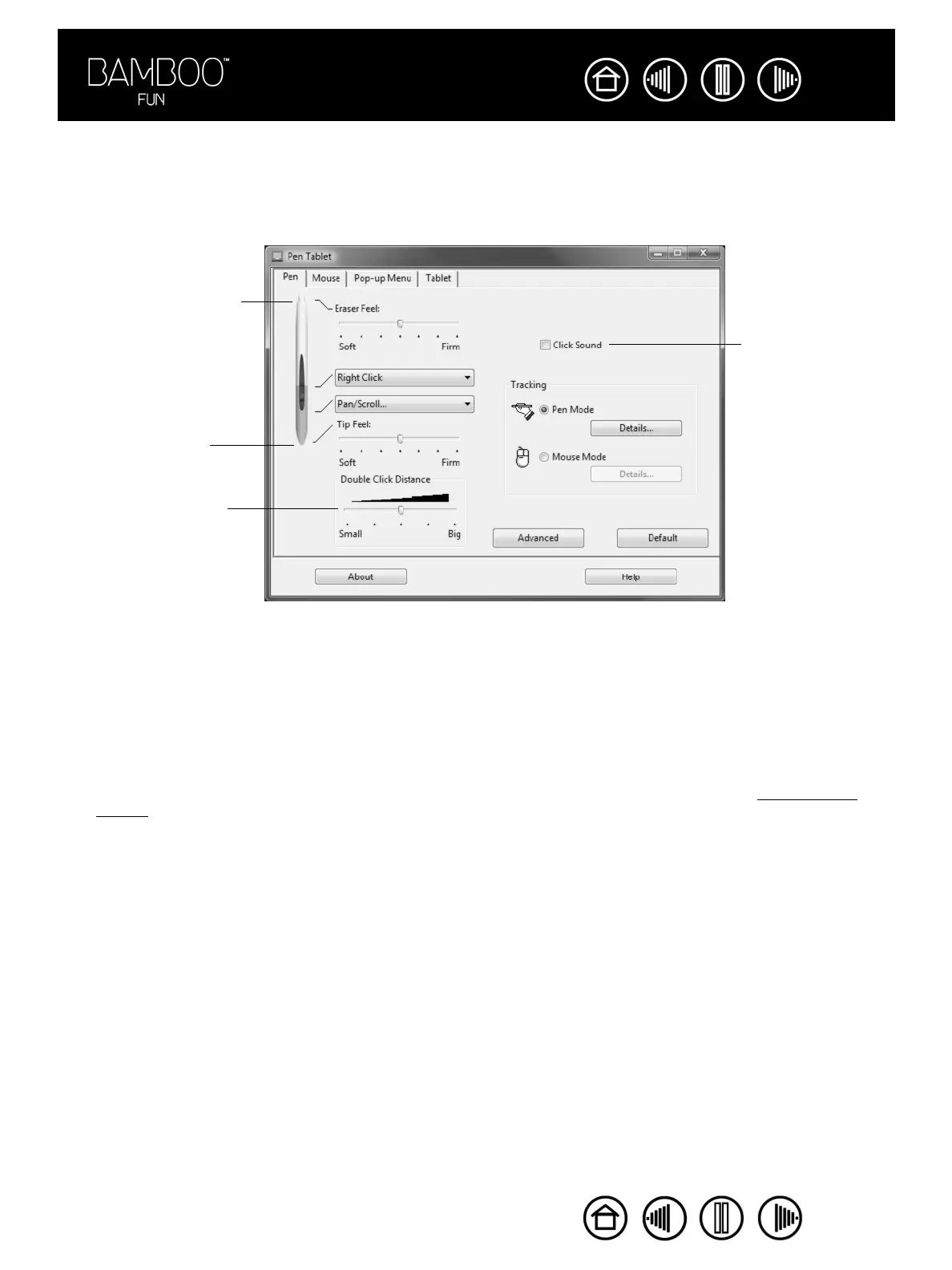
ADJUSTING TIP FEEL, ERASER FEEL, AND DOUBLE-CLICK
Select the PEN tab. To create broad brush strokes or to click with a light touch, use a soft tip setting.
For maximum control while drawing thin lines, use a firm tip setting. To erase with a broad stroke or to click
with a light touch, use a soft eraser setting. For maximum control while erasing, use a firm eraser setting.
Customizes the
amount of pressure
needed to click, draw,
or ink. Drag the slider
to a softer or firmer
setting.
Hints:
• Use a soft T
IP FEEL for a wider range of pressure values with most pressure-sensitive applications.
• In some applications, a soft pressure setting can make the pen overreact – any small press on the pen is
magnified on the screen. If you experience this, try a firmer TIP FEEL setting.
• To make double-clicking easier, expand the tap area that accepts a double-click (the double-click distance).
Note: A large double-click distance may cause a delay at the beginning of brush strokes in some drawing
applications. This may also cause a delay at the beginning of a drag action or inking stroke. If you notice such
effects, try setting a smaller double-click distance and using a pen button to double-click (see using the pen
buttons).
When checked, an
audible “click”
sound will be
heard whenever a
pen click occurs
and your computer
speakers are
turned on.
Adjusts the size of the
double-click area and
the double-click speed.
A larger setting makes
double-clicking easier.
Customizes the amount
of pressure needed to
erase. Drag the slider to
a softer or firmer setting.







 To Next Page