28
28
Index
Contents
Index
Contents
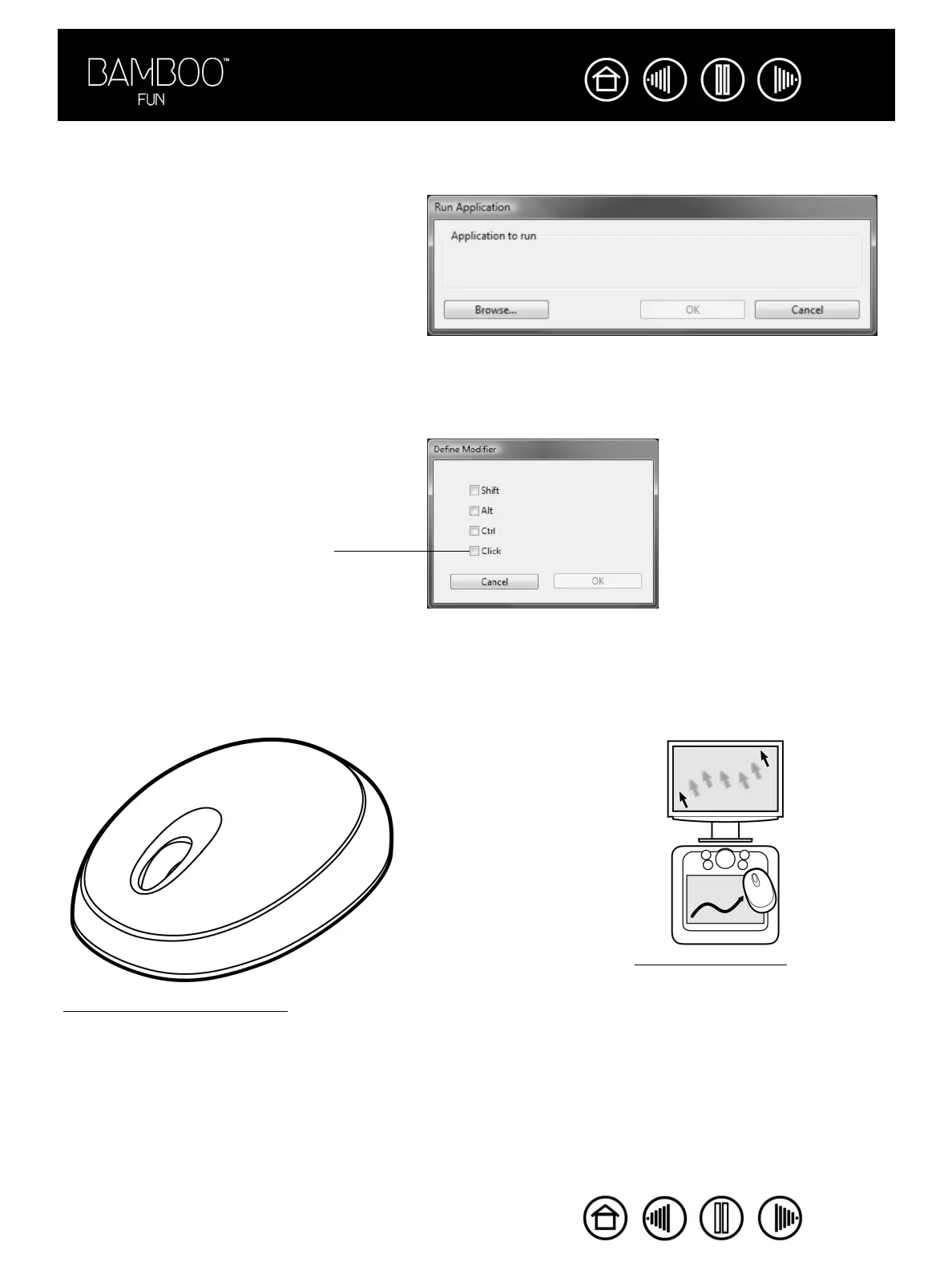
• OPEN/RUN.... Opens a dialog box where you can select a specific application, file, or script to launch.
• M
ODIFIER.... Enables you to assign modifier key(s) (such as SHIFT, ALT, or CTRL for Windows, or SHIFT,
OPTION, COMMAND, and CONTROL for Macintosh). Many applications use modifier keys to constrain the
size or placement of objects.
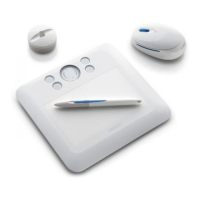
CUSTOMIZING THE CORDLESS MOUSE
Open the Pen Tablet control panel and select the MOUSE tab to choose from the available options. Note that
some product configurations may not include the cordless mouse.
Click BROWSE... to locate an application, file,
or script to launch. The selection you make
appears in the APPLICATION TO RUN box.
Click OK to accept the selection. The dialog
box will close and the OPEN/RUN... option will
be assigned as your tool button option. If
your selection is for the Pop-up Menu, it will
be displayed in the Pop-up Menu list.
In addition to choosing one or
more modifier key options, you
can select the CLICK box if you
want a mouse click to occur
whenever you press the tool
button.
Mouse mode settings
Customizing the mouse b
uttons







 To Next Page