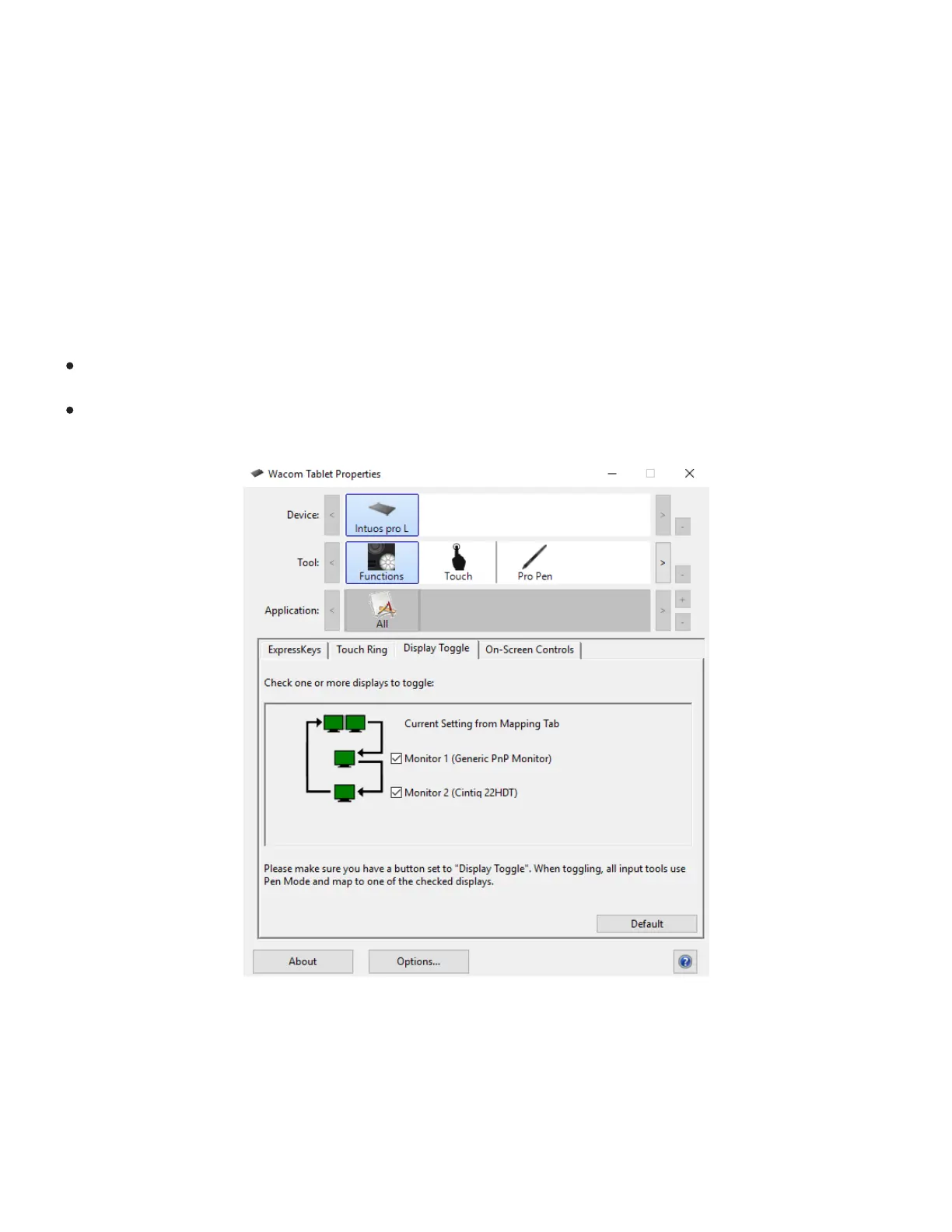
Display Toggle
Display Toggle is available when working on multiple monitor systems. This feature allows you to work
with your tablet on all displays or on one display at a time. See Working with multiple monitors.
In Wacom Tablet Properties, the Display Toggle tab is automatically available when your pen tablet is
installed on a multi-monitor system. This tab lets you set which monitor(s) will be included in the toggle
sequence.
After setting an ExpressKey or pen side switch to Display Toggle, you can use it to toggle the current
tablet mapping between a base mapping (the current setting from the Mapping tab) and other monitors.
See Mapping tab. The display options are:
The entire display area of a multi-monitor system is set up for extended mode and assigned to the
active area of the pen tablet.
The Display Toggle function has been assigned to toggle the tablet mapping to the next display in
sequence.
The above screenshot is for descriptive purposes; it may not match your screen.
All monitors are selected in the toggle sequence by default. Uncheck any monitor you want removed from
the sequence. When you toggle to another monitor, the active tablet area is mapped to that monitor (in
pen mode). Toggling once more after the last selected monitor returns the system to the base mapping.
The base mapping is the tablet and display mapping defined in the Mapping tab. By default, this includes
all monitors unless you have defined one monitor as your primary monitor.






 To Next Page