6
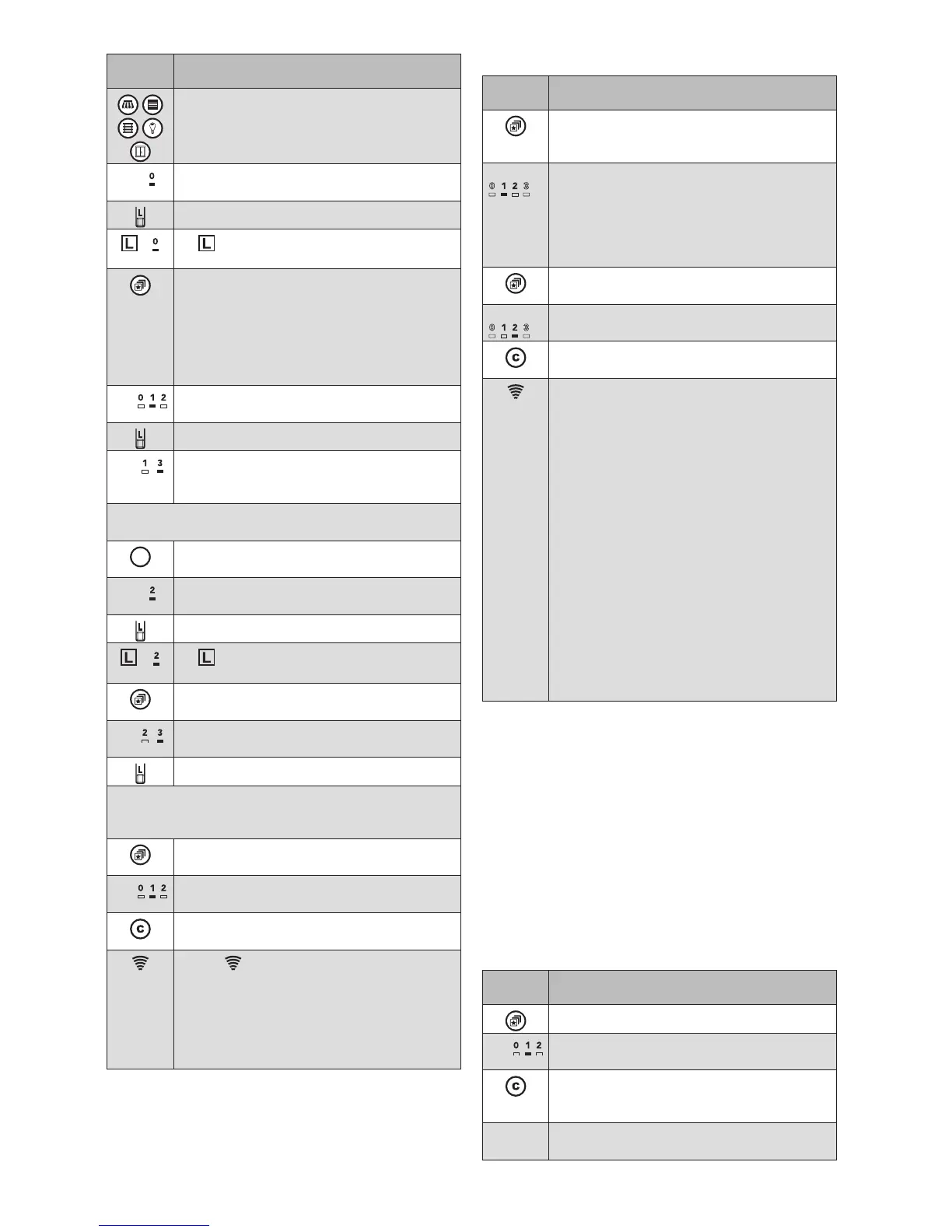
Button/
display
Action/result
Select the first product type and channel
that should belong to the scene
E.g.
The LED below the channel number lights
up
Press the learn button briefly
+ lights up in green and the previously
selected channel number flashes.
Using the scene button, select the scene
channel into which the previously selected
product channel is to be integrated.
If you press the scene button for more
than 1s, the unused channels are acti-
vated as well, making it possible for you to
select a new channel.
E.g.
The LED below the scene channel lights
up.
Press the learn button briefly
E.g.
The product channel is now assigned to
the scene and can be operated via the
scene.
You can now add additional products to this scene chan-
nel in the same manner:
Using a product button, select an addition-
al channel that is to belong to the scene
E.g.
The LED below the channel number lights
up
Press the learn button briefly
+ lights up in green and the previously
selected channel number flashes.
Using the scene button, select the same
scene channel as before.
E.g.
The LED below the scene channel lights
up.
Press the learn button briefly
After you have added all channels to the scene, you can
learn in the current positions of the receivers involved
into the scene.
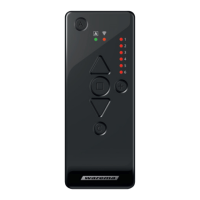
Press the scene button to select the scene
just defined.
E.g.
The LED below the scene channel lights
up.
Press the comfort button for approx.
5seconds.
The transmission LED lights up for 2
seconds
GREEN: The position of all receivers is
stored
RED: Not all receivers could be
reached; press the comfort but-
ton again.
OTEN The positions in the individual scenes are
stored directly in the receivers. In this way,
other transmitters that belong to the network
can recall the same scene positions.
Calling up scenes
Button/
display
Action/result
Press the scene button.
The button only lights up if at least one
scene was stored.
E.g.
...
The scene button flashes.
In the number field, the channels on which
a scene was stored light up (in the exam-
ple on the left, 1 and 2). The LED below
the currently selected channel lights up (in
the example, channel 1).
Press the scene button repeatedly until the
LED below the desired channel lights up.
E.g.
...
The LED below the selected channel lights
up (in the example, channel 2).
Briefly press the comfort button to recall
the selected scene.
The transmission LED indicates the trans-
mission process:
Flashes GREEN: The hand-held
transmitter is transmitting
2s GREEN: The receiver con-
firms the command
2s RED: The command was not con-
firmed (e.g. the receiver is
outside of the transmission
range)
2s GREEN + LED below control symbol is
red:
The receiver confirms the
command, but does not ex-
ecute it because of the dis-
played control function (e.g.
the awning is not extended
because the wind alarm is
active).
OTEN For scenes, the transmission process may take
several seconds, depending on the number of
receivers involved.
Redefining scenes
If you are no longer satisfied with the position of individual
products in a scene, you can redefine the scene at the
press of a few buttons.
OTEN When a scene is redefined, the states of all
involved receivers are stored again. Recall
the scene again before making changes to
individual products. In this way, the states of the
other products in the scene remain unchanged.
In the following example, the positions of products within
the scene are changed and the scene is stored again.
Button/
display
Action/result
Select the desired scene channel.
E.g.
The LED below the scene channel lights
up.
Briefly press the comfort button to recall
the currently stored state of the selected
scene.
Wait until all products involved in the
scene reach their position.


 To Next Page
 Loading...