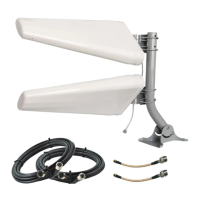
Not sure which ports to connect to? Some devices have both Wi-Fi and Cellular external
antenna ports. Make sure to attach your antenna(s) to your router’s cellular ports and not it’s
Wi-Fi ports. If your device has two cellular ports, it doesn’t matter which cable is connected to
which port. If your device has four cellular ports, test which ports give you the best results.
Refer to your router’s manual, our device-specic guides at waveform.com/hotspot-guides, or
feel free to reach our team so we can help you identify which ports to connect to.
Running Speed Tests
Since the goal is improved data rates, it makes sense to use a speed test app to measure your
data rates through your cellular router’s Wi-Fi.
If you’re testing with a phone, download our favorite speed test app (“Speedtest by Ookla”) by
visiting this URL: waveform.com/speedtest. For testing with a laptop, visit speedtest.net.
Go ahead and run a couple of speed tests from a device connected to your router’s Wi-Fi.
You’ll notice your results uctuate a between tests – that’s normal.
Head outside and run 1-2 speed tests for each position and direction you try, then write
down each of your results in the next page.
How to Position & Aim
Finding the right antenna location and direction takes some patience, but spending time to
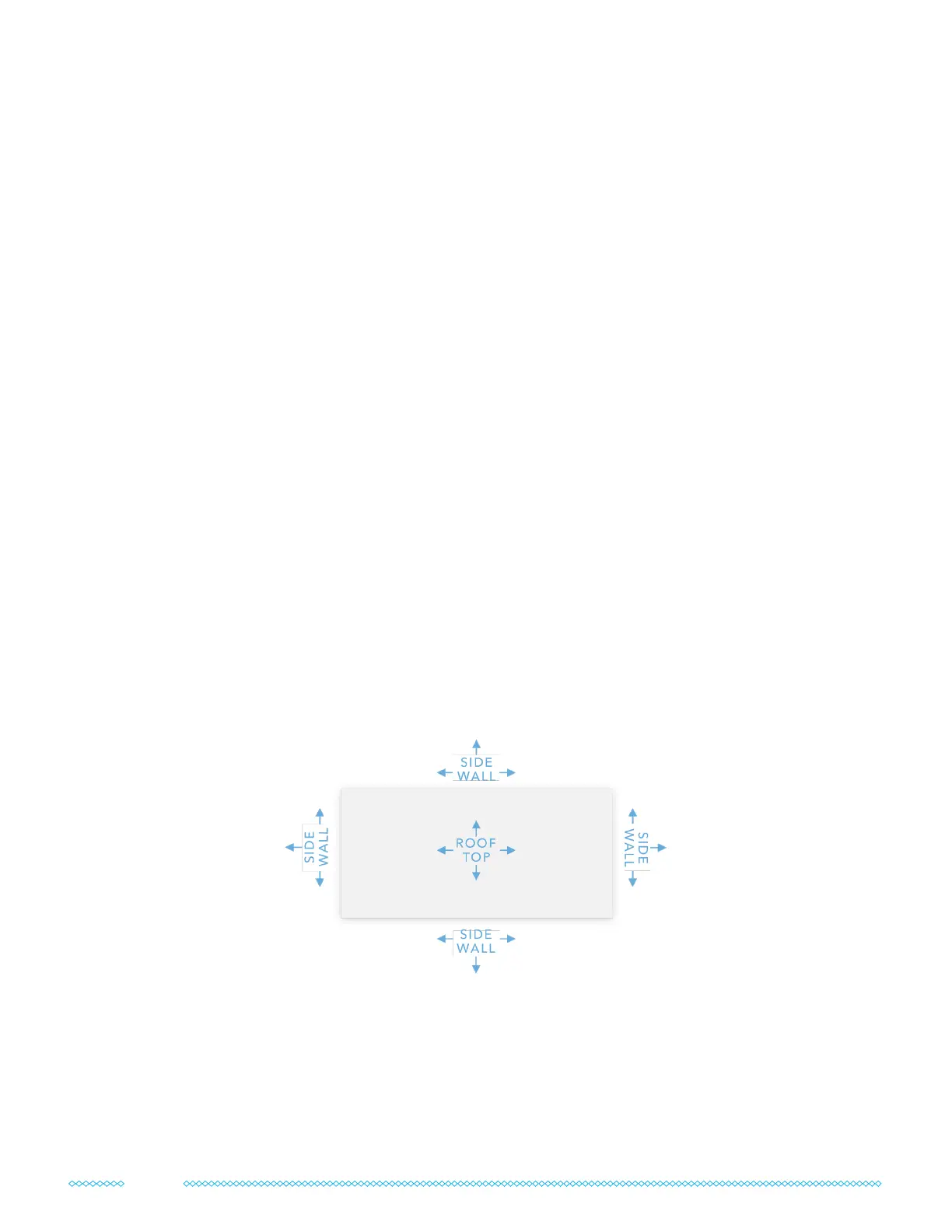
get it right can have a big impact on your system’s performance. Here are all the locations and
directions where we recommend testing your MIMO antenna(s):
Don’t just go to the highest point of the roof! While signal is generally stronger the higher you
go, there’s also often more interference. We’ve found it’s often better to mount the antenna(s)
on the side of the building where the structure can shield the antennas from interference.
Once you’ve found the best antenna location and direction, move on to section 5 below to
get ready for your nal installation.
8


 To Next Page