EasyManua.ls Logo

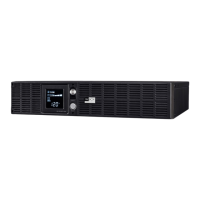
WBOX Technologies 0E-RCKMT1000 - User Manual

WBOX Technologies 0E-RCKMT1000
40 pages
Print Icon
To Next Page IconTo Next Page
Loading...
COPYRIGHT © 2019 ADI
USER’S MANUAL
Rackmount Series
0E-RCKMT1000 / 0E-RCKMT1500 / 0E-RCKMT2200
K01-1101046-02
EN

Questions and Answers

  • D
    Dawn JonesJul 26, 2025
    What to do if WBOX Technologies 0E-RCKMT1000 UPS outlet does not provide power?
    • J
      Jose NguyenJul 26, 2025
      If the outlet on your WBOX Technologies UPS isn't providing power, there are several potential causes. First, the circuit breaker may have tripped due to an overload. To resolve this, turn the UPS off, unplug at least one piece of equipment, wait 10 seconds, reset the circuit breaker, and then turn the UPS back on. Alternatively, the batteries may be discharged; in this case, recharge the unit for at least 8 hours. Also, uncritical outlets may have turned off automatically due to an overload; push the toggle button to turn them back on.
  • A
    Angie GonzalezAug 2, 2025
    Why WBOX Technologies UPS will not turn on?
    • M
      Mary BarnettAug 2, 2025
      If your WBOX Technologies UPS won't turn on, it could be due to a few reasons. The on/off switch is designed to prevent damage from rapid cycling. Try turning the UPS off, waiting 10 seconds, and then turning it back on. Also, ensure the unit is properly connected to a 110/120V 60Hz outlet.
  • K
    kathy77Aug 9, 2025
    Why WBOX Technologies 0E-RCKMT1000 does not perform expected runtime?
    • P
      pbryantAug 9, 2025
      If your WBOX Technologies UPS isn't providing the expected runtime, it might be because the batteries are not fully charged. To fix this, recharge the batteries by leaving the UPS plugged in. If the issue persists, it is possible that the batteries are degraded.
  • K
    Katrina StephensAug 17, 2025
    What to do if WBOX Technologies 0E-RCKMT1000 Power Management Software is inactive?
    • E
      echangAug 17, 2025
      If the Power Management Software for your WBOX Technologies UPS is inactive, first ensure that the serial or USB cable is properly connected to the UPS unit, using the cable that came with the unit. If it's connected, try another port on your computer. As an additional step, you can shutdown your computer and turn the UPS off, wait 10 seconds, and then turn the UPS back on to reset the unit.

Summary

Important Safety Instructions

UPS Installation Guide

Automatic Voltage Regulator (AVR) Function

Explains AVR function for stabilizing voltage without battery usage.

Hardware Installation Steps

Provides step-by-step instructions for physical installation of the UPS.

UPS Basic Operation and Features

Front and Rear Panel Component Descriptions

Describes the function of each button, indicator, and port on the UPS panels.

UPS Battery Management

Battery Replacement Procedure

Step-by-step guide for safely replacing the UPS battery pack.

UPS LCD Setup and Configuration

UPS Configuration Settings Explained

Explains adjustable parameters like Transfer Point, Sensitivity, Self Test, and Buzzer.

UPS Faults, Warnings, and Alarms

UPS Troubleshooting Guide

Resolving Common UPS Operational Issues

Provides solutions for common UPS problems like no power, short runtime, and startup failures.

UPS Technical Specifications Summary

WBOX Technologies 0E-RCKMT1000 Specifications

General IconGeneral
BrandWBOX Technologies
Model0E-RCKMT1000
CategoryUPS
LanguageEnglish

Related product manuals