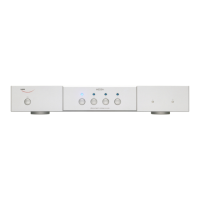
OWNERS MANUAL FOR WEISS MEDEA+ D/A CONVERTER
Page: 27 Date: 02/11 /dw
The MEDEA+ should now be recognized by the computer, i.e. if you start the Weiss Firewire I/O
application the MEDEA+ shows up as a ”INT202” device. INT202 because the hardware used for
the MEDEA+ Firewire interface is a INT202 board.
You now should be able to play music from the computer through the MEDEA+.
For the single wire version select input # 3 to play the firewire input. For the dual wire version
you need to switch between input # 1 and input # 2 depending on the sampling rates:
For sampling rates of 176.4 kHz or 192 kHz select input # 1, the MEDEA+ should then go into
dual wire mode, i.e. both LEDs of input # 1 and # 2 are lit.
For all other sampling rates (44.1, 48, 88.2, 96) select input # 2.
Bit Transparency Check
In order to test the bit transparency of the player software on the computer the enclosed WAV
files (see driver CD) have to be ripped to the computer and played from the player program. The
MEDEA+ then looks for specific bit patterns coming from the firewire source. To check for bit
transparency proceed as follows:
Play the appropriate test file, there are a total of 12 files supplied. One set for 16 bit and one set
for 24 bit transparency checking. One set includes all supported sampling rates, namely 44.1,
48.0, 88.2, 96.0, 176.4, 192.0 kHz. This allows to make sure the player is bit transparent for all
sampling rates. We suggest to check first with the 24 bit files. If those yield a bit transparent
result then it is not necessary to check with the 16 bit files.
- For the single wire version: press and hold the input # 3 selection button. If the LED starts to
flash, the player software is indeed bit transparent. If the LED stays lit, the player is not bit
transparent.
- For the dual wire version: select input # 1 (independent of the sampling rate you are testing
at) and wait until the MEDEA+ locks. Then press and hold the input # 1 selection button. If
the LEDs start to flash, the player software is indeed bit transparent. If the LEDs stay lit, the
player is not bit transparent.


 To Next Page