
 Need help?
Do you have a question about the Western Digital My Passport and is the answer not in the manual?
How to find help and resources online.
Phone numbers and contact methods for support.
Key features and benefits of the WD My Passport Ultra.
Lists all items included in the product packaging.
Lists supported Windows and Mac OS versions.
Explains the default file system format.
Describes the drive's physical components and ports.
Explains the meaning of the drive's LED indicator lights.
Instructions for registering the product online or via software.
Guidelines for safe handling to prevent damage.
Steps to physically connect the drive to a computer.
Guide to installing bundled software applications.
Overview of the software's main interface.
Details on the backup interface and options.
Details on the file retrieval interface.
Overview of the software configuration settings.
Access to support and learning resources.
Explains the automatic and scheduled backup mechanisms.
Step-by-step guide to performing a backup.
Explains the process of retrieving backed-up files.
Step-by-step guide to recovering files.
Steps to enable drive encryption and password.
How to access the drive after it has been locked.
Instructions for modifying an existing password.
How to remove password protection.
Using diagnostics to assess drive condition.
Procedures for securely deleting all data.
Steps to register the product for support and updates.
How to reinstall software after formatting.
Configuring the drive's power-saving sleep mode.
How to use the system tray utility.
Understanding status indicators from the WD Quick View icon.
Methods to launch the software.
Proper procedures to prevent data loss.
How to check and install software updates.
Setting up Dropbox for cloud backup.
Changing the default save location for retrieved files.
Setting how many historical versions of files to keep.
Instructions for removing software from Windows.
How to prepare the drive for Mac OS X.
Restoring software on a Mac.
Answers to common user queries.
Guidance on drive setup procedures.
Manual/automatic installation for Vista.
Manual/automatic installation for Win 7/8.
Details on FCC and ICES regulations.
Information on hazardous substances.
How to obtain service and warranty details.
 General
| Type | HDD |
|---|---|
| HDD size | 2.5 \ |
| HDD speed | - RPM |
| HDD capacity | 1000 GB |
| RAID support | No |
| File format system | NTFS |
| Storage drive buffer size | - MB |
| USB version | 3.2 Gen 1 (3.1 Gen 1) |
| FireWire 400 | FireWire-interface with a data transmission speed of 400 Mbit/s (50MB/s). FireWire is a serial computer bus technology designed as replacement of SCSI and is based on the IEEE 1394 and 1394b standards. |
| USB connector | Micro-USB B |
| USB data transfer rates | 480, 5000 Mbit/s |
| Maximum data transfer rate | 5000 Mbit/s |
| Material | Plastic |
| Data transfer rate | 5 Gbit/s |
| Dimensions (WxDxH) | 111 x 82 x 19 mm |
| USB 2.0 ports quantity | 1 |
| Ethernet LAN (RJ-45) ports | 0 |
| Number of products included | 1 pc(s) |
| Certification | RoHS |
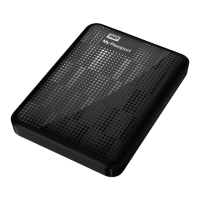
| Product color | Black |
| Bus power | 5 V |
| Bus powered | USB |
| Storage temperature (T-T) | -20 - 65 °C |
| Operating temperature (T-T) | 5 - 35 °C |
| Bundled software | WD Security WD Drive Utilities |
 Weight and Dimensions
| Depth | 111 mm |
|---|---|
| Width | 82 mm |
| Height | 19 mm |
| Weight | 190 g |




 To Next Page
