Before You Get Started
■ For long periods of use, use a bluetooth or USB keyboard for your convenience.
■ Also, connecting an external monitor would help reduce eye strain for long term use.
■ The desktop cradle connects several USB devices simultaneously and supplies an Optical Disk Drive.
●
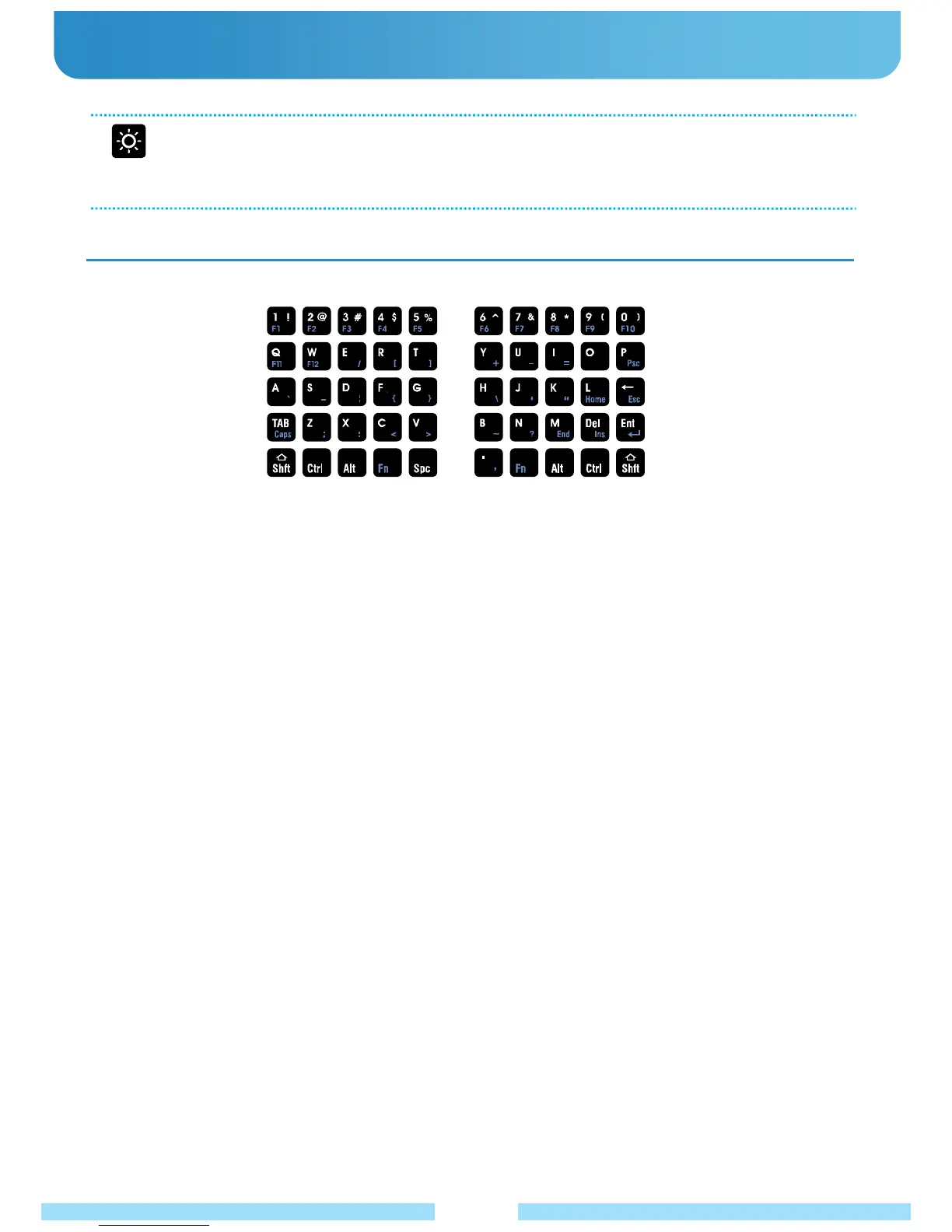
Entering Text : You can input characters using the Keyboards.
Using the Keyboard
21
● Character / Numeric Key
You can directly enter characters/numbers on the screen with these keys.
The actual keyboard may differ from the one shown.
● Shift [Shft] Key
This key allows you to input symbols (e.g. ! / @ / # / $ / % / ^ / &...)
● Function [Fn] Key
Allows you to input function keys (e.g. F1 / F2 / F3 / F4) or symbols (e.g. ; / : / < / > / ? / [ / ]) press and hold Fn Key
for input.
● Caps Lock
- Setting Caps Lock
Pressing the “Fn key” and “TAB/Caps” key simultaneously will set the Caps Lock.
When it is working, the “Caps Lock” LED light on the top will illuminate.
- Releasing Caps Lock
Press the “Fn key” and the left “Tab/Caps key” simultaneously.
The “Caps Lock” is released if the “Caps Lock” LED on top of the unit is off.
● Fn Lock
To lock the Fn key, press the left and the right Fn Key together.
If you want to keep inputting F1 / F2 / F3 / F4, etc. or symbols ; / : / < / > / ? / [ / ], etc. you can use “Fn lock”.
The “Fn Lock” is released if the “Fn Lock” LED on top of the unit is off.



 To Next Page