● The features of “MFmgr” program
Setting the speed of Fan
Setting the Keyboard Backlight Mode
Setting the VGA/CRT Out
Setting the Resolution
● How to use “MFmgr” program
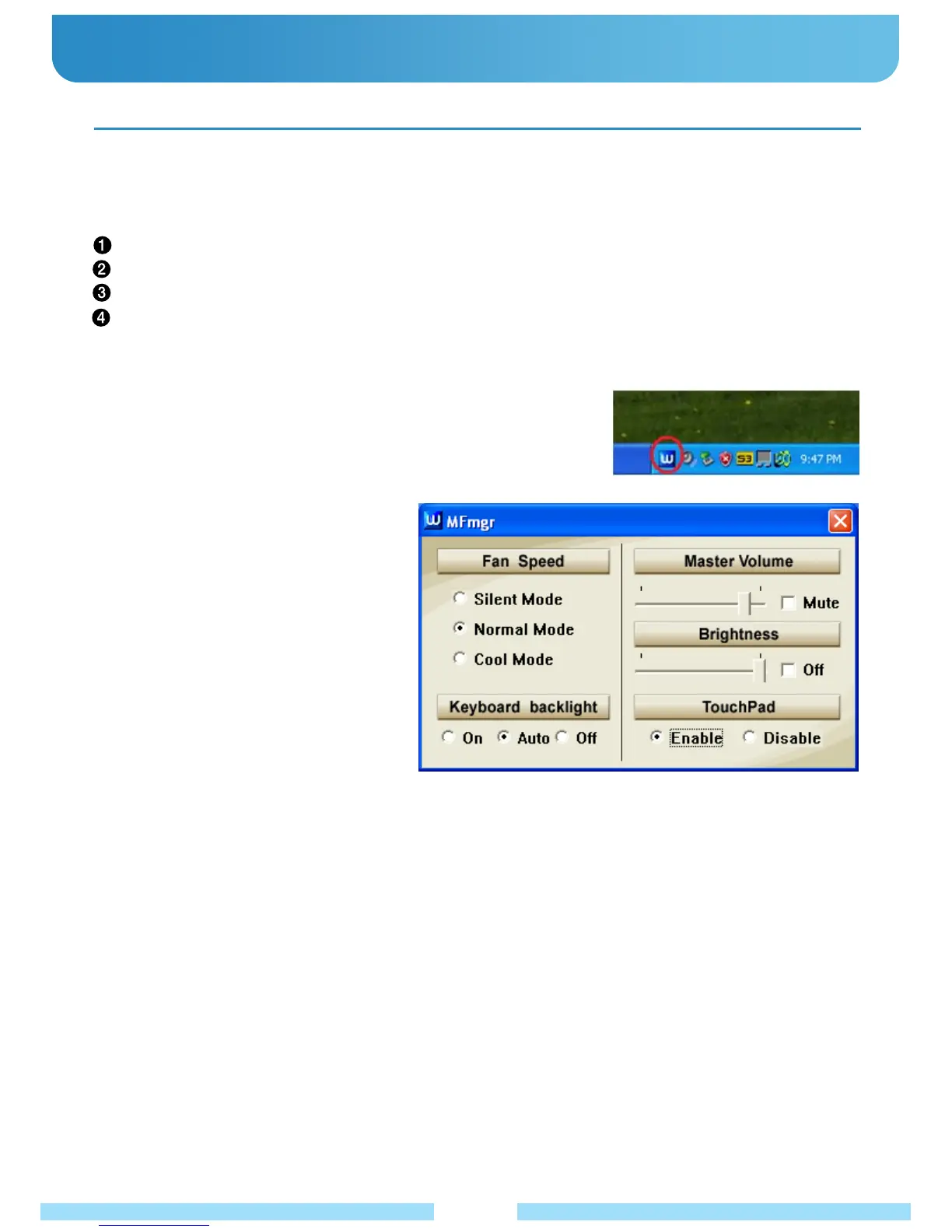
① Double click the icon on the system tray.
● Main Features
1. Adjustment of the Fan Speed
1.1 Silent Mode : To make the sound of Fan turn down at the quite places such as library, you can select this mode.
There would be a possibility to make the temperature of the product higher than other modes.
1.2 Normal Mode : To make the sound of Fan as well as the temperature of the product normal, you can select this mode.
1.3 Cool Mode : To make the temperature of the product cooler because of the long time use, you can select this mode.
The sound of Fan would be louder than other modes.
2. Setting the Keyboard Backlight
2.1 On : It makes the keyboard backlight always on.
2.2 Auto : Whenever you type the keyboard, the backlight will be on during 20 seconds. It’s automatically off afterward.
3. VGA/CRT Out
Push “Fn” and “Page Up” Keys simultaneously the display mode will be changed into VGA or CRT out.
(If the MFmgr program is turned off, it doesn’t work.)
4. Setting the Resolution
Push “Fn” and “Page Down” Keys simultaneously the display mode will be adjusted into 1024x600, 800x600, 800x480.
(If the MFmgr program is turned off, it doesn’t work.)
●
Using the B1 Utility Program
What the “MFSmgr”program is
It’s executed automatically when the system is started.
The setting will be saved and applied automatically.
② You can find a window pop up as below.
③ Click the status of Fan as well as the
Keyboard backlight you’d like to set.
26



 To Next Page