Need help?
Do you have a question about the Wildgame Innovations Terra Extreme and is the answer not in the manual?
Press and release the power button to turn the unit ON.
Wake the LCD, then depress and hold the power button until the LCD turns off.
The LCD turns off and camera enters Power Save Mode after 30 seconds of inactivity.
Press the Power button briefly to wake the LCD screen.
Camera enters Ready Mode if no button is pressed for over 30 seconds.
Describes red light illumination during PIR events and after photos are taken.
Use Enter, +/-, and Enter buttons to set the hour and minutes.
Use Enter, +/-, and Enter buttons to set the month, day, and year.
Details displayed for captured images: Time, Date, Moon Phase, and Photo Count.
Guidance on optimal distance, lens protection, cleaning, and securing the unit.
SDXC cards are not supported; use FAT32 format for compatibility.
Covers liability for misuse and details the one-year workmanship warranty and exclusions.
Provides support contact information and reserves rights to change product features.
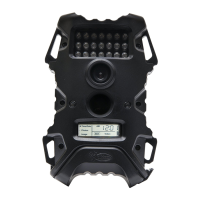
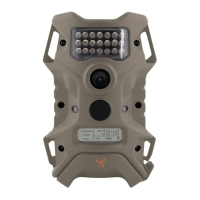
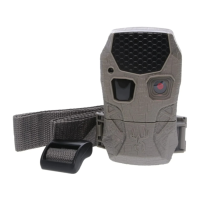
The device is a digital game scouting camera designed for outdoor use, primarily for monitoring wildlife. It is branded as "Wildgame Innovations TERRA EXTREME."
The primary function of this device is to capture images of wildlife in a remote setting. It operates by detecting motion and then taking still photographs. The camera is equipped with a PIR (Passive Infrared) sensor to detect movement, triggering the image capture. The captured images are stored on an SD memory card. The camera is designed to be user-friendly, with a simple interface for power management, settings adjustment, and image retrieval. It also features a power-saving mode to extend battery life.
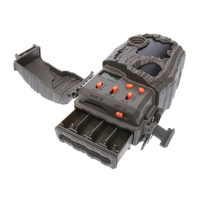
To begin using the camera, batteries must first be installed. The battery compartment is located at the bottom of the camera. To access it, the locking tab needs to be unlatched, and the battery compartment cover slid to the left. The camera requires batteries to be inserted with their positive ends aligned with the positive markings and negative ends with negative markings. It is important not to mix old and new batteries, or different types of batteries (alkaline, standard carbon-zinc, or rechargeable ni-cad/ni-mh).
After battery installation, an SD memory card (up to 32GB) needs to be loaded into the SD card slot with the connectors facing up. Before inserting or removing an SD card, the camera should be powered off. If using an SD card from other cameras, it is recommended to format it on a computer before use. New cards can be used directly from the package.
Powering the camera ON involves pressing and releasing the power button. Once on, the LCD screen will display information such as time, date, and battery level. It is advisable to check the battery level icon to ensure sufficient charge. To power the camera OFF, the LCD screen must first be awakened, and then the power button should be depressed and held until the LCD turns off.
The camera features a power-saving mode. After 30 seconds of inactivity (no buttons pushed), the LCD will turn off, and the camera will enter Power Save or Ready Mode. The LCD screen can be reactivated by briefly pressing the Power button. Note that the LCD will not "wake up" when the camera is writing to memory.
In Test Mode, if no button is pressed for more than 30 seconds, the camera automatically enters Ready Mode. During the first 30 seconds of LCD Ready Mode, a red light will illuminate when a PIR event is triggered, indicating motion detection. After the LCD turns off, the red light will blink for 2-3 seconds when a photo is taken. All indicator lights will turn off after 2 minutes until a button is pressed again.
Settings can be adjusted through the camera's navigation buttons. To change the date and time, the Enter navigation button is used to set the hour, followed by using the + or - navigation buttons to adjust the value. The same process applies to setting the minutes, month, day, and year.
The camera also allows users to view the number of photos stored on the SD card by selecting "Photos" using the Enter navigation button. This mode displays the count of photos and is not programmable. The "Image" setting allows users to select different options related to image capture. Pressing the Enter navigation button while "Image" is selected makes the highlighted option blink. The + or - navigation buttons are used to cycle through options, and the Enter button saves the selection.
When viewing captured images, the display provides information such as time, date, moon phase, and photo count.
Proper mounting of the camera is crucial for optimal performance. When mounting to a tree, two bungee cords should be latched through the mounting holes on one side of the camera, stretched around the tree, and then latched through the mounting holes on the opposite side.
Several important tips are provided for maintenance and optimal imaging quality. The recommended distance from the target area is 25-30 feet. To improve image quality, the camera should not be mounted facing the rising or setting sun to avoid direct sunlight on the lens. If the camera is mounted near a feeder or in a dusty environment, the camera lens cover, incandescent flash cover, and PIR sensor cover should be cleaned regularly. Periodically checking the camera's mounting to ensure it is not loose is also important. The door must be securely latched closed every time the unit is used to activate the moisture seal properly. Frequent checks of the batteries are recommended to prevent corrosive build-up, which can harm the camera.
Retrieving images involves removing the SD card from the camera by pressing on it until it ejects. The SD card is then inserted into an SD card reader connected to a computer. If the computer does not automatically launch an AutoPlay window, users can navigate to "Start Menu" > "Computer" (Windows Vista/7) or "My Computer" (Windows XP), or type "computer" for Windows 8 users, and then select "Secure Digital Storage Device" from the "Devices with Removable Storage" section. Images are typically found in the MEDIA folder. Users can view images individually, and the computer's default viewing browser will launch. To delete an image, select it with the cursor, right-click, and choose delete. This action is permanent.
Formatting the SD card is also an important maintenance step, especially if using cards from other cameras or experiencing issues. SDXC cards are not supported. To format, connect the SD card to a computer (using an adapter for MicroSD cards or an external USB card reader if needed). Then, navigate to "Computer" (or "My Computer"), right-click the drive letter associated with the memory device, and select "Format." Ensure FAT32 is selected under "File System" and "Quick Format" is checked, then click "Start."
 General
| Image Resolution | 12 MP |
|---|---|
| Video Resolution | 720p |
| Battery | 8 AA batteries |
| Flash Type | Infrared |
| Battery Life | Up to 1 year |
| Memory | Up to 32GB SD card |
| Trigger Speed | Less than 1 second |

 To Next Page