Monitor status (green/yellow/red)
Change status (tap the element and select )Call
Switch
Monitor status (green/red)
Change status (tap the element and select )Call
3 state switch
monitor status (green/yellow/red)
change status (tap the element and select )Call
Group Pick up
Pickup a ringing call of user belonging to your ACL group on the same PBX
Call group
Monitor status (red=incoming call; green=idle)
Call a call group (tap the element and select )Call
Pickup a ringing call (no possibility to check who is calling and audio notification; tap the element
and select if red)Pickup
Send DTMF
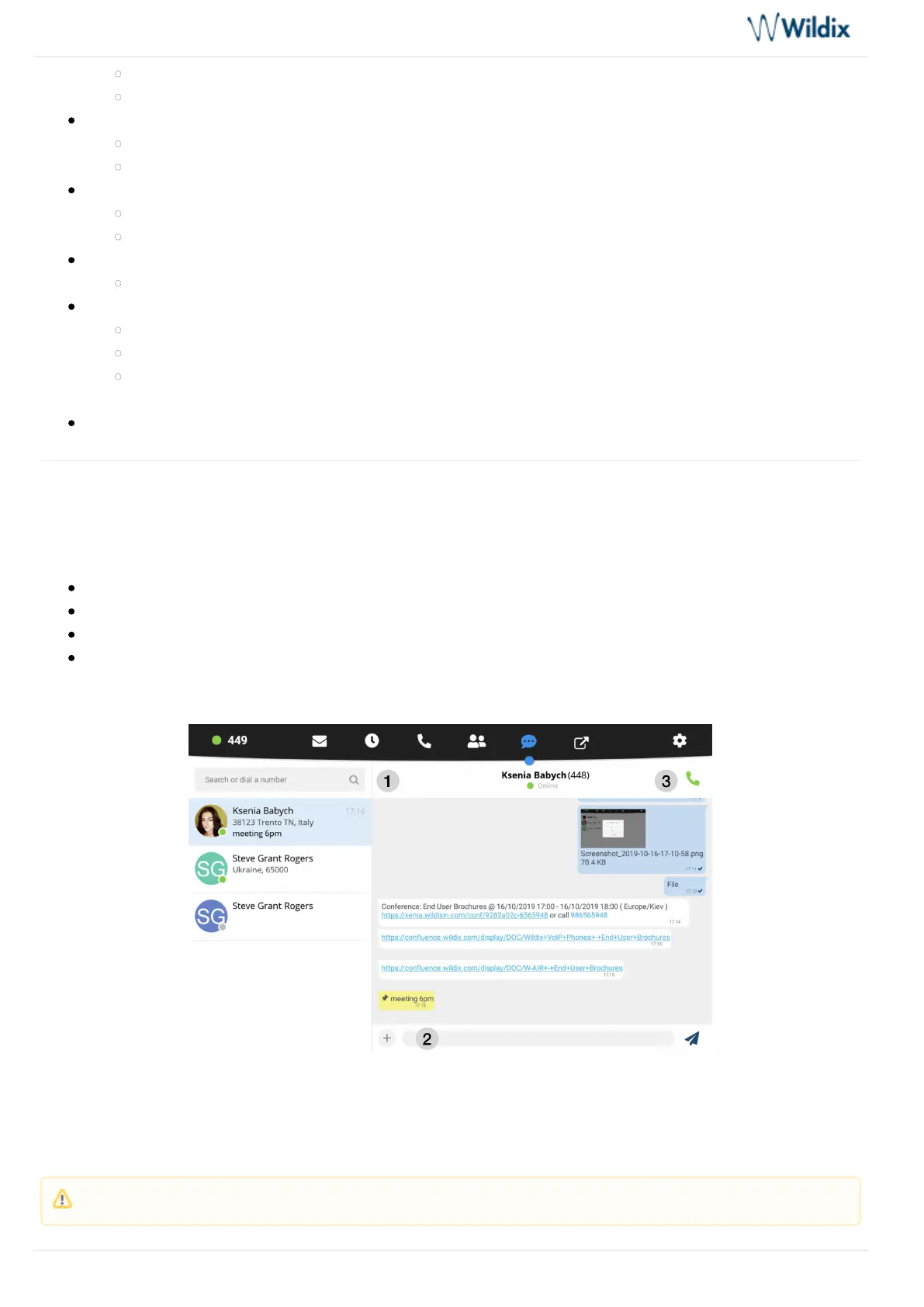
Chat
This menu allows you to:
Start a chat
Send files and Post-It messages
Monitor presence status / location of colleagues
Place a call
You can disable / enable visual new chat messages notifications in Phone App -> Settings Advanced.
1 – Search field
2 – Tap to write a message, send a file, a photo (up to 100Mb) / Post-It
3 – Call
Note: You can also start a chat form live search results and History.


 To Next Page