Swift 2 X User Manual | English
15
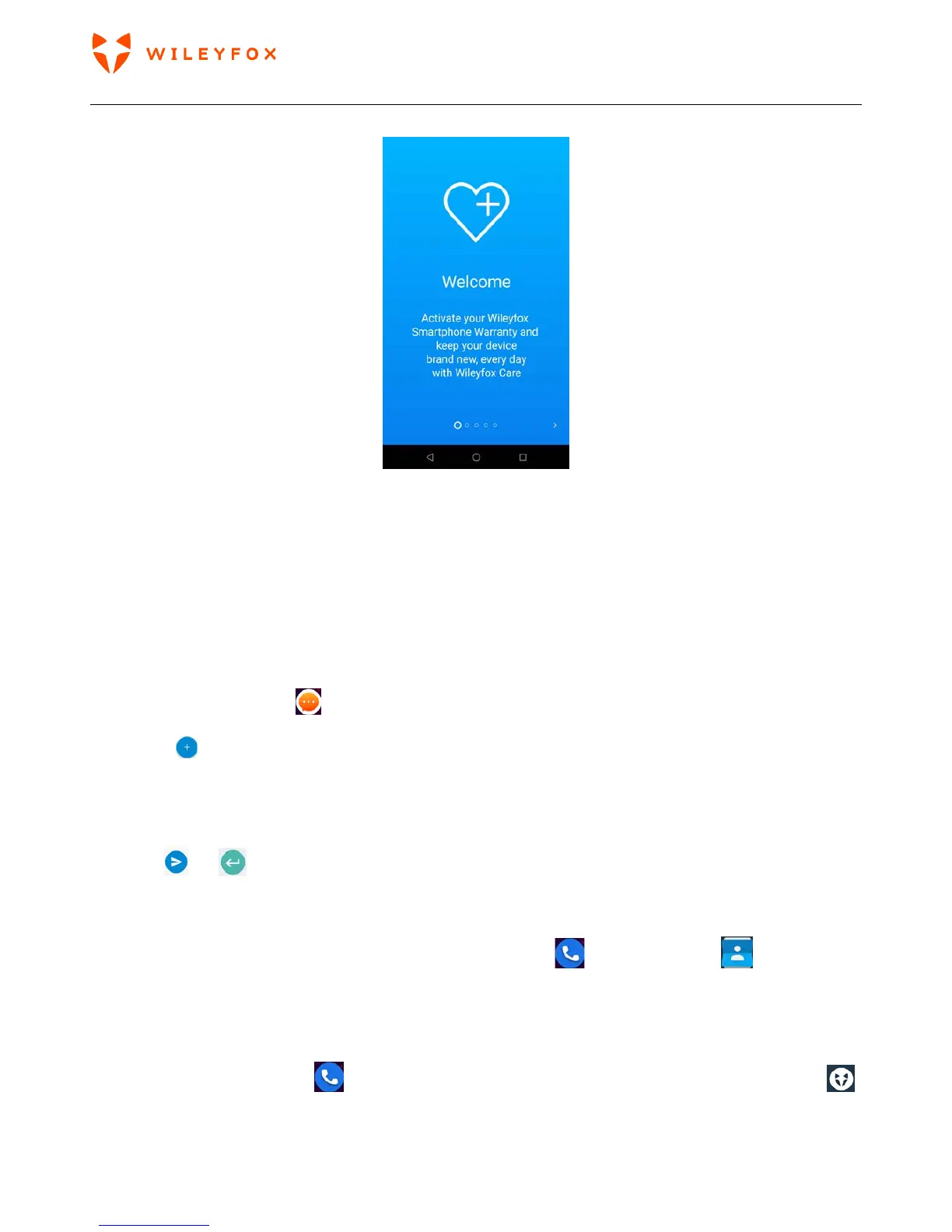
asking you to sign in with your google account.
Tap ‘Sign in with Google’ and your phone is set. You can: a) manually test your device’s hardware
performance; b) check the device’s rating and see what apps you could close to extend your battery life and
have a control on what apps are using your location on the background without really needing that right
now; c) 24/7 Live chat – talk to us anytime you need, help centre – access Manual; Quick Guide, Warranty,
FAQs; Send us your feedback – your opinion matters;
Send a text message (SMS)
To send an SMS from a Wileyfox phones:
1. Touch Messenger icon
on your Home screen.
2. Touch
to create a new message – In some instances when creating a message for first time you
will see a pop-up window on your screen asking you to allow Messaging to access photos. Media, and files
on your device. Please choose ‘Allow’.
3. At the top of the screen, enter a phone number or type a contact name, then type your message below
and touch or to send.
Make a phone call
Using a Wileyfox phone, you can place calls from the Phone app
, the Contacts app . That can be
done also via other apps, widgets and even on some web pages on your Chrome when a phone number is
displayed.
To place a call to one of your contacts:
1. Touch Phone App icon
on your Home screen or you can access it via the ‘Apps Tray Icon’ .
2. To choose someone to call, scroll up and down through your contacts. The phone by default will
open Favourites, but you can easily tap Recent or Contacts.


 To Next Page