EasyManua.ls Logo

Wimius K7 - SIGNAL LINES CONNECTION; Connect the Devices via the HDMI ports

Wimius K7
25 pages
Print Icon
To Next Page IconTo Next Page
To Previous Page IconTo Previous Page
Loading...
support01@wimius.com
Adjust
the
Horizontal
Zoom,
the
length
of
the
projection
screen
can
be
scaled
individually
by
70%~100%.
Adjust
the
Whole
Zoom,
the
whole screen
can
be
scaled
by
70%~100%.
Go
to
home
page-—Select
th
[
{5}
]
menu-—Select
the
reduce
display
size—Adjust
the
image
size
from
50%-100%
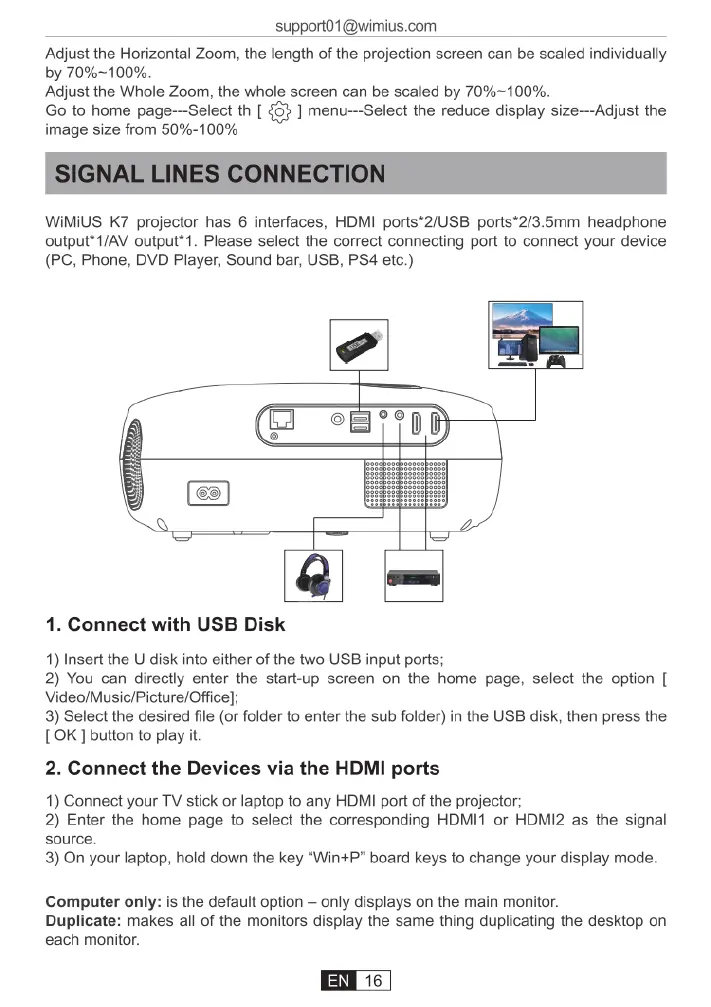
WIMIUS
K7
projector
has
6
interfaces,
HDMI
ports*2/USB
ports*2/3.5mm
headphone
output*1/AV
output*1.
Please
select
the
correct
connecting
port
to
connect
your
device
(PC,
Phone,
DVD
Player,
Sound
bar,
USB,
PS4
etc.)
1.
Connect
with
USB
Disk
1)
Insert
the
U
disk
into
either
of
the
two
USB
input
ports;
2)
You
can
directly
enter
the
start-up
screen
on
the
home
page,
select
the
option
[
Video/Music/Picture/Officel;
3)
Select
the
desired
file
(or
folder
to
enter
the
sub
folder)
in
the
USB
disk,
then
press
the
[OK]
button
to
play
it
2.
Connect
the
Devices
via
the
HDMI
ports
1)
Connect
your
TV
stick
or
laptop
to
any
HDMI
port
of
the
projector;
2)
Enter
the
home
page
to
select
the
corresponding
HDMI1
or
HDMI2
as
the
signal
source.
3)
On
your
laptop,
hold
down
the
key
“Win+P"
board
keys
to
change
your
display
mode.
Computer
only:
is
the
default
option
only
displays
on
the
main
monitor.
Duplicate:
makes
all
of
the
monitors
display
the
same
thing
duplicating
the
desktop
on
each
monitor.

Related product manuals